
Aerial photographs show the world from a viewpoint we rarely see with our own eyes. That novelty can hide editing mistakes, because a dramatic view forgives a lot. When you edit drone photos in Photomator, the goal is to keep that sense of scale while making colour, light and detail feel natural rather than exaggerated.
Drone files often have a particular look. Skies can be bright, ground detail can be hazy, and colours can shift with altitude and sun angle. A steady workflow helps you correct those issues without turning a landscape into a poster. Start with the whole image, then refine local areas only where they need help.
Straighten and set the horizon first
A tilted horizon is more noticeable from the air than from the ground, because the eye expects a level view. Straighten the image before judging colour or contrast. A small rotation can change the whole feeling of a coastline, a field pattern or a city grid. After straightening, crop only if an edge distraction remains. Keep enough space around the subject so the aerial scale is still clear.
Check the image at full size for haze and softness. Distance, heat and moisture can soften distant detail. Gentle contrast or clarity can help, but pushing those controls too far creates halos around trees, buildings and shorelines. If detail does not improve with a small adjustment, accept the atmospheric softness rather than forcing sharpness.
Colour that stays believable
White balance is the foundation for aerial colour. A warm sunset from above should stay warm, but a midday landscape should not turn yellow or cyan. Set white balance, then refine saturation with restraint. Grass, water and rooftops each have a natural range. When one of them looks electric, reduce saturation for that colour area or pull back the global change.
Skies deserve special care. A bright sky can dominate an aerial image, so recover highlights gently and avoid a deep blue that looks painted. If the sky and ground need different treatment, use a selective adjustment for the sky and keep the ground edit separate. That separation is often more natural than a single global change. For a related landscape approach, see the guide to editing landscape photos in Photomator. For warm light, the guide to editing golden hour photos in Photomator is also helpful.
Light, shadows and ground detail
From above, shadows tell the viewer about height, texture and time of day. Do not lift shadows so far that buildings and trees lose their form. A little shadow gives a field or a street its three-dimensional feel. At the same time, check dark areas for blocked detail. A gentle shadow lift, applied locally if needed, can reveal a road or a river without flattening the whole scene.
Exposure should protect the brightest area that matters. If a roof or a stretch of water is blown out, recover highlights before raising overall brightness. If the whole image is dark, raise exposure in small steps and recheck the sky after each change. Aerial editing is a balance between sky and ground, and that balance is easier to judge when you work slowly.
Patterns, scale and subject
Strong drone photographs often rely on pattern. Fields, roads, coastlines and rooftops create shapes that read best when contrast and colour are clean. Avoid local edits that break a pattern. A bright patch in the middle of a field pattern, or a dark spot in a water area, will draw the eye for the wrong reason.
Give the viewer a sense of scale. A road, a boat, a building or a tree line helps the eye understand height and distance. Do not crop away every human element in search of a clean abstract, unless abstraction is the deliberate subject. Scale is part of what makes aerial work compelling.
Frequently asked questions
Why do my drone photos look hazy?
Haze comes from distance, moisture and light in the air. Gentle contrast and careful highlight control can help, but heavy clarity or dehaze-style processing can create halos. A small, local adjustment is usually safer than a large global one.
Should drone photos be very saturated?
Usually not. Aerial colour already looks rich from height. Moderate saturation keeps grass, water and soil believable. If a colour looks unreal on a phone screen, it will look even more unreal when printed or viewed larger.
How do I fix a tilted drone horizon?
Straighten the image early in the workflow, using a clear horizon, coastline or building edge as a guide. Then crop any uneven edges and recheck the balance of sky and ground before continuing.
Can Photomator edit drone RAW files?
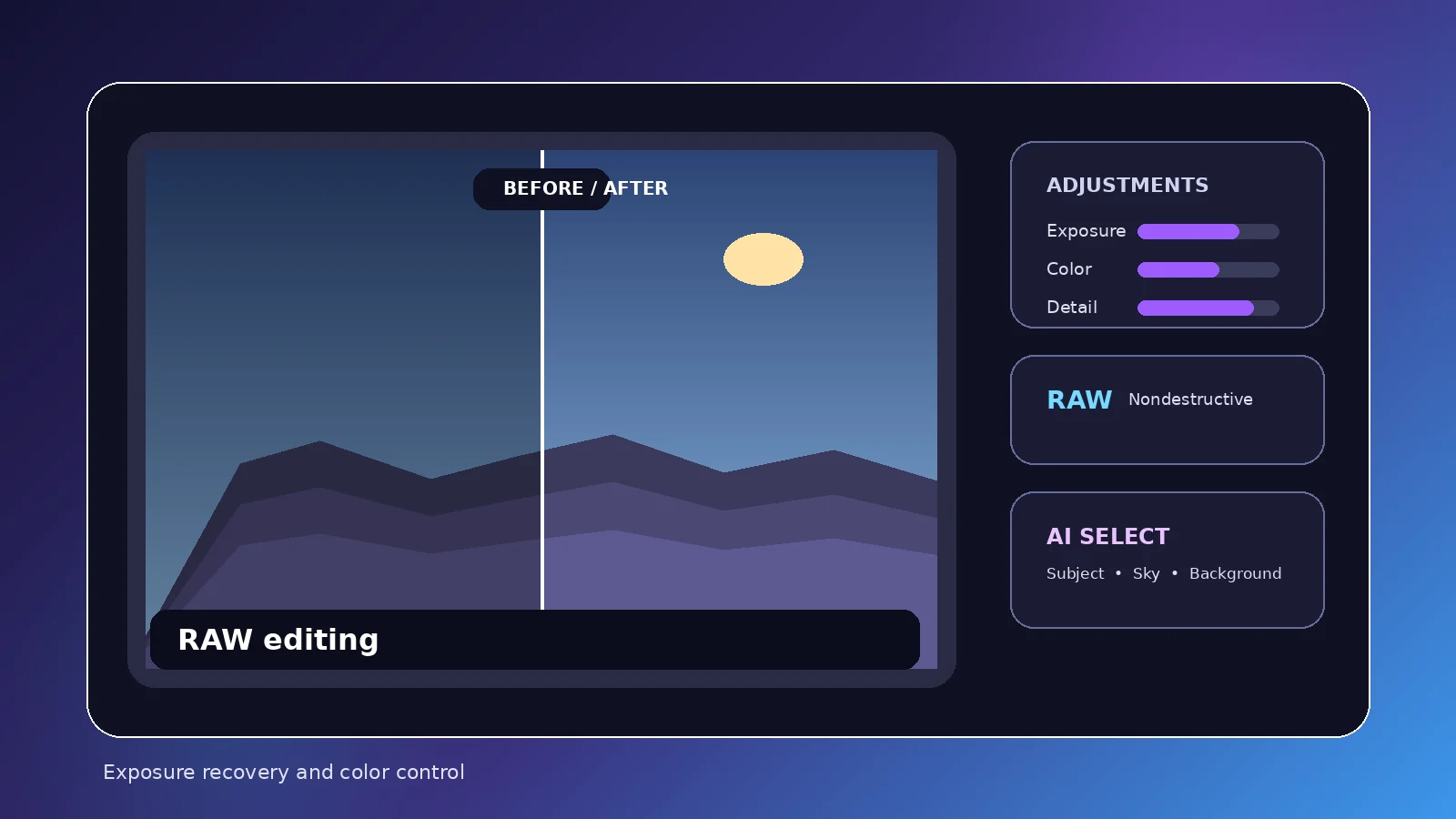
Photomator supports supported RAW formats, which gives more room for highlight recovery and white balance correction. Check current camera and format support for your drone model, and test one file before editing a whole flight.
What is the biggest drone editing mistake?
Over-processing. Excessive saturation, contrast and sharpening can turn a natural aerial view into a graphic illustration. A restrained edit that preserves scale and atmosphere usually ages better.
A natural aerial finish
Good drone editing respects the view. When the horizon is level, colour feels true and ground detail stays clear, the photograph invites the viewer to explore rather than to notice the editing. Work gently, check sky and ground together, and let the scale of the scene do the work.