
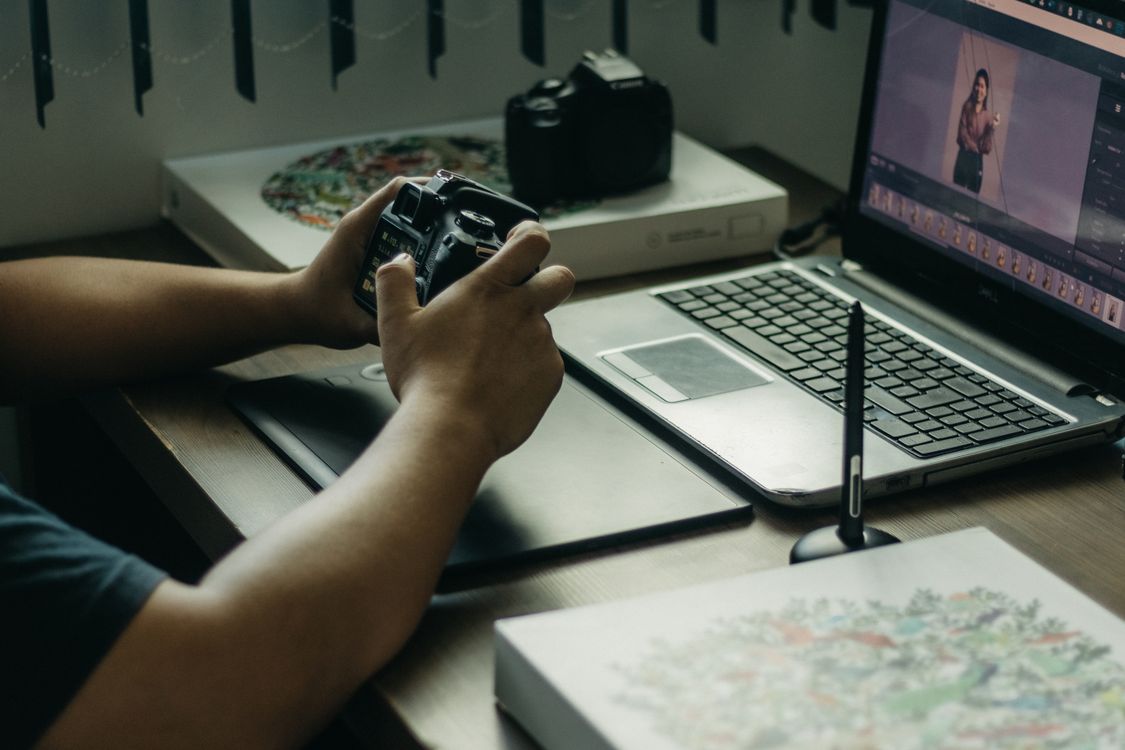
Learning how to edit a LinkedIn profile photo in Photomator is a quick way to make a first impression that feels professional and approachable. On LinkedIn, your photo is often seen at a very small size, next to a name and a headline, so clarity matters more than creativity. A good profile photo shows your face clearly, looks natural and gives no reason for a recruiter or client to pause.
Start with the right photo
Editing cannot rescue a photo where your face is hidden, out of focus or too far away. Choose a recent head-and-shoulders photo with even light on your face, a simple background and a natural expression. If the original is a group photo, crop tightly to yourself, but avoid cropping so close that your head touches the edge of the frame.
Once you have a good starting photo, open it in Photomator and check it at the size LinkedIn will show it. Zoom out, or view a small preview, and ask whether your eyes and smile are still clear. That small-size check should guide every edit that follows, because detail that only works at full size will not help your profile.
Crop for a small circle
LinkedIn crops profile photos into a circle, so keep your face centred with a little space above your head and around your shoulders. Avoid placing important detail at the corners, where the circle crop will cut it off. A square crop with your face taking up roughly two-thirds of the frame usually works well, and it leaves room for the photo to stay recognisable on both desktop and mobile.
Straighten the photo if your head tilts noticeably. A slight tilt feels casual in a holiday photo, but in a professional headshot it can look careless. Keep the horizon or background lines level where possible, and make sure your eyes sit on a level line across the frame.
Clean up light and colour gently
Fix exposure first. Brighten a dark face slightly, recover highlights if your forehead or shirt is blown out, and keep skin tones natural. Avoid heavy filters, strong saturation or dramatic vignettes, which can make a professional photo look like a social media post. The portrait guidance in how to edit portraits in Photomator on iPhone covers the same gentle approach, even if your photo was taken on a different device.
Next, tidy the background without removing it entirely. A slightly softened or simplified background keeps attention on your face, but a completely blank or obviously replaced background can look artificial. If the background is distracting, darken it subtly or crop it out, rather than applying a heavy blur that creates a halo around your hair.
Sharpen, export and check
Apply a modest amount of sharpening so eyes and hair stay clear at small size, then export at a good resolution. LinkedIn will compress the file, so starting from a clean, sharp export helps the final result hold up. For the best file settings, follow the best export settings for Photomator photos and choose a quality level that keeps detail without creating an unnecessarily huge file.
Finally, upload a test version and view your profile as a visitor would, on both a laptop and a phone. Check the photo in search results, in comments and in the profile header, since LinkedIn shows it at several sizes. If it still looks clear, natural and friendly in the smallest view, it is ready to use.
Frequently Asked Questions
Should a LinkedIn photo be formal?
It should match your industry, but it should always look tidy and approachable. A smart, simple headshot works for most fields, while a very casual or heavily filtered photo can undermine a professional profile.
Can I use a selfie as a LinkedIn photo?
Yes, if it is well lit, sharp and framed like a headshot. Avoid arm-visible selfies, busy backgrounds and strong filters, and ask someone else to take the photo if you can, since it usually looks more natural.
How much retouching is too much?
Remove temporary distractions such as a spot or a stray hair if you wish, but keep your features, skin texture and overall appearance recognisable. If a colleague would not recognise you from the photo, the retouching has gone too far.
What background works best for LinkedIn?
A plain, uncluttered background in a neutral colour works best. It keeps attention on your face and stays readable at small size, which is exactly what a profile photo needs to do.
How often should I update my LinkedIn photo?
Update it when your appearance changes noticeably, or every few years at most. A current photo builds trust, especially when people meet you after finding you online.
A strong LinkedIn photo does not need to be dramatic. Clear, natural and well cropped is enough to make a confident first impression.