
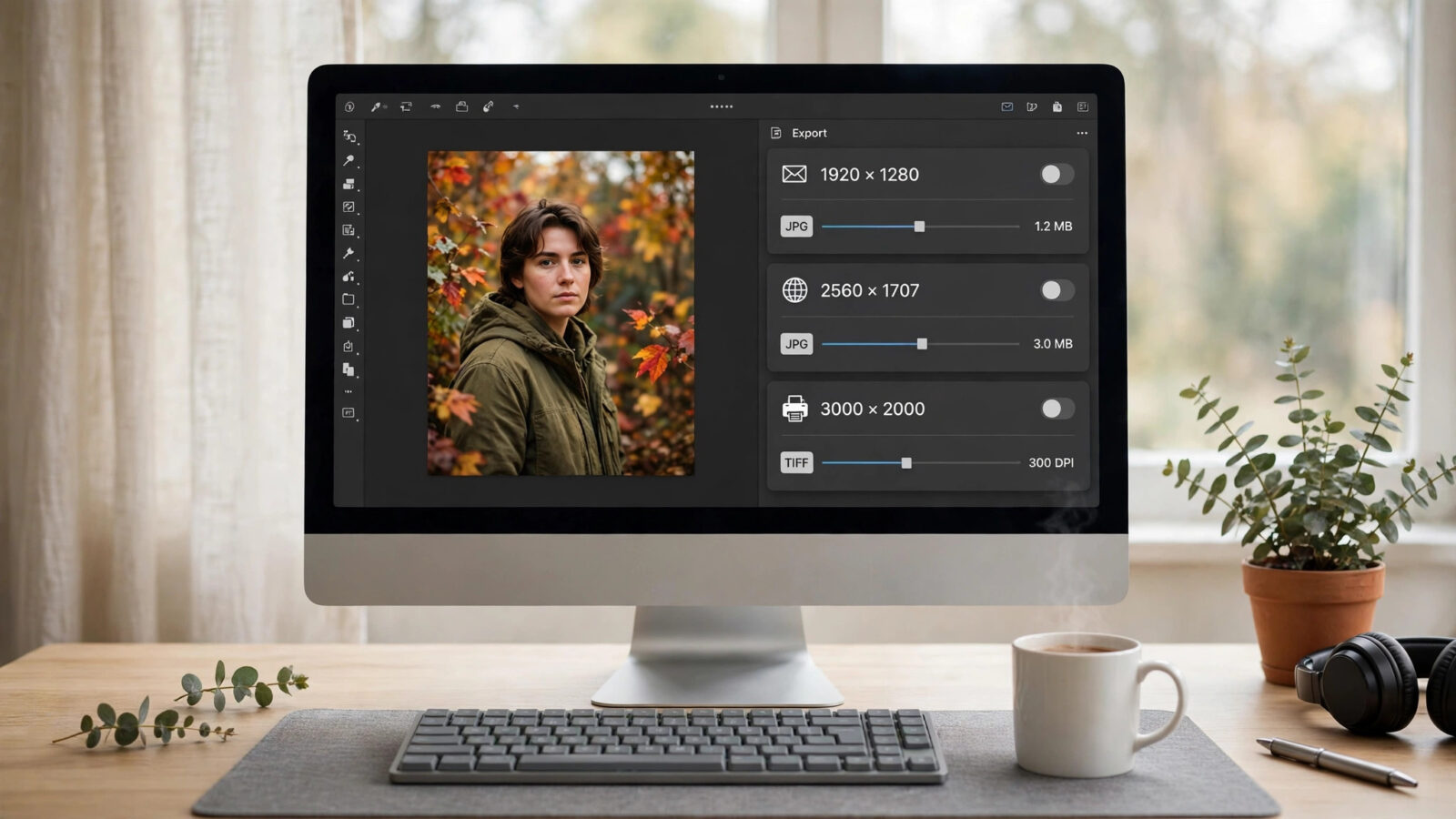
Modern cameras and phones produce beautifully detailed photos, but those files are often far bigger than the job requires. An email bounces because the attachment is too large, a website loads slowly under a heavy hero image, or a form rejects your upload for exceeding its pixel limit. In all of these moments it helps to know how to resize an image on mac properly.
Resizing, Explained Simply
Resizing an image means changing its pixel dimensions: the width and height that describe how much detail it contains. A photo that measures 6000 by 4000 pixels holds far more data than one at 1200 by 800 pixels, and the file size shrinks accordingly. Resizing is different from cropping. Cropping cuts away part of the picture to change its framing, as covered in our tutorial on how to crop a photo on Mac, while resizing keeps the whole picture and simply scales it up or down.
It also helps to separate dimensions from file size. Two images with identical pixel dimensions can have very different file sizes depending on format and quality settings. JPEG compression can shrink a file dramatically at the same dimensions, so export settings give you two levers: how many pixels, and how hard they are compressed.
When Should You Resize an Image?
Resize when the destination has a clear requirement. Websites and blogs usually display images well below full camera resolution, so uploading the original only wastes bandwidth and slows the page. Email services commonly limit attachment sizes, making a reduced copy the difference between sending and failing. Online forms, marketplaces, and application portals often state a maximum width, height, or file size that your upload must respect.
Print works in the opposite direction: you want as many pixels as the print size needs, and no unnecessary shrinking. Keep your full-size original as the master and resize copies for each specific use.
How to Resize an Image on Mac in Photomator
Photomator handles resizing as part of exporting, so your edited original is never overwritten. The workflow looks like this:
- Finish any edits to the photo first. Resizing is the last step, once colors and cropping are final.
- Open the export options for the image. Here you choose the file format for the copy, such as JPEG for general sharing or PNG when you need lossless quality or transparency.
- Set the target dimensions. Enter the width or height you need, keeping the aspect ratio locked so the other side scales proportionally and the image is never stretched or squashed.
- Adjust the quality setting if you chose a compressed format. Higher quality keeps more detail at a larger file size; slightly lower quality can cut the file size a lot with little visible difference on screen.
- Export the copy to a folder, giving it a clear name that notes its purpose, such as a suffix for web or email versions.
Because the original remains intact, you can repeat this process whenever a new destination appears, producing a phone-friendly copy today and a print-ready export tomorrow from the same master file. If the photo also needs a format change, the same export step can handle it, much like the conversion workflow in our guide to changing HEIC photos to JPG on iPhone.
Choosing the Right Size for the Job
For everyday screen use, think about where the image will actually appear. A photo inside a blog post rarely needs to be wider than the space it fills, and anything larger only adds weight. Images for full-screen viewing or high-density displays benefit from more pixels, so size those more generously.
For email and messaging, a mid-sized copy is usually the sweet spot: large enough to look crisp on a laptop screen, small enough to send instantly. For prints, match the pixel count to the physical size, keeping more resolution for larger prints. When a platform publishes recommended dimensions, follow those first, since they reflect how the image will be displayed on their side.
Making Images Bigger Without Ruining Them
Enlarging is harder than shrinking. Software cannot invent real detail that was never captured, so pushing a small image far beyond its original size usually produces softness or visible artifacts. Modest enlargements are generally fine, especially for screen viewing. When a small file genuinely must go bigger, Photomator’s AI Super Resolution tool can reconstruct a cleaner result than a plain enlargement.
Common Resizing Mistakes to Avoid
The most common mistake is overwriting the original with a small copy, permanently throwing away detail you may need later. Always export a copy instead. Another is unlocking the aspect ratio and distorting the image; faces and logos reveal stretching instantly. Finally, avoid enlarging an already small copy for an important job: go back to the largest original you have and resize down from there.
Frequently Asked Questions
Does resizing an image reduce its quality?
Shrinking an image discards pixels, so the copy holds less detail than the original, though it can still look perfect at its intended display size. The original file is unaffected when you resize through export, so no quality is lost where it matters most.
What is the best size for images on a website?
Match the image width to the widest space it will fill on the page, and avoid uploading full camera-resolution files. This keeps pages fast while looking sharp. On high-density screens, exporting at up to twice the display width is a reasonable approach.
Can I resize an image on Mac without Photomator?
Yes. Preview can adjust image dimensions, and the Photos app can export smaller copies. Photomator is more convenient when resizing is part of a wider editing workflow, because you can edit, then export exactly the size and format you need in one place.
Should I resize before or after editing?
Resize last. Cropping, retouching, and color work are all best done at full resolution, where you have the most detail to work with. Exporting a resized copy at the end preserves the master file and gives the cleanest result.
Conclusion
Resizing is a small finishing step that makes your photos practical: light enough to email, fast enough for the web, and still faithful to the original you keep safely untouched. Edit first, export a copy at the dimensions your destination needs, keep the aspect ratio locked, and name the file for its purpose. Once this becomes habit, oversized attachments and sluggish pages stop being a problem.