
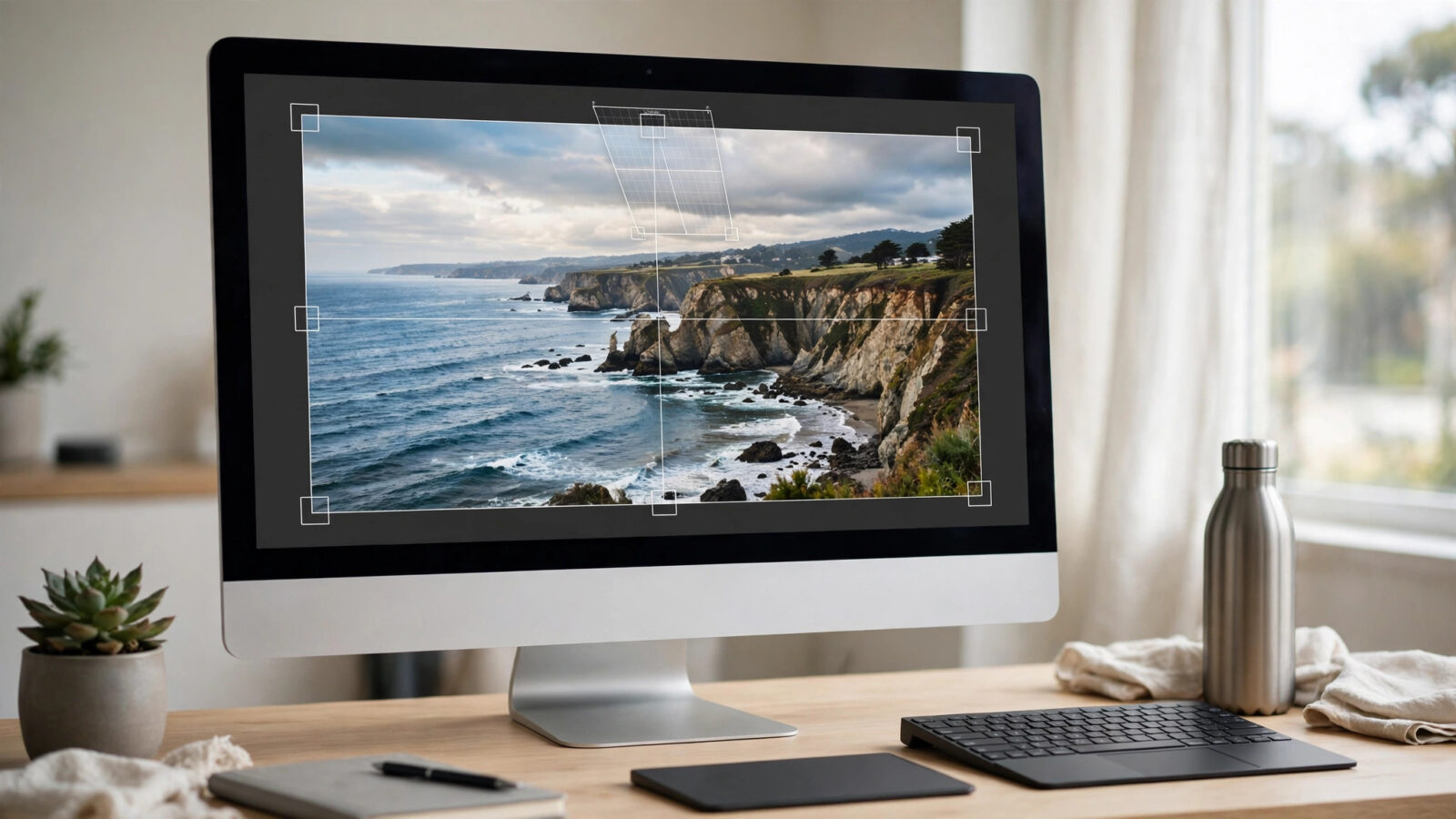
Cropping is often the fastest way to rescue a photo that is almost right. A distracting edge, a tilted horizon, or a subject lost in empty space can all be fixed in seconds once you know how to crop a photo on mac. On a Mac, Photomator makes this especially easy: it pairs a simple crop tool with nondestructive editing, so you can reframe a shot, change your mind later, and never damage the original file. This guide walks through the complete process, from opening your image to choosing an aspect ratio that suits where the photo will be used.
Why Cropping Matters More Than You Think
Cropping is not just about cutting parts of a picture away. It is one of the core composition tools in photography. A thoughtful crop can move your subject onto a stronger position in the frame, remove clutter competing for attention, and change the mood of an image entirely.
Cropping also has a practical side. Different places need different shapes: a wide banner for a website header, a square for a social profile, a vertical frame for a phone wallpaper. Learning to crop deliberately means your photos fit their destination properly instead of being squeezed or cut off awkwardly by an app. If you are new to the app itself, our guide to getting started with Photomator covers the interface basics before you dive in here.
Before You Crop: Two Quick Checks
First, work on the best version of the file you have. If you shot in RAW, crop the RAW file rather than a small exported copy, because the extra resolution gives you more freedom to tighten the frame. Our overview of editing RAW photos in Photomator explains why the format matters for quality.
Second, remember that cropping always removes pixels. A gentle trim barely matters, but cropping a small corner out of a large photo leaves a low-resolution result that may look soft when printed or viewed full screen.
How to Crop a Photo on Mac in Photomator, Step by Step
Open Photomator on your Mac and open the photo you want to work on, either from your photo library or by browsing to the file. Then follow these steps:
- Select the Crop tool from the toolbar. A crop rectangle appears over your image, with handles on the corners and edges.
- Drag the corners or edges inward to tighten the frame around your subject. The area outside the rectangle is dimmed, so you can preview exactly what will remain.
- Drag inside the rectangle to reposition it without changing its size. This is useful when the shape is right but the framing needs a small shift.
- Use the aspect ratio options if you need a specific shape, such as a square or a wide rectangle, instead of freeform cropping. Locking the ratio keeps the proportions consistent while you resize the frame.
- Straighten the photo if the horizon or a building edge leans. The crop tool’s straighten control rotates the image slightly while the frame stays level, and Photomator adjusts the crop so no empty corners appear.
- Confirm the crop to apply it. Because editing in Photomator is nondestructive, you can return later, reopen the crop tool, and widen or redo the frame at any time without losing quality.
Take a moment to check the edges of the frame: small distractions like a stray branch or half a sign are easy to miss while you focus on the subject, and a slightly tighter crop often removes them cleanly.
Choosing the Right Aspect Ratio
Freeform cropping is fine for personal photos, but fixed ratios help when a photo has a job to do. A 1:1 square suits profile pictures and many social feeds. A 3:2 or 4:3 ratio matches the natural shape of most camera sensors and works well for general prints. Wide 16:9 frames fit video thumbnails, presentations, and website banners, while vertical ratios like 4:5 or 9:16 are made for phone screens and stories.
When in doubt, keep the original ratio for your main version and export extra cropped copies for specific uses, so you always keep a full-frame master.
Straightening and Composition Tips
A level horizon is the single most noticeable fix in landscape photos, so use the straighten step even when the tilt looks minor. For composition, try placing your subject off-center, roughly on one of the thirds of the frame, rather than dead center. Leave a little space in front of a person or animal looking sideways, so the image feels open in the direction of their gaze.
Also, crop with restraint. Zooming right into the subject is tempting, but a little breathing room usually looks more natural and leaves flexibility for future edits or printing.
Frequently Asked Questions
Does cropping reduce photo quality?
Cropping removes pixels, so a heavily cropped photo has less resolution than the original. A modest crop from a full-size photo still leaves plenty of detail for screens and normal prints, but avoid extreme crops from small files if you plan to print large.
Can I undo a crop in Photomator later?
Yes. Photomator edits are nondestructive, which means your crop is stored as an instruction rather than a permanent cut. You can reopen the crop tool at any time, restore the full frame, or try a different ratio without starting over.
What is the best aspect ratio for social media?
It depends on the platform and placement. Squares work almost everywhere, vertical 4:5 images take up more room in feeds, and 9:16 suits stories and short vertical video covers. Keep an uncropped master copy so you can make each version from the original.
Can I crop a photo on Mac without Photomator?
Yes, the built-in Photos app and Preview can also crop images, and they are fine for a quick trim. Photomator is the better choice when you want nondestructive editing, straightening, and a crop that sits inside a fuller editing workflow.
Conclusion
Cropping well is a small skill with an outsized effect. Open your photo in Photomator, frame it with the crop tool, lock an aspect ratio when the destination demands one, straighten anything that leans, and rely on nondestructive editing to experiment freely. With a few deliberate drags of the mouse, an ordinary snapshot becomes a composed, purposeful image that fits exactly where you intend to use it.