
Introduction
A Mac is a natural home for photography: a sharp Retina display, fast storage, and a library that already holds the pictures from your iPhone. What turns that hardware into real results is a repeatable workflow, and that is where photo editing on mac becomes a calm sequence you follow every time instead of a hunt through menus. Photomator, made by the Pixelmator Team for Mac, iPhone, iPad, and Vision Pro, fits that sequence well. It works with the photos already on your Mac, supports RAW files, and keeps edits nondestructive, so originals stay safe while you experiment. This guide walks through a complete Mac-centred workflow, from import to export, with Photomator as the tool at every step.
Why a Workflow Makes Photo Editing on Mac Faster
Random editing produces random results: one photo gets heavy contrast, the next gets none, and an hour disappears into sliders you did not need. A fixed workflow solves this because you always make global decisions first, local decisions second, and creative decisions last. Photomator supports that approach: adjustments are organised logically, edits can be copied between similar photos, and everything is nondestructive, so you can revisit any step later. Treat the steps below as a checklist; once they become habit, most photos take only a few minutes.
Step 1: Bring Your Photos In and Choose the Keepers
Start by getting photos into one place. If your pictures live in the Photos library on your Mac, Photomator can browse it directly; if you shoot with a camera, import files into a clearly named folder first, organised by date or event. Then be ruthless: flag only frames that are sharp, well exposed, and genuinely worth editing. This is also the moment to notice which shots are RAW. RAW files hold more light and colour information, so they reward careful editing, as explained in our guide to RAW editing in Photomator. iPhone JPEGs still edit beautifully; they simply tolerate smaller adjustments.
Step 2: Fix the Frame Before Anything Else
Before touching colour, fix the composition. Straighten a tilted horizon, crop out distractions at the edges, and check the aspect ratio suits where the photo will be used. Doing this first stops you perfecting parts of the image you later cut away, and it changes how you judge exposure, because a tighter frame often looks brighter or darker than the loose original. Photomator’s crop tools on Mac are quick with a trackpad or mouse, and levelling a horizon is a one-gesture job. Resist cropping too tightly; leave room around the subject.
Step 3: Correct Light, Then Colour
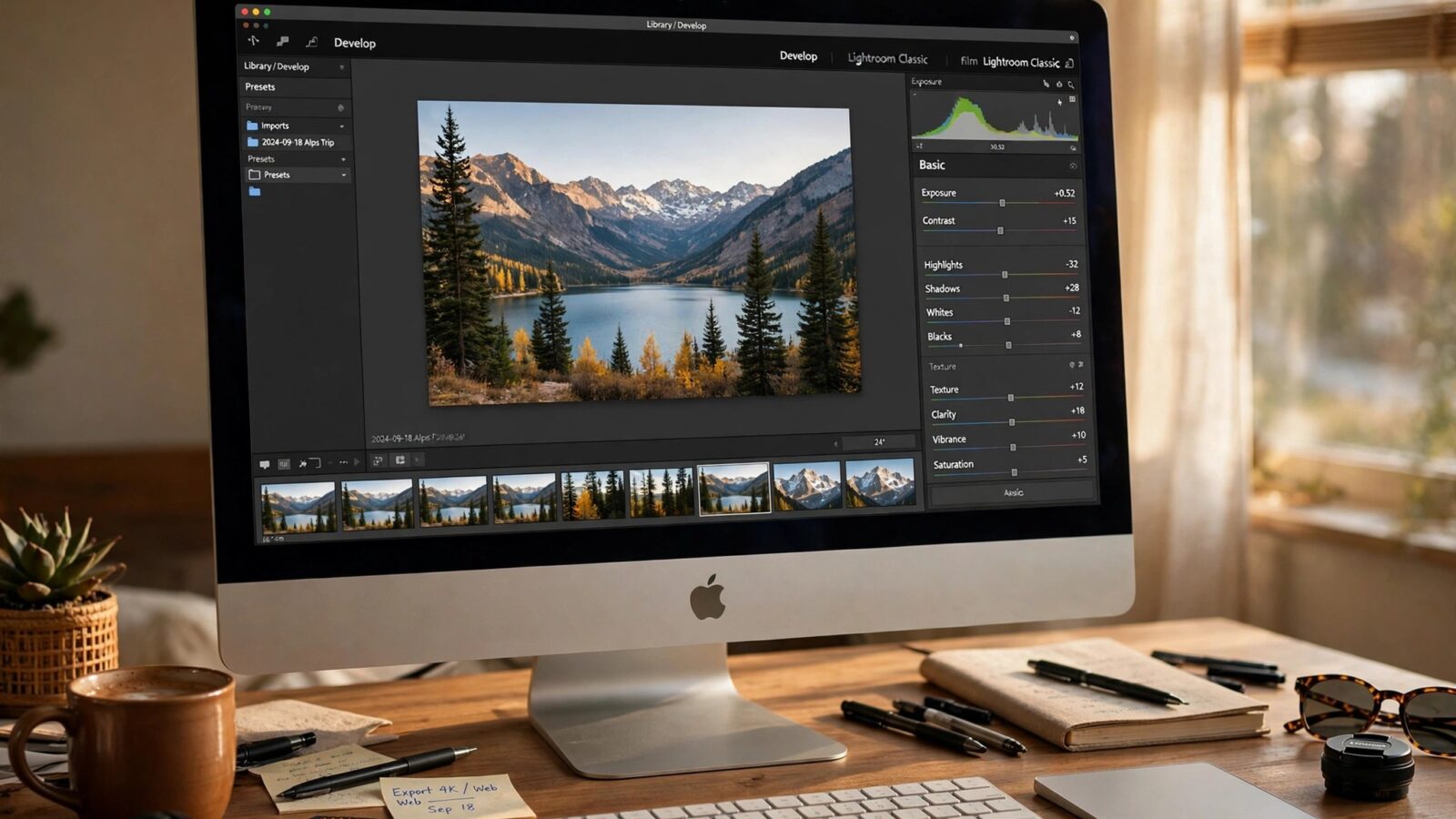
With the frame settled, move to the adjustments that shape the whole image. Begin with exposure and brightness until the photo looks naturally lit, then set contrast so shadows and highlights separate without crushing detail. Use highlights and shadows controls to recover a bright sky or open up a dark foreground rather than forcing the whole image brighter or darker. Only after the light feels right should you touch colour. Adjust white balance first if whites look blue or orange, then raise vibrance gently; saturation affects every colour equally and turns artificial quickly, so vibrance is usually safer. Judge these global steps zoomed out, so you see how the photo actually reads.
Step 4: Make Local Adjustments Where the Photo Needs Them
Global edits rarely finish a photo. A face may sit in shadow while the background is bright, or one corner may distract from the subject. In Photomator you can paint adjustments onto specific areas with brushes, gradients, or automatic subject and background selections, lightening only a face or deepening only a sky. Our walkthrough of masks and selective editing shows how these selections work in practice. Keep local edits subtle: the viewer should feel the effect, not see the editing. Toggle before-and-after regularly; if the edit does not look better at a glance, you have gone too far.
Step 5: Clean Up, Sharpen, and Export with Intent
Finish with housekeeping. Zoom in to check for dust spots or small distractions and remove them with the repair tools. Apply sharpening last, and keep it modest; a photo for a phone screen needs far less than one headed for a large print. Photomator also offers machine-learning tools that reduce noise in high-ISO shots or upscale an image, which fit naturally into this final stage. Exporting is a decision, not an afterthought: save a full-quality copy for your archive, and export smaller versions for sharing rather than sending the huge original everywhere. Because edits are nondestructive, you can return later and export a different size without redoing the creative work.
Frequently Asked Questions
Is Photomator only for Mac, or does it work elsewhere?
Photomator is built by the Pixelmator Team for Apple platforms: Mac, iPhone, iPad, and Vision Pro. It does not run on Windows or Android. It integrates with the Photos library and iCloud, so an edit started on one device is available on the others.
Do I need to shoot RAW to edit photos on a Mac?
No. JPEG and HEIF photos from an iPhone edit very well, and most everyday corrections work fine on them. RAW files simply give more flexibility with exposure and white balance, which helps in difficult light. If a photo matters to you, RAW is worth trying; for casual snapshots, it is optional.
Will editing in Photomator change my original photos?
No. Photomator edits nondestructively, so adjustments are stored separately from the original file. You can remove every change and return to the untouched photo anytime, or copy your edits to a similar photo instead of starting from scratch.
How long should editing one photo take?
With a fixed workflow, most photos need only a few minutes: choose the frame, correct light and colour, add one or two local touches, then export. Difficult images, such as noisy low-light shots, take longer, but the same order of steps still applies.
Conclusion
Good photo editing on a Mac is mostly good process. Bring photos into one place, choose the keepers honestly, fix the frame, correct light before colour, refine small areas selectively, and export with a purpose. Photomator supports every step on Mac while keeping originals untouched, and the same library continues on iPhone and iPad away from your desk. Follow this checklist for your next shoot to edit faster and more consistently.