
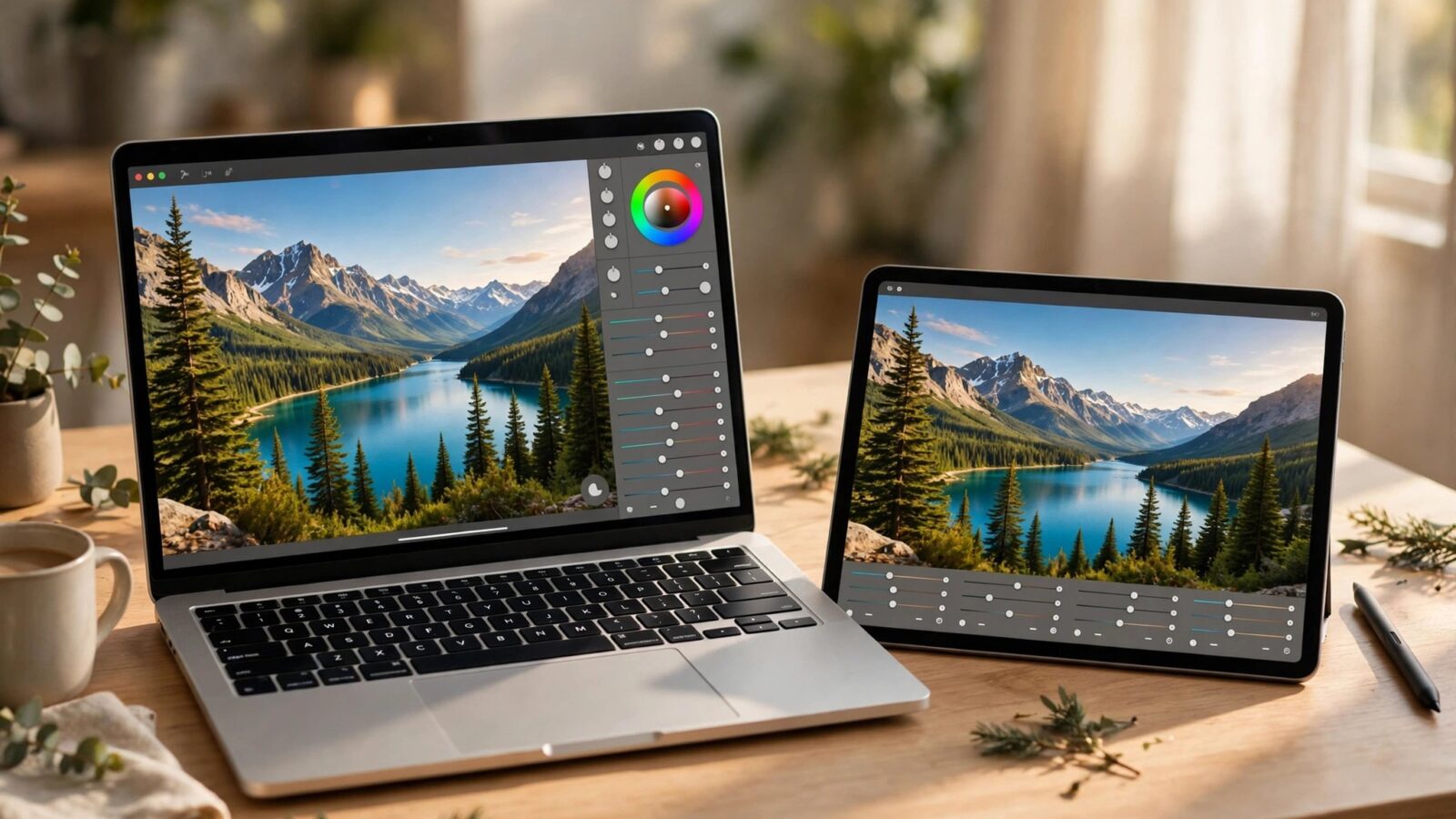
Learning how to edit landscape photos in Photomator on iPad is a good match for the device itself. The large screen makes it easier to judge skies, horizons and fine detail, while Apple Pencil and touch controls make selective edits feel natural. The challenge with landscapes is restraint: the scene is already impressive, so the edit should clarify light and depth rather than add drama the scene does not need.
This guide follows a landscape workflow that works for mountains, coasts, forests and city skylines. It covers exposure balance, sky and foreground separation, colour depth, detail control and a final check for halos and unnatural edges.
Balance the Whole Scene First
Start with a global correction. Landscape photos often have a bright sky and a darker foreground, so recover highlights carefully and lift shadows only enough to reveal detail. If you lift shadows too far, the photo loses depth and starts to look flat. A small amount of contrast, applied after recovery, usually restores the sense of distance.
Check the horizon and straighten it if needed before you make local edits. A tilted horizon is much harder to ignore once colour and detail have been added, and cropping after editing can change the balance you worked to create. White balance also matters here: a landscape at golden hour should stay warm, but not so warm that greens turn yellow and rocks turn orange.
Work From RAW When the Light Is Difficult
High-contrast landscapes benefit most from RAW or Apple ProRAW files, because they retain highlight detail in skies and shadow detail in foregrounds. If you are shooting a sunrise, a sunset or a scene with bright water, that extra information gives you room to balance the frame without harsh transitions. The guide to editing RAW photos in Photomator explains how to use that headroom without flattening the image.
Separate Sky, Foreground and Subject
Most landscape edits improve once sky and foreground are treated separately. A sky often needs a small reduction in exposure and a slight cooling or warming shift, depending on the time of day. The foreground, by contrast, may need a gentle lift in shadows and a touch more clarity to bring out texture in rock, grass or water.
Use gradient or brush selections for these changes, and feather the edges well. A hard line where a sky edit meets a mountain ridge is one of the most obvious signs of a heavy edit. Zoom in along ridges, trees and buildings after a selective adjustment, and soften any edge that looks like a cut-out.
Handle Colour and Detail With Care
For colour, favour depth over saturation. Deepening blues and greens selectively usually looks better than raising global saturation, which can make foliage neon and skies electric. A gentle vibrance change can help, but check greens and yellows first, because they saturate quickly in landscape photos.
Detail needs the same restraint. A moderate increase in texture or clarity can bring out rock, leaves and water, but too much creates halos around trees and a crunchy look in skies. Apply detail selectively to the foreground or main subject, and leave large areas of sky smooth. If you use Denoise or Super Resolution, apply them before heavy sharpening, so you are not sharpening noise.
A Simple Landscape Checklist
- The horizon is straight and the composition still feels balanced.
- Highlights in the sky hold detail and shadows hold texture.
- Sky and foreground edits blend without visible edges or halos.
- Greens and blues look deep, not neon or oversaturated.
- The main subject still leads the eye through the frame.
Use iPad Tools to Your Advantage
On iPad, use the larger canvas to check the whole image and the zoomed detail in turn. Apple Pencil is useful for precise brush work around trees and ridgelines, where a finger can easily spill an adjustment into the sky. If you do not use a pencil, a smaller brush with a soft edge and lower flow will give you more control than one large, hard pass.
It also helps to save a consistent starting point for similar light. A landscape shot in the same golden-hour conditions as a previous photo can often start from the same broad correction, then be adjusted for that specific frame. The Photomator presets guide shows how to build that kind of reusable starting point without locking every photo into the same look.
Common Landscape Mistakes on iPad
The most common mistake is over-processing the sky. A sky that is too dark, too saturated or too detailed draws attention away from the landscape itself. Another frequent problem is applying the same strong edit to every scene. A misty forest, a bright coast and a desert sunset need different exposure, contrast and colour decisions, even if they were edited on the same iPad.
Finally, avoid judging the edit only at a small size. A landscape that looks clean as a thumbnail can reveal halos, noise and banding in the sky at full size. Check the sky and horizon closely before export, especially after selective adjustments.
Conclusion
Editing landscapes in Photomator on iPad works best as a balanced process: correct the whole scene, separate sky and foreground, deepen colour selectively, and control detail where it matters most. When the result still feels like the place you stood in, with clearer light and depth, the edit has done its job.
Frequently Asked Questions
Can I edit RAW landscape photos in Photomator on iPad?
Yes. RAW and Apple ProRAW files give you more room to recover sky highlights and foreground shadows, which is especially useful in high-contrast landscape light.
How do I avoid halos around trees and mountains?
Use selective adjustments with well-feathered edges, avoid extreme clarity or sharpening near ridgelines, and zoom in to check edges before export.
Should I increase saturation for landscape photos?
Usually only a little. Selective colour changes to blues and greens tend to look more natural than a large global saturation increase, which can quickly make foliage and skies look artificial.
Is Apple Pencil useful for landscape editing in Photomator?
Yes, for precise brush work around trees, ridges and buildings. A smaller, softer brush also works well if you edit with touch alone.