
Introduction
Editing every photo from scratch is slow, especially when you shoot the same kinds of subjects in the same kinds of light. That is why photomator presets are such a useful part of the app: a preset saves a complete set of adjustments, such as color, tone and contrast, so you can apply a finished look to a new photo with a single tap and then fine-tune it to taste.
Presets are not about making every photo look identical. Used well, they give you a strong, consistent starting point that matches your style, and you stay in control because every adjustment a preset applies can still be changed afterwards.
What a Preset Actually Does in Photomator
A preset is simply a saved recipe of adjustment values. When you apply one, Photomator sets its color and light adjustments, and any other included settings, to the values stored in that recipe. Nothing about the process is permanent: Photomator edits are non-destructive, so the original photo is never altered, and you can change, reduce or completely remove a preset’s effect at any time.
This makes presets different from one-tap filters in basic photo apps: after applying a preset, every individual slider remains available for you to refine. If a look is perfect for the sky but too strong on skin tones, you can soften the relevant adjustments instead of abandoning the look entirely.
Finding and Browsing the Built-In Photomator Presets
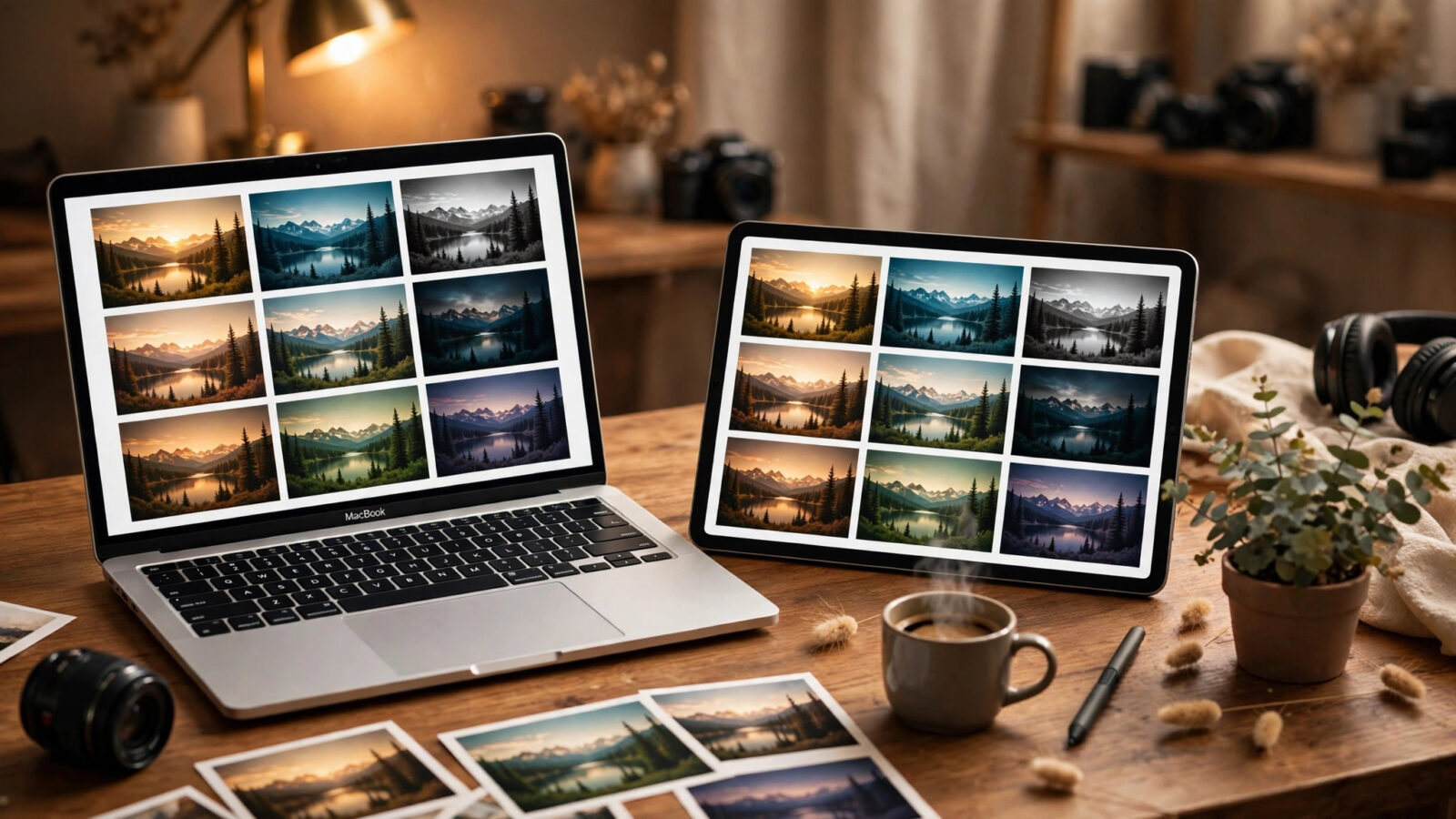
Photomator includes a built-in collection of presets grouped by style and purpose, so you can browse looks suited to landscapes, portraits, black and white work and other common editing directions. Open a photo for editing and look for the presets area of the editing interface, where the available collections are presented as visual options you can preview on your actual photo rather than on a sample image.
Previewing on your own photo matters, because a preset that looks dramatic on a bright landscape may behave very differently on a soft indoor portrait. Work through a collection slowly, tap a few candidates, and compare each against the unedited version using the before-and-after view.
How to Apply Photomator Presets and Fine-Tune the Result
Applying a preset is deliberately simple: select it, and the adjustments are applied to your photo instantly. The real craft is in what you do next. Start by checking exposure and white balance, because those two things vary most from photo to photo and no preset can guess them perfectly for every scene. Then adjust the overall intensity of the look if your workflow offers a way to scale it back, or reduce the strongest individual adjustments manually.
A practical routine is to apply the preset, fix the basics, and then make one or two creative decisions of your own, such as lifting shadows on a face or calming an oversaturated sky. For problems in specific areas rather than the whole frame, localized tools work beautifully alongside presets; our guide to masks and selective editing in Photomator shows how to target one part of a photo while leaving the preset’s global look intact.
Creating Your Own Custom Presets
Your own presets are where the real time savings begin, because they capture your personal style instead of a generic look. The process starts with a single photo: edit it carefully until you are genuinely happy with the result, using the adjustments you find yourself reaching for again and again. Then save those adjustment settings as a new custom preset and give it a clear, descriptive name.
Good candidates for custom presets are your repeatable situations: the warm look you like for family portraits, the clean and bright style you use for food photos, or the moody contrast you apply to street scenes. Build them from photos that are typical of each situation, not from extreme edge cases, so the preset behaves predictably on most shots.
Managing and Organizing a Growing Preset Collection
A preset library only stays useful if you can find the right look quickly. Keep names descriptive, including the subject and mood, rather than vague labels you will forget in a month. Delete or rework presets you never use; a short list of trusted looks beats a long list of maybes every time you sit down to edit.
It also helps to review your collection occasionally as your taste evolves; a preset you loved a year ago may now feel too heavy-handed. When something in your library or edits does not behave as expected, our Photomator troubleshooting guide covers the common fixes.
FAQ
Are presets the same as filters?
They are related but not identical. A filter is usually a fixed effect, while a preset stores real adjustment values that you can inspect and change afterwards. That flexibility is why presets suit serious editing better: the look is a starting point, not a locked result.
Will a preset work on every photo?
A preset gives a consistent starting point, but no single recipe suits every photo perfectly. Lighting, colors and subject matter all change how a look lands, so expect to fine-tune exposure, white balance and intensity on most photos after applying one.
Can I use presets on RAW photos?
Yes. Presets apply their adjustments on top of whatever file you are editing, including RAW photos, and everything remains non-destructive. Many photographers prefer building presets on RAW files because the extra data gives the adjustments more room to work.
How many custom presets should I create?
Start small: one preset for each of your repeatable shooting situations is plenty. A handful of well-tested personal looks will save you far more time than dozens of untested ones you hesitate over during every edit.
Conclusion
Presets turn your best editing decisions into reusable tools. Start with the built-in collections to learn what kinds of looks suit your photos, fine-tune every application instead of accepting it blindly, and then save your own favorite edits as custom presets with clear names.