
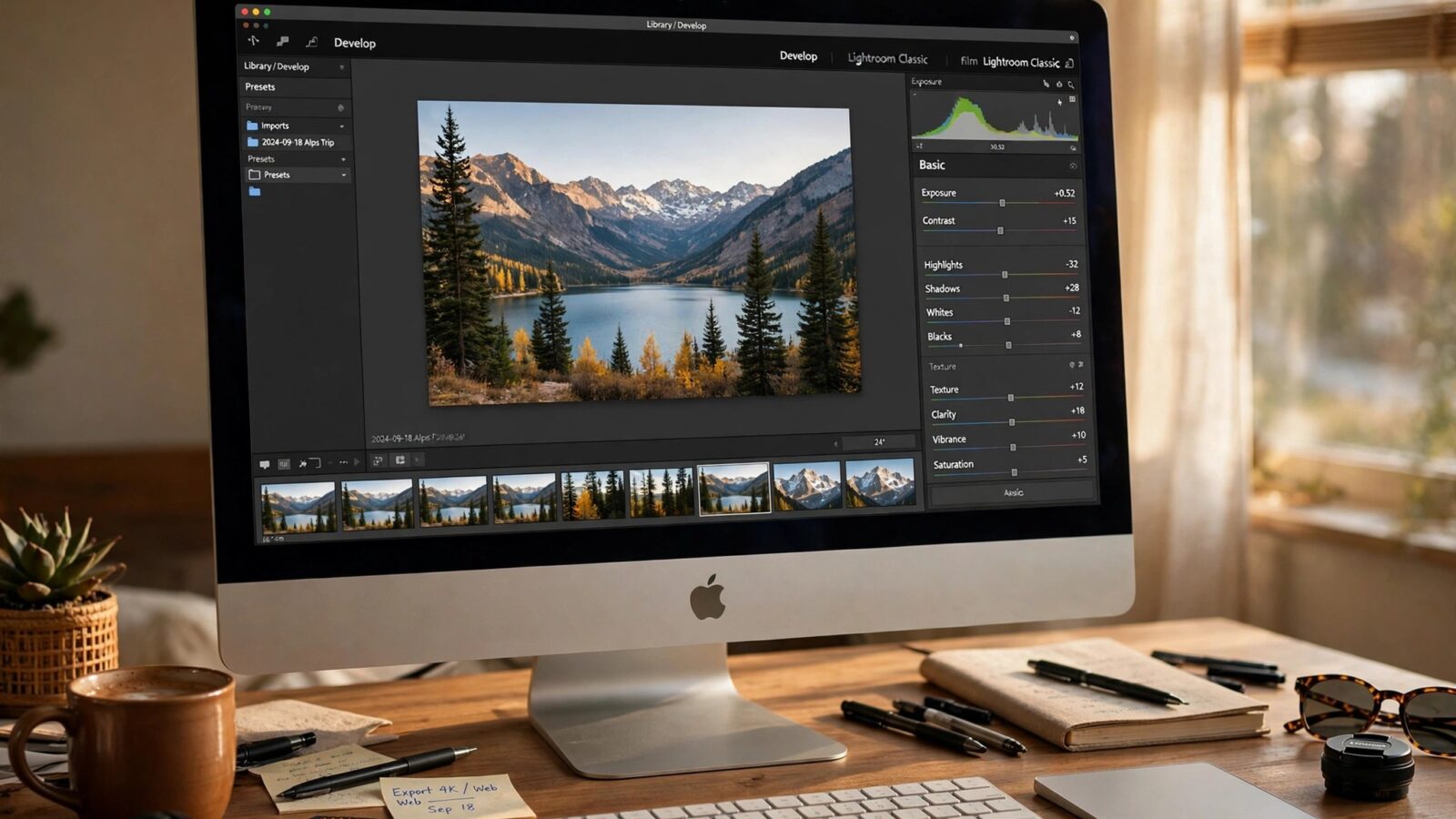
Learning how to sync Photomator edits across Apple devices is really about understanding where your photos live. Photomator edits photos in your Apple Photos library, and when that library syncs through iCloud Photos, the edited version can appear on your Mac, iPhone and iPad without you exporting a new file each time. When sync seems to fail, the cause is usually a Photos or iCloud setting, not the edit itself.
This guide explains the setup that makes sync reliable, how to move between devices in a normal workflow, and how to fix missing edits, duplicates and outdated versions without losing work.
How Photomator Sync Works in Practice
When you edit a photo from your Photos library in Photomator and save it back, the edited version becomes the current version of that photo in Photos. If iCloud Photos is turned on for the same Apple Account on each device, Photos uploads that updated version and makes it available to your other devices. You can then open the same photo on another device and continue editing, share it, or export it there.
This is different from editing a standalone file stored only in Files or on a single device. A file that is not in your Photos library will not sync through Photos, even if Photomator edited it well. For those files, you need a separate transfer step, such as AirDrop or iCloud Drive, before the other device can see the edit.
Use One Library and One Apple Account
Sync works best when all devices use the same Apple Account and the same Photos library with iCloud Photos enabled. If a device is signed in with a different account, or is using a separate local library, its edits will stay on that device. Check this first before changing any Photomator setting, because it is the most common cause of a missing edit.
Set Up iCloud Photos Correctly on Each Device
On each device, confirm that iCloud Photos is on and that the device has finished its initial sync. A new device, or a device that has been offline for a while, may need time and a stable connection to download the full library. Large RAW files and long videos take longer than small JPEGs, so allow extra time after a big shoot.
Also check storage. If iCloud storage is full, new edits and new photos cannot upload, and other devices will keep showing older versions. On devices with limited local storage, the optimised storage setting can help, but it means full-resolution files may need to download before a detailed edit. For important work, use a Wi-Fi connection and give Photos time to complete before switching devices.
A Reliable Device-to-Device Workflow
A simple workflow avoids most sync problems. Edit on one device, save the photo back to Photos, and wait for the sync indicator or library status to settle before opening it on another device. If you open the same photo on two devices at once and edit both versions, you can create a conflict or an unexpected version, so finish one edit before starting the next.
For a quick move from Mac to iPhone, the same principle applies: save the edited photo to Photos first, then let iCloud Photos deliver it to the phone. The guide on exporting photos from Mac to iPhone covers transfer options for cases where you need a separate file rather than a library sync.
Check the Edit Before You Rely on It
- Open the photo on the second device and confirm the latest edit is visible.
- Check that the photo is not still showing a low-resolution placeholder.
- Confirm the device is online and iCloud Photos is enabled.
- If the edit is missing, wait a few minutes and refresh Photos before re-editing.
Fix Missing Edits and Duplicates
If an edit does not appear on another device, start with the simplest checks. Confirm the same Apple Account, confirm iCloud Photos is on, confirm storage is not full, and confirm the first device actually saved the edit back to Photos rather than exporting a separate copy. A separate exported copy will not update the library photo, and it can look like sync failed when the library simply never received the change.
Duplicates usually come from exporting the same edited photo several times, or from importing the same photo into Photos more than once. They are not usually a sync error. Keep the library version as your main version, and delete extra exported copies only after you are sure the library version contains the edit you want. If a household shares devices or a family plan, keep personal libraries separate unless sharing is intentional, as explained in the guide to Photomator family sharing for households.
When to Transfer Manually Instead
Manual transfer is the right choice for standalone files, for photos that must stay outside Photos, or for a one-off delivery to another person. AirDrop works well for nearby Apple devices, while iCloud Drive is useful when the other device is not nearby. In both cases, export a high-quality copy and name it clearly, so you do not confuse it with the library version later.
Manual copies also need manual updates. If you edit the library photo again after sending a copy, the copy will not update. For ongoing work, the Photos library route is usually cleaner, because the edited version stays in one place and follows the photo across devices.
Conclusion
Syncing Photomator edits across Apple devices works best when Photos does the carrying: one Apple Account, iCloud Photos on every device, enough storage, and time for the library to update. Save edits back to Photos, avoid editing the same photo on two devices at once, and use manual transfer only for standalone files. With that routine, your edits will follow you from Mac to iPhone to iPad without extra exports or duplicate files.
Frequently Asked Questions
Do Photomator edits sync automatically between Mac, iPhone and iPad?
Edits saved back to your Photos library can sync through iCloud Photos when the same Apple Account and iCloud Photos are used on each device. Standalone files outside Photos need a manual transfer step.
Why is my Photomator edit missing on another device?
Check the Apple Account, iCloud Photos setting, iCloud storage and network connection first. Also confirm the edit was saved back to Photos, rather than exported as a separate copy.
Can I edit the same photo on two devices at the same time?
It is best not to. Finish and save one edit, let Photos sync, and then continue on the other device, to avoid conflicting versions.
Should I use AirDrop or iCloud Photos for Photomator edits?
Use iCloud Photos for ongoing library work across your own devices. Use AirDrop or iCloud Drive for standalone files or one-off copies that do not need to stay linked to the library photo.