
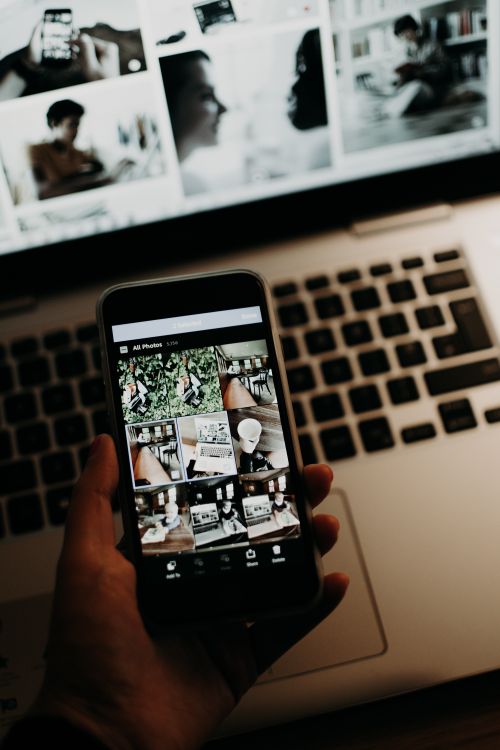
If you have ever asked how do i export photos from mac to iphone, you are not alone. Photos often live on a Mac after editing, while the phone is the device you carry every day. Moving photos between the two should feel simple, but the best method depends on how many photos you have and whether you want full quality.
The good news is that you have several reliable options. AirDrop works well for a few photos. A cable works well for a large library. iCloud keeps devices in sync over time. Shared albums work well for sharing with family. Each method has its own strengths, and each one needs a few simple checks to keep quality high.
This guide walks through each method step by step. It explains how to keep full quality. It also covers common transfer problems and how to fix them without losing photos.
How Do I Export Photos from Mac to iPhone – Before You Start
A little preparation makes every method work better. Start by finding the photos you want to move. Check whether they are edited versions or originals. Edited versions are the ones you usually want on your phone. Originals are useful as backups, but they may not show your latest edits.
Check your storage on both devices. A phone with little free space may fail a large transfer. Free up space if needed by removing duplicates or moving old videos to a backup. Also check your battery. A transfer can take time, and a device that shuts down mid transfer can create partial copies.
Make sure both devices are signed in to the same Apple ID if you plan to use iCloud. For AirDrop, make sure Wi-Fi and Bluetooth are on. For a cable transfer, use a reliable cable and keep the phone unlocked when you connect it. Small checks like these prevent most failed transfers.
If you are moving edited photos, export them first from your editing app. Save them in a clear folder on your Mac, such as a folder named for the trip or project. A tidy folder makes it easy to select the right photos and avoid sending duplicates. For help with editing basics on a Mac, read photo editing on Mac before you export.
Method 1. AirDrop for a Few Photos
AirDrop is the fastest choice for a small number of photos. It sends files directly between Apple devices. It does not need a cable, and it does not need an internet connection for the transfer itself. It works best when both devices are close together.
- Turn on Wi-Fi and Bluetooth on both your Mac and your iPhone. You do not need to join the same Wi-Fi network, but both radios need to be on.
- Open AirDrop on your iPhone in Settings or Control Centre and set it to receive from Everyone or Contacts Only. Contacts Only is a good everyday choice.
- Select the photos on your Mac in Finder or Photos. Right click or use the share menu and choose AirDrop.
- Choose your iPhone from the list of nearby devices. Wait for the transfer to start.
- Accept the transfer on your iPhone if asked. The photos will appear in your Photos app.
- Check a few photos at full size to make sure they look sharp and complete. Open one photo and zoom in slightly to check detail.
AirDrop usually keeps good quality for photos. If a photo arrives looking soft, check whether you sent a small preview instead of the full file. Send the exported full size version again. Avoid sending screenshots when you want full quality, since screenshots hold far less detail.
Method 2. Cable and Finder for a Large Library
A cable transfer is a strong choice for many photos at once. It is steady, it does not depend on Wi-Fi speed, and it works well for large folders. It is also useful when AirDrop keeps failing or when you want a clear one time move.
- Connect your iPhone to your Mac with a cable. Unlock your iPhone and tap Trust if asked.
- Open Finder on your Mac and select your iPhone in the sidebar. If you use an older system, Photos may open instead.
- Choose the photos or folder you want to sync. You can select a folder of exported photos to keep the transfer tidy.
- Start the sync and wait for it to finish. Do not unplug the cable until Finder shows the sync is complete.
- Open Photos on your iPhone and check that the photos appear in the right album. Open a few at full size to confirm quality.
A cable transfer also helps you stay organised. You can sync by folder, so a trip album on your Mac becomes a clear album on your phone. If a photo is missing after sync, check whether it was in the selected folder. A photo outside that folder will not transfer.
If you plan to print or share the photos later, keep an eye on size. Very large files take longer to transfer, but they keep more detail. If you need smaller files for quick sharing, resize a copy rather than replacing your master file. Learn the safe way in how to resize an image on Mac.
Method 3. iCloud Photos for Ongoing Sync
iCloud Photos keeps your library in sync across devices. When it is on, photos added on your Mac can appear on your iPhone without a manual transfer each time. This method suits people who edit on a Mac and want the same library on their phone.
- Turn on iCloud Photos on your Mac in System Settings under your Apple ID and iCloud settings.
- Turn on iCloud Photos on your iPhone in Settings under Photos.
- Make sure both devices use the same Apple ID and have an internet connection.
- Wait for sync to finish especially after adding many photos at once. Large libraries can take time on a slow connection.
- Check the Photos app on your iPhone for the new photos. If a photo shows a small preview, tap it to download the full version.
Storage is the main limit with iCloud. If your iCloud storage is full, new photos may not sync. Check your storage before a large import. You can free space, buy more storage, or use a cable transfer instead. Also check the optimise storage setting on your iPhone. When this setting is on, your phone may keep smaller versions locally and download full versions on demand. That saves space, but it means you need internet access for full quality.
iCloud is also handy for edited photos. When you edit a photo in Photos on your Mac, the edited version can sync to your phone. That saves you from exporting and transferring the same photo again. Just give sync time to finish before you judge the result.
Method 4. Shared Albums and Messages for Sharing
Shared albums are useful when you want to share photos with family or friends. They are also useful for moving a small set of photos to your own phone in a simple way. You create an album, add photos, and invite yourself or others to view it.
- Create a shared album in Photos on your Mac and give it a clear name.
- Add the photos you want to share to that album.
- Open the album on your iPhone in Photos under Shared Albums or Albums.
- Save the photos to your library if you want them in your main Photos library on your phone.
Shared albums are convenient, but they may not keep full original quality in every case. They are best for viewing and casual sharing. For photos you plan to print, use AirDrop, a cable, or iCloud with full quality settings instead. That way you keep the detail you worked hard to create in editing.
Messages and email can also move a photo in a pinch. They are fine for one quick photo, but they often compress files. If quality matters, choose a method that sends the full file. Check the received photo at full size before you delete the original from your Mac.
How to Keep Full Quality During Transfer
Quality loss usually happens in three places. The export may be too small. The transfer method may compress the file. Or the phone may store a smaller version to save space. You can control all three with a few habits.
| Transfer method | Best for | Quality note |
|---|---|---|
| AirDrop | A few photos quickly | Usually keeps good quality when you send the full file |
| Cable and Finder | Many photos at once | Steady and reliable for large folders |
| iCloud Photos | Ongoing sync | Best with enough storage and full quality settings |
| Shared albums | Sharing with others | Convenient but may not keep full original quality |
| Messages or email | One quick photo | Often compresses the file and lowers detail |
Export at a high quality setting when quality matters. Avoid exporting a photo, then resizing it down, then sending it through a compressing app. Each step can soften detail. Start from your edited master file and export once at the size you need.
File format can affect quality too. Some iPhone photos use HEIC, which saves space but may need conversion for some uses. If you share with apps that struggle with HEIC, convert a copy rather than replacing your original. Read how to change HEIC to JPG on iPhone for a clear conversion guide.
After transfer, do a quick quality check. Open three photos on your iPhone. Zoom in on faces, text, and fine detail. Compare one photo with the version on your Mac if you are unsure. A quick check now is easier than fixing a missing detail later.
Fixing Common Transfer Problems
If AirDrop cannot find your iPhone, move the devices closer together. Turn Wi-Fi and Bluetooth off and on again. Check the AirDrop receiving setting on your iPhone. Restarting both devices also fixes many small connection issues.
If photos appear but look blurry, check the source file first. A small preview or screenshot will stay soft no matter which method you use. Send the full exported file again. Also check whether your iPhone is still downloading the full version from iCloud. A photo that shows a preview may sharpen after the download finishes.
If sync stops halfway, check storage and internet. A full iCloud account or a full phone will pause sync. Free up space and reconnect to a stable network. Then wait for sync to resume. Do not delete photos from your Mac until you have confirmed they are safely on your phone or in a backup.
If a photo is missing entirely, check the album and the folder you selected. Check whether it was hidden or in a different library. Search by date or file name on both devices. For wider troubleshooting steps, read Photomator troubleshooting and Photomator getting started. Both guides cover setup checks that help with many common problems.
Frequently Asked Questions
What is the fastest way to send a few photos from Mac to iPhone
AirDrop is usually fastest for a few photos. It needs no cable and no upload wait. Select the photos on your Mac, choose AirDrop, pick your iPhone, and accept the transfer.
Will iCloud lower the quality of my photos
iCloud can keep full quality when you have enough storage and the right settings. If your phone is set to optimise storage, it may keep smaller local copies and download full versions on demand. That saves space but needs internet access for full detail.
Can I transfer photos without internet
Yes. AirDrop and a cable transfer do not need internet for the transfer itself. They are good choices when Wi-Fi is slow or unavailable.
Why do my photos look smaller after transfer
The most common cause is sending a preview or a compressed copy. Check the exported file size on your Mac. Send the full file again through AirDrop or a cable. Also check whether your phone is showing a small iCloud preview that has not fully downloaded yet.
Should I delete photos from my Mac after moving them to my iPhone
Do not delete the Mac copy until you have checked the iPhone copy at full size and have a backup. A phone is easy to lose, and a single copy is risky. Keep the Mac copy or a backup until you are sure the transfer is complete.
Conclusion
Moving photos from Mac to iPhone does not need to be stressful. Pick the method that fits the job. Use AirDrop for a few photos. Use a cable for a large library. Use iCloud for ongoing sync. Use shared albums for easy sharing with others.
Keep quality in mind at each step. Export a full size file. Choose a transfer method that keeps detail. Check the photos on your phone before you delete anything from your Mac. With those habits, your edited photos will look just as good on your phone as they do on your Mac.