
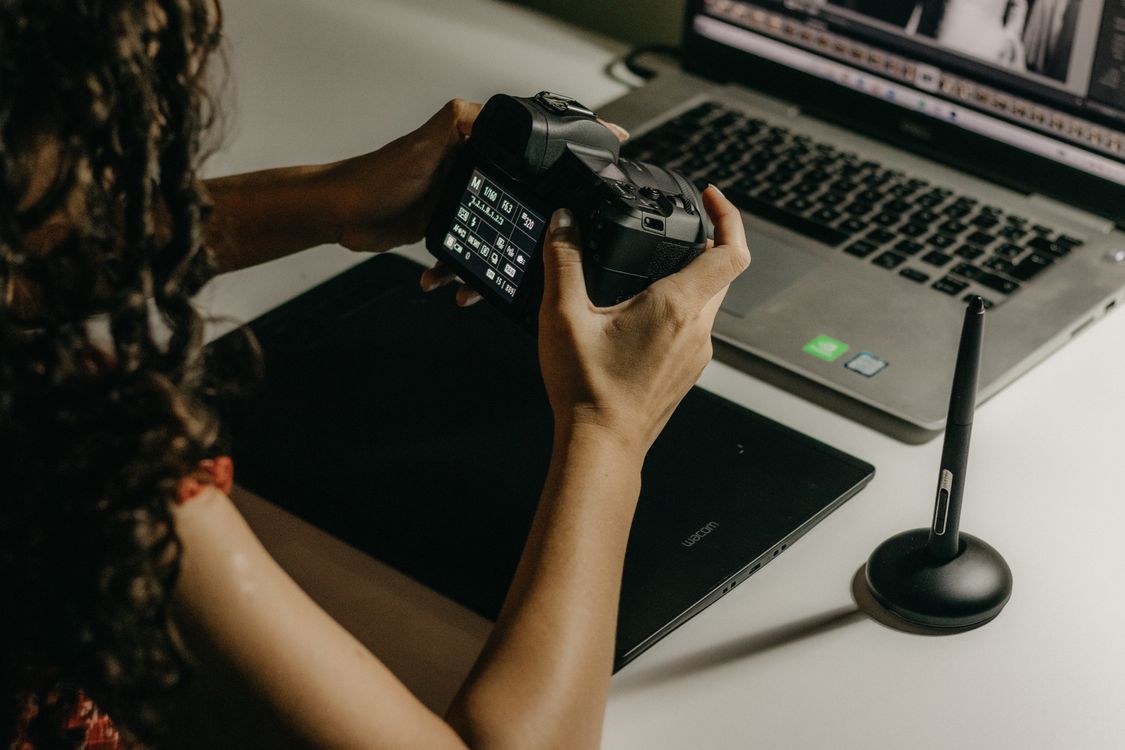
A strong photomator photo editing workflow for content creators is built around one reality: you need a lot of good images, regularly, without letting editing eat the whole week. The difference between creators who publish consistently and those who burn out is rarely talent. It is a system that makes selection fast, editing repeatable and exporting painless, so the creative work stays the focus.
Start With a Clear Output Plan
Before you edit anything, decide where each photo will go. A hero image for a blog post, a square crop for social, a vertical crop for stories and a print file all have different needs. Editing one master version and then exporting the crops from it is faster than editing the same photo three times.
Write down a simple standard for your own work: preferred aspect ratios, maximum file sizes for the web, and a consistent naming habit. That standard removes dozens of small decisions from every session, which is exactly what a busy creator needs.
The Five-Step Creator Workflow
Work in passes, not in circles. First, select ruthlessly. Second, correct the keepers. Third, apply your look. Fourth, finish the details. Fifth, export in batches. Jumping between selection, editing and exporting in the same session is how hours disappear.
Step one: select fast
Go through the shoot once and mark only the photos that could actually be published. Do not edit while you select. If a photo needs heavy rescue work to be usable, it is usually not worth the time unless it is the only shot of an important moment.
Step two: correct, then style
Correct exposure, white balance and cropping first, then apply your look. When the look is applied to uncorrected photos, you end up adjusting it again for every image. When correction comes first, one preset or reference look can work across the whole set with only small tweaks.
Keeping that look consistent matters for a recognizable feed. Our guide to how to color grade photos in Photomator shows how to move from correction to a deliberate color style without losing natural skin tones.
Keep Your Library Usable Across Devices
Creators rarely work on one device. You may shoot on iPhone, select on iPad and finish on Mac, or the other way around. The workflow has to survive those moves. Keep your originals organized, let edits sync, and avoid creating duplicate versions with slightly different names in different folders.
That discipline pays off when a client or editor asks for a different crop or an earlier version. If you know where the master file lives and how edits were applied, you can respond in minutes. The approach in our guide to how to sync Photomator edits across Apple devices helps keep that cross-device habit reliable.
Batching Without Losing Quality
Batch editing is useful, but it should be a starting point, not a finish line. Apply a common correction and look to a group of similar photos, then check each keeper at full size before export. The check is where quality lives: a batch pass can miss a face that is slightly soft, a horizon that is slightly tilted, or a color cast that only affects one photo.
A practical rhythm is to batch in the morning, check in the afternoon, and export the next day if the deadline allows. The gap helps you spot over-editing that looked fine when you were tired. If the deadline is tight, at least step away for a short break before the final check.
Conclusion
A photomator photo editing workflow for content creators works when it is simple enough to repeat: plan the outputs, select fast, correct before styling, keep the library organized across devices, and batch with a proper final check. That system protects both quality and time, which are the two resources every creator is always short of.
Frequently Asked Questions
How many photos should I edit for one post?
Usually fewer than you think. A small set of strong, well-finished photos performs better than a large set where half the images are only half-edited.
Should content creators use presets?
Yes, as a starting point. Use a preset you have refined for your own style, then adjust it for each photo rather than accepting it unchanged.
How do I avoid editing burnout?
Separate selection, editing and exporting into different sessions, set a time limit for each, and keep your look and export standards written down so you are not reinventing them every week.
Can I edit on both iPhone and Mac in one workflow?
Yes. Do quick selection and sharing on iPhone, and final detail work on Mac or iPad, keeping the master files organized so edits stay consistent across devices.