
Knowing how to color grade photos in Photomator is what separates a clean edit from a photo with a clear mood. Correction fixes problems, while grading gives a deliberate direction: warmer light, cooler shadows, richer colour, or a quieter, more film-like palette. The difference is intention. A good grade should feel like it belongs to the scene, not like a filter laid over it.
This guide covers a professional grading workflow in Photomator, from a neutral starting point through curves, selective colour and skin-tone control, to a final consistency check. It works for portraits, landscapes and everyday photos, and it applies on Mac, iPhone and iPad, with the same controls in each version.
Correct Before You Grade
Never grade on top of a colour problem. Start by fixing white balance and exposure, and remove any strong colour cast from mixed lighting. If the photo is too warm, too green or too dark, grading will only push that error further. A neutral base also makes your later choices easier to judge, because you can see exactly what each grading move adds.
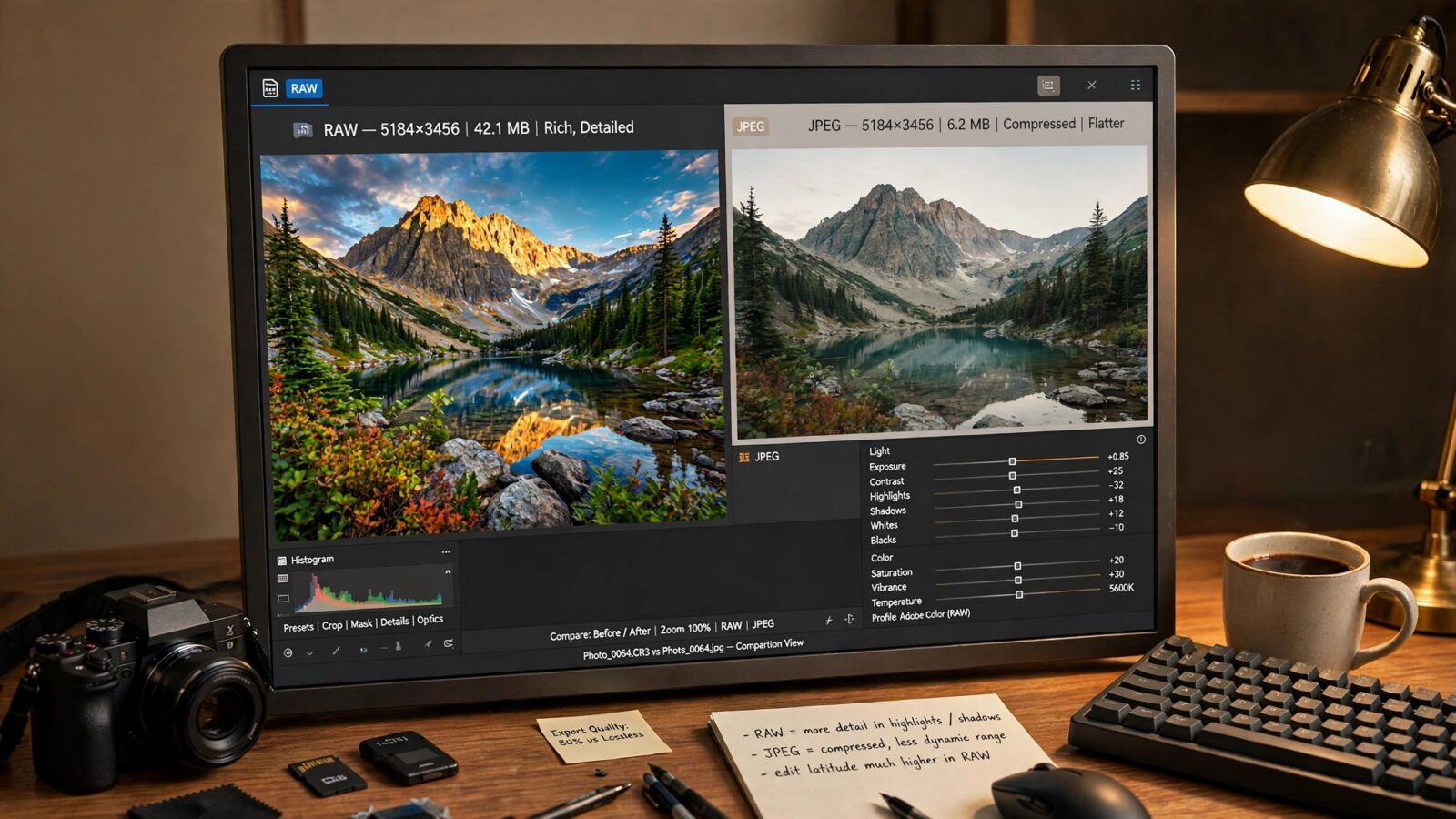
Work from the best available file. RAW and Apple ProRAW files hold more colour information than a compressed JPEG, so they tolerate stronger grading without banding or harsh transitions. That extra headroom is one reason to shoot RAW when colour is central to the photo, as explained in the guide to editing RAW photos in Photomator.
Decide the Mood in One Sentence
Before you touch a curve, describe the grade in one sentence. Examples include warm evening light with soft shadows, cool and clean daylight, or muted tones with deep, quiet shadows. If you cannot describe the mood, you are likely to keep adding adjustments until the photo looks busy. A single direction keeps the edit focused and makes it easier to repeat across a set.
Use Curves for the Core of the Grade
Curves are the most precise grading tool in Photomator, and they reward small moves. A gentle S-curve adds contrast, while lifting the black point slightly creates a softer, more film-like shadow. Separate red, green and blue curves let you shift shadows and highlights in different directions, which is the classic way to create warm highlights with cooler shadows, or the reverse.
Start with the master curve, then adjust one colour channel at a time. Move a point only a little, then step back and check the whole image. Strong curve moves often look impressive at first, then reveal themselves in skin tones and skies. If a face turns orange or a sky turns purple, you have gone too far in one channel. Reduce that move before you add anything else.
Refine Colour Selectively
Global saturation is a blunt tool. Selective colour and hue controls let you change one colour family without affecting the rest of the image. For example, you can deepen greens in foliage, warm yellows in evening light, or cool blues in a sky, while leaving skin tones alone. This separation is what makes a grade look professional rather than simply more colourful.
Watch skin tones closely during every colour change. Skin is the colour viewers judge most quickly, and it is easy to damage with a global warmth or saturation increase. If skin starts to look orange, reduce the overall change and make a smaller, selective adjustment instead. In portraits, it is often better to grade the background and clothing first, then check whether the skin still needs any change at all.
A Practical Grading Order
- Correct white balance, exposure and contrast.
- Set the overall mood with a gentle master curve.
- Shift shadows and highlights in one or two colour channels.
- Refine individual colours selectively, especially greens, blues and yellows.
- Check skin tones, skies and neutral areas before finishing.
Build a Consistent Look Across a Set
Consistency matters more than any single dramatic grade. Photos from the same shoot, trip or event should feel related, even if the light changed between frames. Start each photo from the same neutral correction, apply the same broad grading direction, and only then adjust for the light in that specific frame. This approach saves time and avoids a set where every photo looks like it came from a different editor.
Presets can help here, provided they are used as a starting point rather than a final answer. Apply a preset that matches your intended mood, then adjust its strength and fine-tune curves and colour for the individual photo. The Photomator presets guide shows how to create and adjust your own presets, which is the most reliable way to keep a personal style consistent without repeating every step by hand.
Common Color Grading Mistakes
The most common mistake is grading too strongly. Heavy saturation, extreme teal and orange, and crushed shadows can look striking in a thumbnail, but they often fall apart at full size and age badly. A grade that still looks good after a week is usually a restrained one.
Another mistake is judging colour on one device only. A grade checked only on a bright phone screen can look very different on a Mac display or in print. Check the result on at least one other screen, and look at it again after a short break. Fresh eyes catch colour casts and over-saturated skin much more reliably than eyes that have been staring at the same edit for an hour.
Conclusion
Color grading in Photomator works best when correction comes first, curves do the main work, and selective colour refines the result. Choose a clear mood, make small deliberate moves, protect skin tones, and check consistency across the set. Done this way, grading adds feeling to a photo without calling attention to the edit itself.
Frequently Asked Questions
What is the difference between color correction and color grading?
Correction fixes exposure, white balance and colour casts so the photo looks natural. Grading then adds a deliberate mood or style on top of that corrected base, such as warmer highlights or cooler shadows.
Should I use curves or presets for color grading in Photomator?
Use both in the right order. Presets give a fast starting point and a consistent style, while curves give precise control over contrast and colour in shadows, midtones and highlights.
How do I avoid orange skin tones when grading?
Correct white balance first, avoid large global saturation increases, and grade selectively. Check skin at full size and reduce warmth or red saturation if skin starts to look unnatural.
Does color grading work better on RAW photos?
Yes, in most cases. RAW and ProRAW files retain more colour and highlight information, so they handle stronger curve and colour changes with fewer artefacts than compressed JPEG files.