
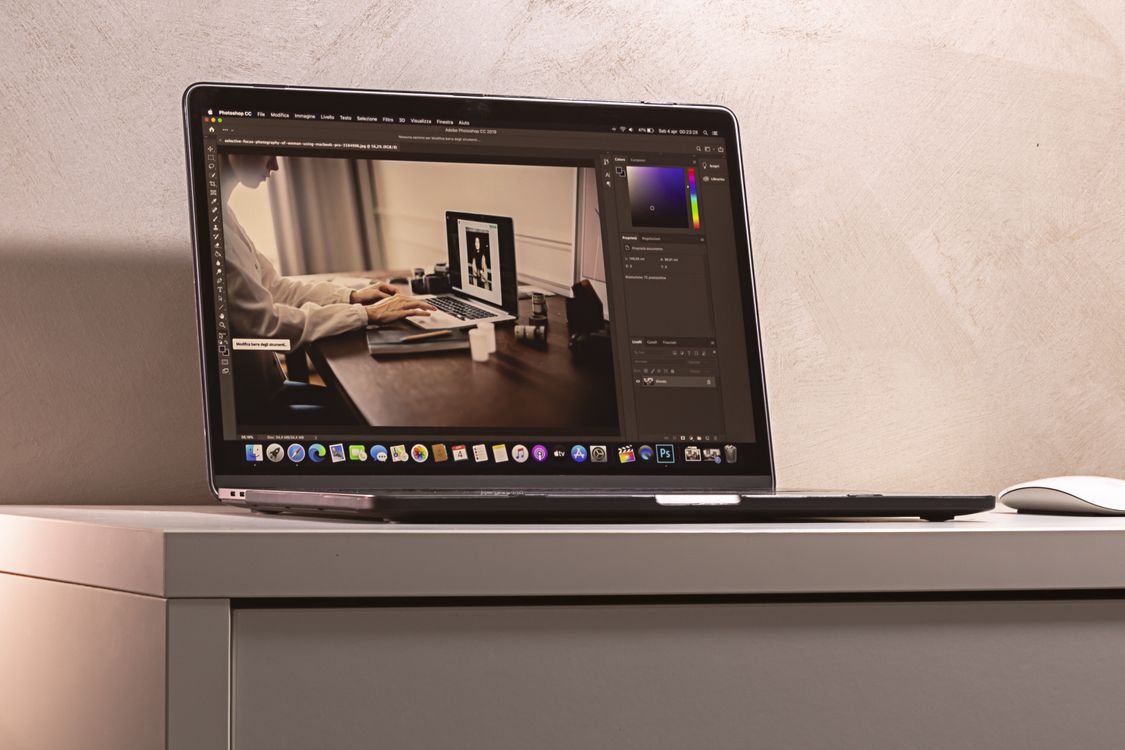
Crooked horizons and loose framing can distract from an otherwise good photo. A building that leans slightly, a sea horizon that tilts, or too much empty space at the edges will pull the eye away from the subject. Straightening and cropping are small corrections, but they change how a photo feels. Done carefully in Photomator on Mac, they make an image look steadier, cleaner, and more deliberate, without losing important detail.
Start with the whole photo, not the crop. Open the image at a size where you can see the edges clearly, and look for a reference line: a horizon, a wall, a table edge, or the vertical line of a doorway. That line tells you whether the photo is tilted and by how much. If there is no obvious straight line, use the subject itself. A portrait that feels off-balance or a landscape where the eye keeps sliding to one side is often a sign that the framing needs attention.
Straighten first, then crop
Straighten before you crop, because rotation changes what falls inside the frame. A small rotation can move a corner out of the picture or bring an unwanted object into view. When you straighten first, you can then choose a crop that works with the corrected image, rather than cropping twice. Work in small amounts. A rotation of one or two degrees is often enough, and a larger turn can make the photo feel unnatural if the scene itself was not perfectly level.
Use the grid if it is available, and check both horizontal and vertical lines. A horizon may look level while a building still leans, especially in photos taken with a wide lens. In that case, choose the line that matters most for the photo. For a seascape, the horizon comes first. For architecture, the main vertical lines usually matter more. Trying to fix every line at once can distort the image, so prioritise the reference that the viewer will notice first.
Choose a crop with a purpose
Every crop should answer a simple question: what should the viewer look at first? Remove distractions at the edges, such as a stray hand, a bright object, or empty sky that adds nothing. At the same time, leave enough breathing room around the subject. A tight crop can feel energetic for a portrait, but the same crop on a landscape can feel cramped if it cuts off a natural leading line or an important part of the scene.
Think about proportion as well. A wide crop suits a landscape or a group scene, while a taller crop suits a single subject or a vertical print. Photomator on Mac lets you check the result at full size before committing, so zoom in after cropping and look at the edges. If a detail is cut in half in a distracting way, or if the subject touches the edge awkwardly, step back and adjust the crop by a small amount. For a broader introduction to framing on Mac, how to crop a photo on Mac covers the basic controls in a clear, practical way.
Protect resolution and important detail
Cropping always removes pixels, so it is worth checking how much you are giving up. A modest crop from a high-resolution photo is rarely a problem. A heavy crop from a small file, however, can soften detail and limit print size. If the photo is already low resolution, crop only what is necessary and avoid rotating it more than needed, since rotation also requires resampling at the edges.
Watch the corners after straightening. Rotation can leave small empty triangles at the edges, and a crop is the clean way to remove them. Make sure the final crop does not cut through a face, a hand, or an important object in a way that looks accidental. When in doubt, keep a little more of the scene. You can always crop further later, but you cannot recover detail that was removed from the exported file.
A simple workflow to follow
A reliable order is to open the photo, straighten it using the strongest reference line, and then crop to the subject. After that, check the image at full size, compare it with the original, and ask whether the change improves the photo or only makes it different. If the horizon is level, the subject has room, and the edges are clean, the job is done. Further adjustments to exposure or colour can come after, once the composition is settled.
It also helps to save a version before major changes, especially if you plan to try several crops. That way you can return to the original framing if a tighter version feels too aggressive. Good composition is often a matter of restraint. The best straighten and crop is usually the one the viewer does not notice, because the photo simply looks balanced. For more general advice on keeping edits natural, photo editing tips offers a useful checklist that pairs well with careful framing.
Frequently asked questions
Should I straighten or crop first in Photomator?
Straighten first. Rotation changes the edges of the image, so cropping afterwards lets you choose the final frame based on the corrected photo, rather than cropping twice.
How much rotation is too much?
Most everyday corrections are only one or two degrees. If you need a much larger rotation, check whether the reference line itself was slanted, or whether lens distortion is making straight lines appear curved.
Will cropping reduce my photo quality?
A modest crop from a high-resolution file has little visible effect. A heavy crop can soften detail, so keep crops as gentle as possible when the original file is small or when you plan to print large.
What if straightening leaves empty corners?
That is normal after rotation. Use a small crop to remove the empty areas, and check that the crop does not cut awkwardly through the subject or an important detail.