
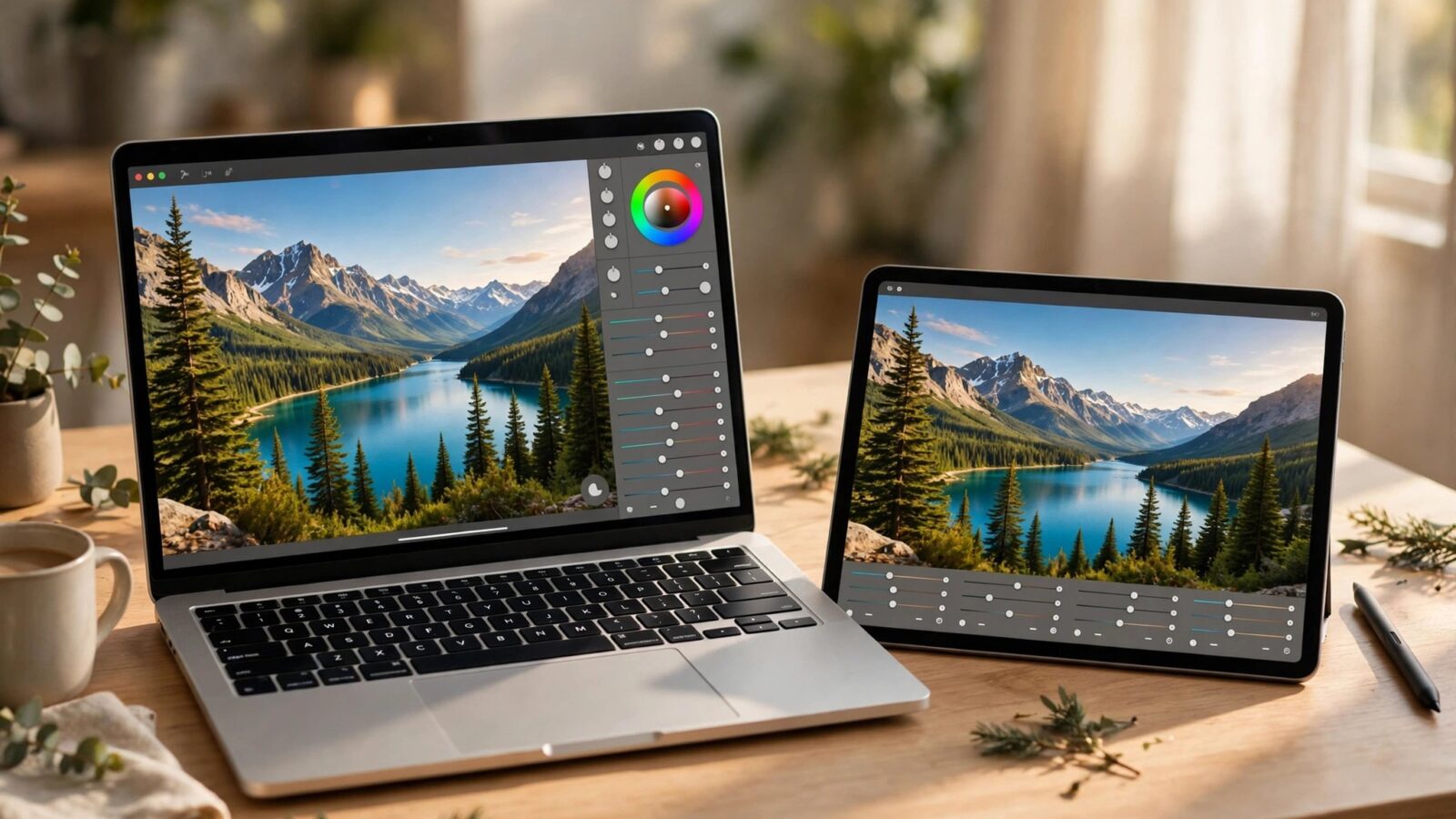
Learning how to edit travel photos in Photomator is about turning a camera roll full of quick snapshots into a set that still feels like the trip. Travel light is rarely perfect: bright midday sun, dim restaurants, crowded streets and fast-moving scenes all land in the same day. The goal is not to make every photo dramatic. It is to bring out what you actually saw, keep the set consistent, and finish fast enough to enjoy the rest of the journey.
Start on the Phone, Finish on the Big Screen
A practical travel workflow has two stages. On the phone, make quick decisions: delete the obvious failures, mark the keepers and apply a light correction to the best shots so you can share them the same day. Later, on Mac or iPad, revisit the keepers at full size and refine exposure, color and cropping.
This split keeps you from spending an evening hunched over a small screen. It also protects the photos: the quick pass is a starting point, not a final grade, so you can always return to the original and redo the finish when you have time and a larger display.
A Simple Travel Editing Order
Working in the same order each time makes travel editing faster and more consistent. Start with cropping and straightening, because a better composition changes how every later adjustment looks. Then correct exposure and white balance, then color, then local adjustments, and finally sharpening and noise control.
What to fix first in travel photos
- Crop out distractions at the edges, such as signs, strangers or clutter
- Straighten horizons in seascapes and city skylines
- Recover highlight detail in bright skies before adding contrast
- Correct white balance so indoor and outdoor shots feel like the same trip
Landscape-heavy days benefit from the same discipline. Our guide to how to edit landscape photos in Photomator on iPad covers horizon, sky and foreground balance in more depth, and those ideas transfer directly to travel landscapes on any device.
Keep Color Honest
Travel photos are easy to oversaturate. A sunset, a market stall or a blue sea already has strong color, and pushing saturation further can make the result look like a postcard rather than a memory. A better rule is to correct color before you enhance it: fix the white balance, restore natural skin tones, then add only enough saturation to match what you remember seeing.
For a stronger but still believable look, work on specific colors rather than the whole image. Warm up a street scene, cool down a midday sky, or lift the greens in a forest without touching the skin tones in the same frame. Selective work takes a few extra minutes, but it is what separates a polished travel set from a filtered one.
Handling Mixed Light and Crowds
Mixed light is the most common travel problem. A shaded street with bright sky, or a restaurant with warm lamps and daylight from the windows, will fool any single automatic setting. In those cases, accept that you cannot save every area equally. Choose the subject, expose for it, and let the less important areas fall where they may.
Crowds are a different challenge. Rather than trying to remove every person, crop tighter, wait for a gap in the flow, or use a slightly different angle. When a stranger is truly distracting, a selective edit or a careful clone can help, but the best travel photos usually come from choosing the moment, not from heavy retouching.
Exporting for Sharing and Printing
Do not export everything at the same size. For social sharing, a smaller, well-sharpened file loads quickly and looks clean. For printing, keep the full resolution and avoid extra sharpening that can look harsh on paper. Keeping two export habits, one for sharing and one for keepsakes, saves repeated re-exports later. The settings in our guide to best export settings for Photomator photos are a good starting point for both.
Conclusion
The best way to edit travel photos in Photomator is to work in stages, fix composition first, keep color honest, and finish the keepers properly when you have a larger screen. That approach gives you shareable photos on the day and a polished set worth printing when you get home, without turning the trip into an editing marathon.
Frequently Asked Questions
How long should travel photo editing take?
For a day of shooting, a quick pass of ten to twenty minutes is usually enough. Reserve a longer session later for the best shots you want to print or publish.
Should I edit travel photos on iPhone or Mac?
Use iPhone for quick shares and first selections, and Mac or iPad for final edits where you can judge detail, color and cropping at full size.
How do I keep travel photos from looking over-edited?
Correct white balance and exposure first, then add color and contrast gradually. Check the result at full size and compare it with the original before exporting.
Can I apply the same look to a whole travel set?
Yes. Build a look from one representative photo, save it as a preset, and adjust it for each lighting situation rather than applying it unchanged to every image.