
Introduction
A good portrait can be let down by one small detail: teeth that look darker or more yellow in the photo than they did in real life. Indoor lighting, coffee, and camera white balance all push a smile toward yellow, even when the person looked perfectly fine in person. Learning how to whiten teeth in photos is really about fixing that colour cast gently, not painting a blinding white strip across someone’s face. Photomator, from the Pixelmator Team for Mac, iPhone, and iPad, is well suited to the job because its selective editing tools let you adjust only the teeth and nothing else. This guide shows the full process, from making a precise selection to judging exactly how far to go.
Why Teeth Look Yellow in Photos
Teeth are rarely pure white in real life. Enamel is naturally a warm, slightly translucent off-white, and it picks up colour from everything around it. Warm indoor bulbs add yellow, drinks add stains, and a camera balancing a scene often warms skin tones, which warms teeth along with them. Shadows inside the mouth deepen the effect. Understanding this sets the right goal: you are not changing the person’s teeth, you are removing a colour cast the camera added. That is the thinking behind most good retouching, including the clean-up work in our guide to repairing and removing objects: restore what the scene actually looked like.
Step 1: Select Only the Teeth
Every believable whitening edit starts with a careful selection, because the adjustment must never touch lips, gums, or skin. In Photomator, zoom in on the smile, then use a selective adjustment with a brush to paint over the teeth only. Work slowly along the gum line and between teeth and lips, where sloppy edges show most. If the selection spills onto the lips, erase that part before continuing; thirty seconds of tidying here saves the edit. Photomator’s selection tools and masks are covered in depth in our guide to masks and selective editing, and the same technique applies to any small area, from eyes to a single object in a landscape. On iPhone and iPad, an Apple Pencil or pinch-zoom makes brushing easier, but a fingertip works for larger smiles.
Step 2: Reduce the Yellow, Then Lift Brightness
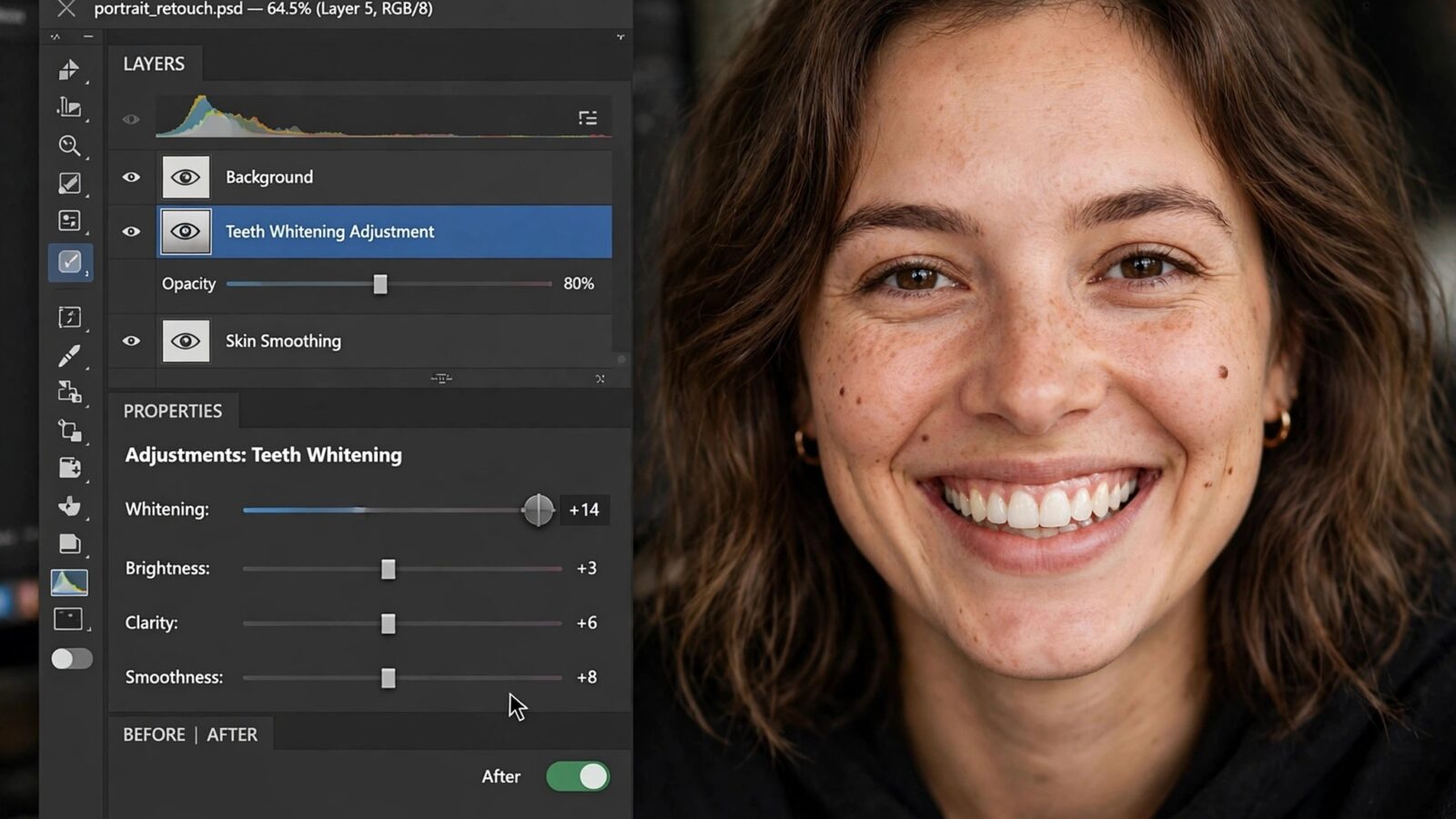
With the teeth selected, make two small moves instead of one big one. First, reduce the yellow: lowering saturation inside the selection takes the colour cast away, and shifting its temperature slightly toward blue neutralises stubborn warmth. Second, raise the selection’s brightness or exposure a little so the teeth sit naturally with the light on the face. Order matters, because desaturating alone can leave teeth grey, while brightening alone leaves them brighter but still yellow. Zoom out after each change and judge the smile at normal viewing size, not at maximum zoom where every pixel looks like a problem.
How to Whiten Teeth in Photos Without Making Them Look Fake
The difference between a polished portrait and an obviously edited one is restraint. Teeth that glow whiter than the whites of the eyes always look wrong, so use the eyes as your ceiling: teeth should never be the brightest thing in the portrait. Keep some warmth in the selection, because real enamel is warm, and keep the natural variation between teeth rather than flattening the smile into one uniform colour. Shading matters too: teeth are curved, so their edges are naturally darker than their centres, and erasing that shading makes the smile look pasted on. Compare before and after at full view. The right amount is usually a little less than your first instinct; if a viewer notices the teeth before the expression, dial it back.
Step 3: Check the Whole Portrait and Export
Teeth do not exist in isolation, so finish by reviewing the portrait as a whole. Check that the smile still matches the lighting on the face: a softly lit evening portrait should not gain midday-bright teeth. If needed, balance the portrait with gentle global tweaks, such as a small exposure lift or noise reduction on a high-ISO shot, so the retouched area blends in. Because Photomator edits nondestructively, you can revisit the whitening strength anytime without damaging the original. Export a copy for sharing and keep the editable version in your library. The same routine works on group photos; just make a separate selection for each smile, since every face sits in different light.
Frequently Asked Questions
Can I whiten teeth in Photomator on iPhone as well as Mac?
Yes. Photomator runs on Mac, iPhone, iPad, and Vision Pro, and the selective editing workflow is the same: select the teeth, reduce the yellow cast, and lift brightness gently. Edits sync through your library, so you can start a portrait on one Apple device and finish it on another. There is no Windows or Android version.
How white should teeth look after editing?
Aim for a natural off-white that is no brighter than the whites of the person’s eyes. Removing the yellow cast matters more than adding brightness. If the teeth draw your attention before the eyes do when you glance at the portrait, the edit is too strong and should be reduced.
What if the teeth look grey after I remove the yellow?
Grey usually means too much saturation was removed. Restore a little warmth to the selection, or reduce the desaturation and rely more on a small temperature shift toward blue plus a gentle brightness lift. Small combined adjustments look more natural than one aggressive slider move.
Does whitening teeth change the original photo?
No. Photomator works nondestructively, so your whitening adjustment is stored as an edit you can strengthen, soften, or remove completely at any time. The original photo underneath stays untouched, and you can export as many versions as you like.
Conclusion
Whitening teeth well is a small edit with a big effect on how a portrait feels. Select the teeth carefully, remove the yellow cast before adding brightness, and stop while the smile still looks like the person you photographed. Photomator’s selective tools make each of those steps straightforward on Mac, iPhone, and iPad, and its nondestructive editing means you can always fine-tune the result later. Try the routine on one favourite portrait and compare it side by side with the original; the difference should be obvious to you and invisible to everyone else.