
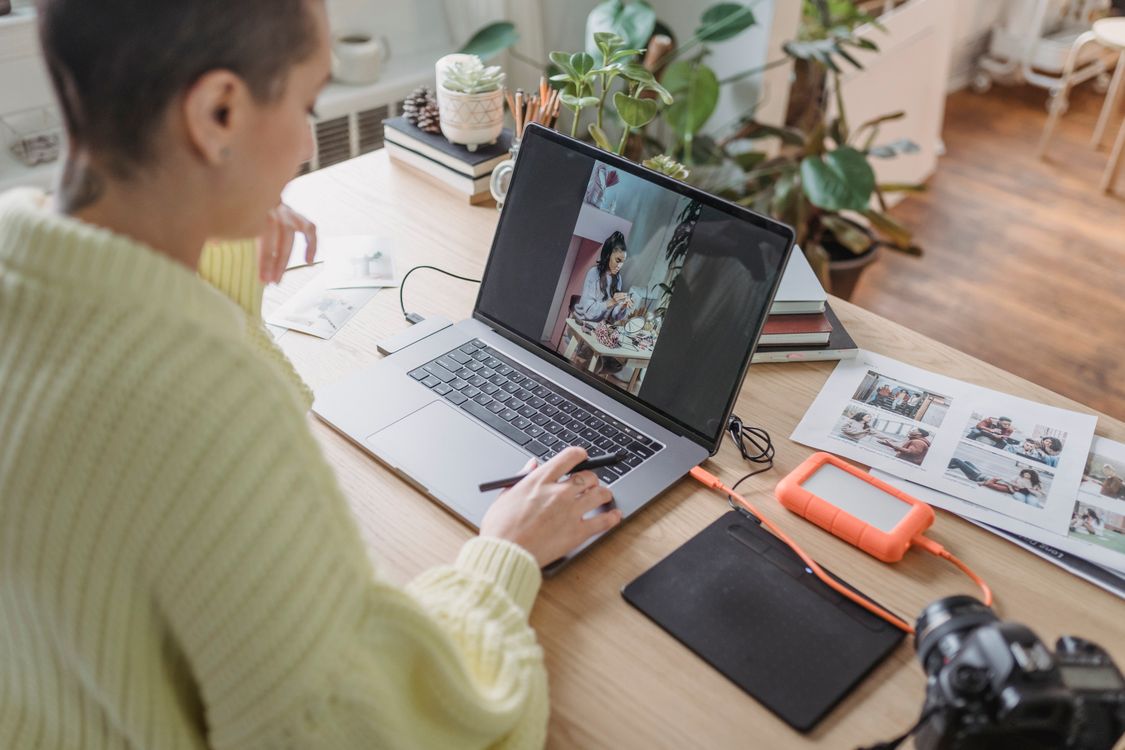
Learning how to edit photos for beginners can feel like a big step, but your first edit does not need to be hard. You do not need to learn every tool at once. You only need a few simple moves, done in the right order, to make a good photo look even better.
This guide walks you through your very first edit in Photomator on a Mac. You will open a photo, fix the light and color, check your work, and save the result. By the end, you will have finished a real edit and you will know what to try next time.
Pick a Good Photo for Your First Edit
Choose a photo you like, even if it is not perfect. A photo with a clear subject works best. A portrait, a landscape, or a travel shot are all good choices. Avoid a very dark or very blurry photo for your first try, because it is harder to see your progress.
It helps to pick a photo that needs only small fixes. If the photo is too bright, too dark, or a little dull in color, that is perfect. Those are the exact problems a first edit can fix well.
If you have not used Photomator before, read our guide to getting started with Photomator first. It will help you feel at home in the app before you start editing.
Open Your Photo in Photomator
Open Photomator on your Mac and bring in your chosen photo. Take a moment to look at the workspace. You will see your photo in the middle and editing tools on the side. Do not worry about tools you do not know yet. For your first edit, you will use only a few of them.
Look at your photo with fresh eyes before you change anything. Ask yourself three simple questions. Is the photo too bright or too dark. Does the color look natural. Is the subject clear and well placed. Your answers will guide your first few moves.
The Simple Order for a First Edit
Editing in a simple order keeps your work tidy and stops you from overdoing one change. For a first edit, work from big fixes to small fixes. Start with light, then color, then crop. This order works well because each step builds on the last one.
The table below shows the order to follow and what each step does.
| Step | What to adjust | What it does | Simple tip |
|---|---|---|---|
| 1 | Exposure and brightness | Makes the photo lighter or darker overall | Move slowly until detail looks clear |
| 2 | Contrast | Adds depth between light and dark areas | Use a small change for a natural look |
| 3 | White balance and color | Fixes warm or cool color casts | Aim for skin and sky tones that look real |
| 4 | Crop and straighten | Removes distractions and improves framing | Keep the subject off center for balance |
| 5 | Final check | Reviews the whole photo before saving | Compare with the original side by side |
How to Edit Photos for Beginners Step by Step
Now follow these steps with your photo open. Move slowly and check the photo after each change. Small moves often give the best results.
- Adjust the exposure first. If the photo looks dark, lift it a little. If it looks washed out, bring it down a little. Stop when you can see detail in both bright and dark areas.
- Add a touch of contrast. This gives the photo more depth and stops it from looking flat. Keep the change small so the photo still looks natural.
- Fix the color next. If the photo looks too yellow or too blue, adjust the white balance until it looks true to life. Then lift the color just a little if the photo still looks dull.
- Crop the photo if needed. Remove empty space or distractions at the edges. Straighten the horizon if it looks tilted. A clean crop can change a photo more than any other single move.
- Step back and look at the whole photo. Zoom out and view it at a normal size. Does it look natural and pleasing. If one change stands out too much, pull it back a little.
- Compare your edit with the original. Most editors let you view the before and after with one click. This check helps you spot changes that went too far.
If you want more help with cropping, see how to crop a photo on Mac. A good crop is a skill worth learning early, and it will improve almost every photo you take.
Common First Edit Mistakes to Avoid
Most beginners make the same few mistakes, and they are all easy to fix. The first mistake is pushing sliders too far. A photo with too much contrast or color can look harsh and unreal. When in doubt, pull the slider back a little.
The second mistake is editing on a very bright screen in a dark room. Your eyes adjust to the room, so the photo can look different later. Try to edit in normal light and check the photo again the next day if you can.
The third mistake is forgetting the original. Always compare your edit with the original before you save. If you cannot tell what you improved, you may have changed too much.
The fourth mistake is trying to learn everything at once. You do not need presets, masks, or advanced tools for your first edit. You can learn those later, one at a time, when you feel ready. If you are curious about presets, you can explore them after your first few edits in our guide to Photomator presets.
Check Your Result Before You Save
A final check takes only a minute and it saves many regrets. Look at the photo as a whole, not just one part of it. Check the skin tones if it is a portrait. Check the sky if it is a landscape. Check the edges for anything odd or distracting.
Ask yourself if the photo looks like the scene you remember. Good editing should feel honest. It should bring out what was already good in the photo, not turn it into something else.
Also check the photo at the size you plan to share it. A photo that looks great on a large screen may look different on a phone. Zoom out and view it at phone size before you export.
Save and Share Your Edited Photo
When you are happy with your edit, save or export the photo. Choose a format that fits your plan. JPEG works well for sharing online and for everyday use. Keep your original file safe too, so you can return to it later if you want a different edit.
Give your exported file a clear name so you can find it again. A name with the place or subject helps a lot when your photo library grows. If you plan to share the photo at a smaller size, you may want to learn how to resize an image on Mac before you post it.
Share your first edit with a friend if you like. Fresh eyes often spot things you missed, and kind feedback can help you learn faster than editing alone.
What to Learn Next
After your first edit, you have a strong base. Your next edits can build on it one skill at a time. Try a second photo with a different kind of light, such as an indoor shot or a sunset. Notice how the same steps feel easier the second time.
Later, you can learn about selective edits, retouching, and presets. There is no rush. The goal is to enjoy the process and to make photos you are proud to share.
Frequently Asked Questions
How long should a first edit take
A first edit can take ten to twenty minutes, and that is normal. As you learn the tools, the same edit may take only a few minutes. Speed comes with practice, so do not rush your first try.
Should I use presets for my first edit
You can, but it is better to learn the basic sliders first. When you understand exposure and color, presets make more sense and you can adjust them with confidence.
What if I make my photo look worse
That is part of learning. You can undo a change, reset the photo, and start again. Your original file stays safe, so no mistake is permanent.
Do I need to edit every photo I take
No, you do not. Some photos look great straight from the camera. Edit the photos you plan to share or print, and leave the rest as they are.
Conclusion
Learning how to edit photos for beginners starts with one simple edit. Pick a good photo, fix the light, adjust the color, crop with care, and check your work before you save. Those few steps can turn a flat photo into one you love.
Keep practicing with small, honest edits. Over time, your eye will grow sharper and your edits will feel faster and more natural. Your first edit is only the start, and it is a great place to begin.