
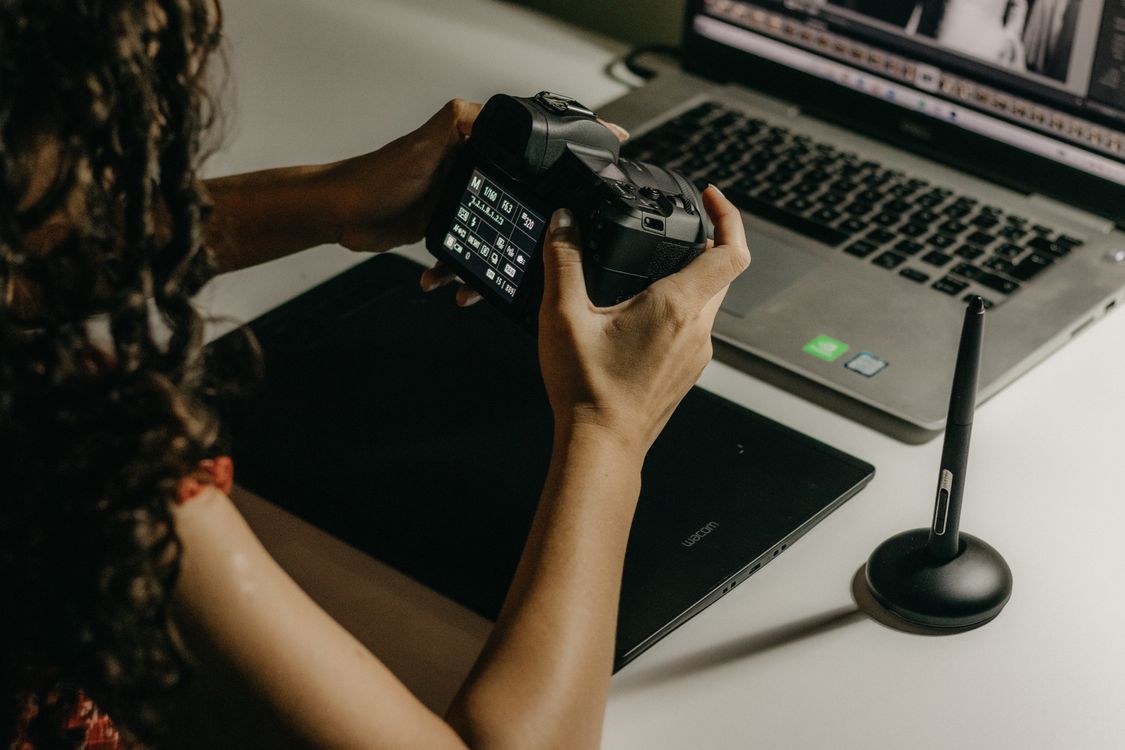
Learning how to edit raw photos is easier when you follow the same steps every time. A good raw photo editing workflow for beginners on Mac does not need to be complex. It needs to be simple, repeatable, and easy to follow every time you come home with new photos. This guide walks you through that workflow from import to backup. You will learn how to choose your best shots, adjust them in a sensible order, and export finished images you are proud to share.
RAW files hold far more detail than standard JPEG files. That extra detail gives you more room to fix exposure, recover highlights, and adjust colour. It also means RAW files need a little more care. The good news is that once you learn a simple order of steps, editing becomes faster and more enjoyable. You will stop guessing and start making clear decisions.
What Is a RAW Workflow and Why It Helps
A workflow is simply the order you follow each time you edit. Without one, it is easy to jump around, over edit, or lose track of your files. With one, you save time and get more consistent results. You know what to do first, what to check next, and when a photo is finished.
For beginners, a workflow also builds confidence. You learn one skill at a time instead of trying to learn everything at once. Over time, the steps become habit. You will spend less time fixing mistakes and more time enjoying your photos.
If you are new to editing on a Mac, the guide to photo editing on Mac is a useful starting point. It explains the basics of working with photos on Apple devices and how the tools fit together.
Before You Start, Set Up Your Folders
Good organisation starts before you edit a single photo. Create a simple folder system on your Mac. For example, use one main folder for photos, with subfolders by year and then by event or trip. Keep your RAW files in those folders and keep your exports in a separate folder.
This habit saves you from lost files and duplicate copies. It also makes backup much easier. When your folders are clear, you can find any shoot in seconds. When they are messy, even a great edit can get lost.
Try to name your folders clearly. Use dates and short event names. Avoid vague names like new folder or stuff. A clear name today saves a long search tomorrow.
Raw Photo Editing Workflow for Beginners on Mac Step by Step
The workflow below follows a natural order. Each step builds on the one before it. Work through the steps in order and resist the urge to jump ahead to filters or effects too early.
A Simple Step List for Every Shoot
- Step 1. Import your photos from your camera or memory card to your Mac.
- Step 2. Back up the original RAW files before you edit anything.
- Step 3. Cull your photos and pick only the best shots to edit.
- Step 4. Crop and straighten each keeper to improve composition.
- Step 5. Fix exposure, highlights, and shadows in that order.
- Step 6. Set white balance so colours look natural.
- Step 7. Adjust colour, clarity, and sharpness with a light touch.
- Step 8. Apply local edits only where a photo truly needs them.
- Step 9. Export finished photos in the right size and format.
- Step 10. Back up your edited files and your originals together.
Ten steps may sound like a lot, but most of them take only a minute or two once you know them. The goal is not to spend hours on one photo. The goal is to give each photo the care it needs and then move on.
Step 1 and Step 2, Import and Back Up First
Import means moving photos from your camera to your Mac. Use a card reader or a cable and copy the files to your chosen folder. Do not edit straight from the memory card. Copying first protects your photos and speeds up editing.
Back up right away. Copy your originals to an external drive or a cloud folder before you delete anything from the card. This is the most important habit in the whole workflow. Cards can fail, and files can be lost. A backup taken at the start gives you peace of mind for every later step.
Step 3, Cull With Kindness and Honesty
Culling means choosing the keepers and setting the rest aside. Most shoots include duplicates, blurry shots, and test frames. Keeping everything slows you down. Picking the best shots helps you focus your energy where it matters.
Go through your photos quickly at first. Mark the ones that catch your eye. Then go through the marked set again and pick the strongest ones. Ask simple questions. Is the subject sharp. Is the moment interesting. Does the composition work. If a photo fails on two of those, let it go.
Beginners often keep too many similar shots. Try to pick one or two from each moment instead of ten. Your final collection will feel stronger, and your editing time will drop sharply.
Step 4, Crop and Straighten
Cropping is one of the fastest ways to improve a photo. Remove empty space at the edges and bring attention to your subject. Straighten horizons and vertical lines so the photo feels balanced. Small changes here make a big difference.
Keep the crop natural. Avoid cutting off hands, feet, or important parts of a scene unless you do it on purpose for a creative effect. For portraits, leave a little space around the head. For landscapes, keep the horizon level and avoid tilting the scene.
If you need a refresher on cropping on a Mac, the guide to cropping a photo on Mac explains the basics in clear steps.
Step 5, Fix Exposure in the Right Order
Exposure controls how bright or dark a photo feels. Start with the overall exposure slider and get the brightness close to right. Then check highlights and shadows. Pull back bright highlights that look washed out. Lift dark shadows only enough to reveal detail, without making the photo look flat.
Work gently. Big moves often create noise or strange colours. Small moves keep the photo natural. Check the photo at full size and at a smaller size. A photo that looks good up close should also look good when shared online.
RAW files are forgiving here. You can recover more detail from bright and dark areas than you can with a JPEG. That is one of the main reasons photographers love RAW. To understand the difference, see the RAW vs JPEG comparison.
Step 6, Get White Balance Right
White balance controls whether a photo looks warm or cool. A photo shot indoors may look too yellow. A photo shot in shade may look too blue. Fixing white balance makes skin tones and everyday colours look true to life.
Start with a preset that matches your light, such as daylight, cloudy, or tungsten. Then adjust by eye until white and neutral tones look clean. Avoid pushing the slider too far in either direction. Natural colour beats dramatic colour for most everyday photos.
If skin looks orange or grey, white balance is often the cause. Fix it before you adjust other colour settings. Colour edits built on wrong white balance will always feel off.
Step 7, Colour, Clarity, and Sharpness
Once exposure and white balance are right, you can add gentle colour and detail. Increase saturation only a little. A small boost makes colours feel alive. A large boost makes them look fake. The same rule applies to clarity and sharpness. A light touch keeps skin smooth and landscapes natural.
Check skin tones often. If faces start to look red or blotchy, pull back. For landscapes, you can be a little bolder with colour, but still keep the scene believable. The best edits are the ones viewers do not notice. They simply feel that the photo looks good.
Step 8, Local Edits for Small Fixes
Local edits affect only part of a photo. You might brighten a face, darken a bright sky, or clean up a small distraction. Use these tools sparingly as a beginner. One or two local edits per photo are often enough.
Masks and brushes let you target an area without changing the whole image. For example, you can brighten a subject while leaving the background alone. If you want to learn how masks work, the guide to masks and selective editing explains the idea in simple terms.
Keep local edits subtle. The goal is to guide the eye, not to create a new scene. If an edit draws attention to itself, pull it back until it blends in.
RAW Workflow Comparison Table
The table below shows how a beginner workflow differs from a rushed workflow. Use it to check your own habits and spot where you can improve.
| Stage | Rushed Workflow | Simple Beginner Workflow |
|---|---|---|
| Import | Edit from the card | Copy to Mac and back up first |
| Selection | Edit every photo | Cull first and edit only keepers |
| Basic edits | Jump to filters | Fix exposure then white balance |
| Colour | Heavy saturation | Gentle colour and detail |
| Export | One size for everything | Right size for print or web |
| Backup | Often forgotten | Back up originals and edits |
The difference is not about talent. It is about order. A clear order prevents rework and keeps your photos safe.
Step 9, Export for the Right Purpose
Export means saving a finished version of your photo for sharing or printing. Different uses need different settings. For social media, a smaller JPEG is fine. For printing, you need a larger file with more detail. For archiving, keep a high quality version.
Before you export, check the final photo one more time. Look at it fresh, after a short break if possible. Fresh eyes catch small issues like a tilted horizon or an over bright face. Fix those issues before you export, so you do not need to export twice.
Name your exports clearly and keep them separate from your RAW originals. That way you always know which file is the finished version and which file is the original you can return to later.
If you work with Photomator, the Photomator RAW editing guide shows how RAW tools fit into this workflow on a Mac.
Step 10, Back Up and Finish With a Clean Library
After export, back up everything again. Keep your RAW originals, your edits, and your exports in a safe place. An external drive plus a cloud copy gives you two layers of safety. That may sound like extra work, but it takes only a few minutes and it protects years of memories.
Finish by clearing your memory card only after you have checked the backup. Then you are ready for your next shoot. A clean start makes the next workflow faster and less stressful.
Common Beginner Mistakes to Avoid
Over editing is the most common mistake. Beginners often push every slider to its limit. The result looks harsh and unnatural. Instead, make small changes and step back often. Less is usually more.
Skipping culling is another mistake. Editing 200 photos takes far longer than editing 20 strong photos. Be selective and your work will improve faster because you spend more time on each keeper.
Forgetting backup is the riskiest mistake. A lost card or a failed drive can erase a whole shoot. Build backup into your workflow from day one, so it becomes automatic.
Frequently Asked Questions
Do I need a powerful Mac for RAW editing
No. Most modern Macs handle RAW editing well for beginners. You may notice slower exports with very large files, but basic editing should feel smooth. Start with your current Mac and upgrade only if you truly need more speed.
Should I shoot RAW and JPEG together
Many beginners do this at first. JPEG files are ready to share quickly, while RAW files give you room to edit later. Over time, many photographers move to RAW only once they trust their workflow. Either choice is fine while you learn.
How long should editing one photo take
For a simple photo, five to ten minutes is normal. Complex photos may take longer. If you spend an hour on one image, step back and ask if the extra time is truly improving it. Often it is not.
Can I undo a RAW edit later
Yes. RAW editing is non destructive in most apps. Your original file stays safe, and you can change or remove edits later. That freedom makes RAW a great format for learning.
What is the best first skill to learn
Start with exposure and white balance. Those two skills fix most photos. Once they feel natural, move on to cropping, colour, and local edits.
Conclusion
A raw photo editing workflow for beginners on Mac is really about habits. Import and back up first, choose your best photos, fix exposure and white balance in order, add gentle colour, and export with purpose. Follow those steps each time and your editing will become faster, calmer, and more consistent. You do not need fancy tricks to make great photos. You need a clear order, a light touch, and a backup plan you trust.
Start with your next shoot and try the full workflow from start to finish. Keep it simple, be patient with yourself, and enjoy the process. With practice, these ten steps will feel natural, and your photos will show it. For a general overview of the app itself, see the guide to what Photomator is on the site.