
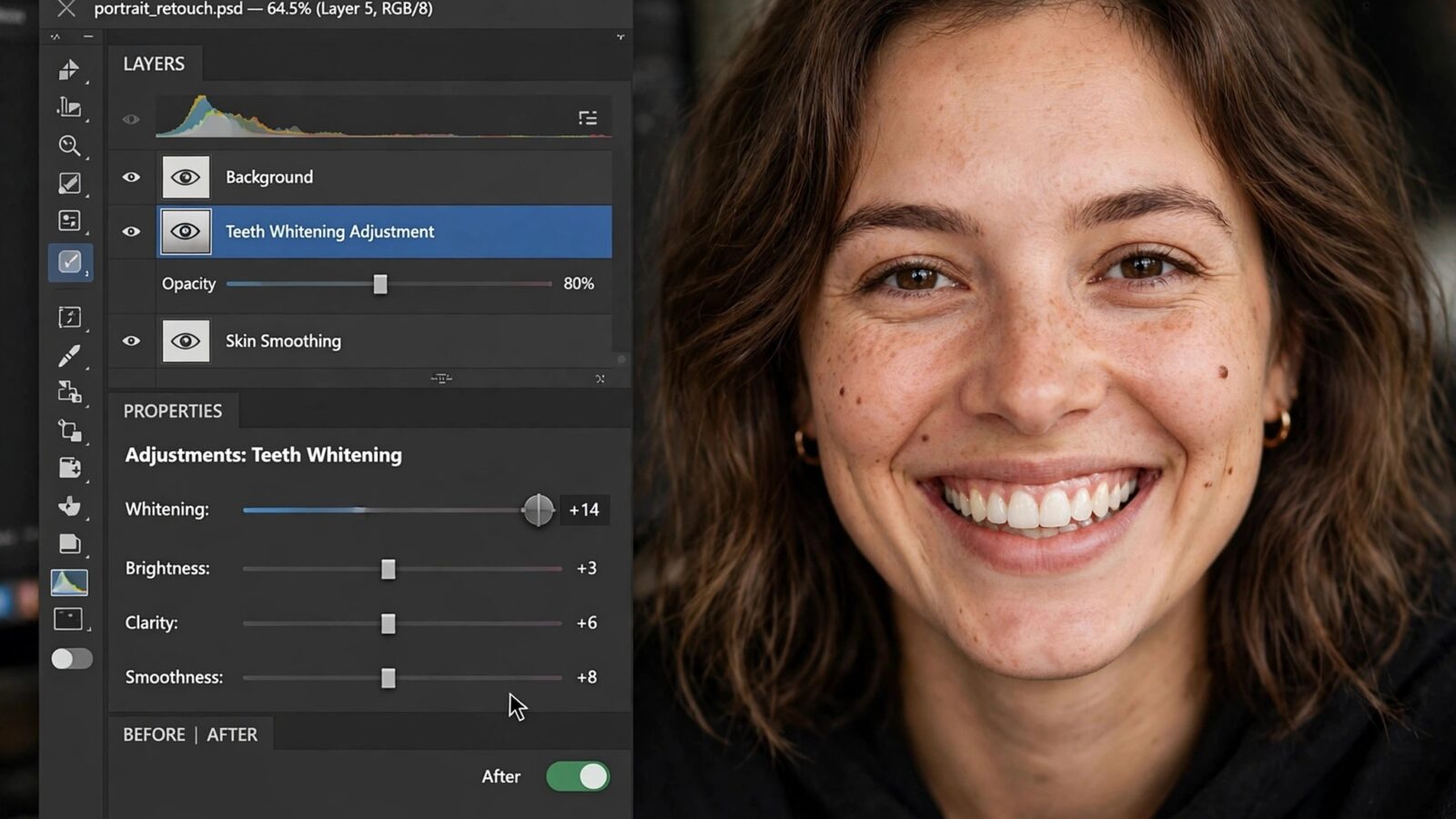
Learning how to edit portraits in Photomator on iPhone is less about chasing a flawless look and more about protecting what makes a face believable. A strong portrait edit balances skin tone, light and background separation, then stops before the image starts to feel processed. Photomator works well for that kind of restraint, because its adjustments are nondestructive and its selective tools let you treat the subject and the background as separate problems.
This guide follows a practical order used by experienced mobile editors: correct the whole frame first, refine the person, clean up only what distracts, and check the result at full size before export. The same workflow works for indoor portraits, outdoor portraits and Apple ProRAW files, with small changes for light and colour.
Start With a Clean Global Edit
Begin with exposure, white balance and contrast before you touch any local tool. If the whole photo is too warm, too dark or too flat, a selective edit will only hide the problem for a while. Set white balance so skin looks natural rather than orange or grey, then recover highlights and shadows gently. A portrait usually needs less contrast than a landscape, because hard contrast can exaggerate texture and uneven skin tone.
Check the histogram if you are unsure. Skin highlights should not be clipped, and shadows should still hold detail around hair and clothing. Small moves matter here. A change of a few points in exposure or temperature is often enough, and it leaves more room for the selective work that follows.
Use a Reference Point for Skin Tone
Pick one area of skin in even light and use it as your reference. If that area looks natural, the rest of the portrait usually falls into place. Avoid judging colour on a screen at maximum brightness or in strong sunlight, where both warmth and saturation look different than they will indoors.
Shape Light With Selective Adjustments
Photomator subject selection is the most useful tool for portrait work on iPhone, because it lets you brighten or warm the person without pushing the whole background in the same direction. Start with a modest subject adjustment: a slight lift in exposure, a small increase in warmth if the skin looks cool, and a careful touch of clarity rather than a large sharpening move.
Then look at the background separately. A slightly darker or cooler background often makes the subject stand out without needing a heavy blur or an artificial vignette. If the background is busy, reduce its exposure a little and lower its saturation, rather than trying to remove everything in it. The goal is separation, not a cut-out look.
For a deeper understanding of local control, the guide to portrait retouching in Photomator shows how small, targeted changes can improve a portrait without changing the person in the photo.
Retouch Without Removing Character
Good retouching is mostly about removal of temporary distractions, not about rebuilding a face. Remove a stray hair across the eye, a spot, or a small mark on clothing, and leave freckles, pores and natural lines alone. When you use Repair, work at a close zoom and check the texture around the edit. If the area looks smooth and plastic, undo the change and try a smaller correction.
Skin smoothing, if you use it at all, should be the lightest step in the whole edit. Many portrait edits fail because smoothing is applied first and then colour is added on top, which makes the result look waxy. It is better to get tone and light right, then decide whether any smoothing is still needed.
A Simple Portrait Checklist
- Exposure is balanced, with no clipped skin highlights.
- White balance looks natural in both shade and sunlight areas.
- Eyes are clear and in focus, without over-sharpening.
- The background supports the subject instead of competing with it.
- Skin still shows natural texture at full size.
Colour, Eyes and Final Polish
For colour, adjust saturation in small steps and watch reds in particular. Skin can turn orange quickly if saturation and warmth are increased together. Selective colour or a gentle vibrance change is often safer than a large global saturation increase. If the portrait was shot in mixed light, a slight shift in tint can help, but keep checking the whites of the eyes and any neutral clothing as a guide.
Eyes deserve a separate, restrained pass. A small increase in exposure and clarity on the eyes can add life to a portrait, but avoid brightening them so much that they look edited. The same applies to teeth and hair highlights: a subtle lift is enough, and the edit should not draw attention to itself.
Before finishing, compare the edited version with the original. If you cannot explain why each change improves the photo, reduce it. A consistent look across a set of portraits also matters more than one heavily edited frame, so consider saving a balanced version as a starting point for similar photos. The Photomator presets guide explains how to build and reuse that kind of starting point without locking yourself into one style.
Common Portrait Mistakes on iPhone
The most common mistake is editing on a small preview and only discovering problems after export. Zoom in to check edges around hair, glasses and clothing before you finish. Another frequent problem is applying the same strong edit to every portrait, regardless of light. A bright outdoor portrait and a warm indoor portrait need different white balance and contrast decisions, even if the subject is the same person.
Finally, avoid stacking several enhancement tools on one photo. Denoise, sharpening and clarity all affect texture, and together they can quickly make skin look artificial. Use one tool for one problem, check the result, and only then decide whether another is needed.
Conclusion
Editing portraits in Photomator on iPhone works best as a calm, ordered process: fix the whole frame, shape light selectively, retouch only distractions, and polish colour in small steps. When the edit still looks like the person in front of the camera, only better lit and better balanced, you have done the job well.
Frequently Asked Questions
Can I edit Apple ProRAW portraits in Photomator on iPhone?
Yes. ProRAW gives you more room to recover highlights and adjust white balance, which is especially useful for portraits shot in mixed or harsh light. Keep the same order of edits and avoid pushing recovery so far that skin tones become flat.
How do I keep skin looking natural in Photomator?
Correct white balance first, use small exposure and saturation changes, and leave natural texture alone. Retouch temporary marks only, and check the result at full size before exporting.
Should I edit the subject and background separately?
Yes, in most portraits. A selective subject adjustment lets you refine light and colour on the person without changing the background in the same way, which usually produces cleaner separation.
Why does my portrait look over-edited after export?
This usually comes from stacked texture tools, too much saturation, or judging the edit only on a small preview. Reduce the strongest adjustment, zoom in to check skin and hair edges, and compare the result with the original.