
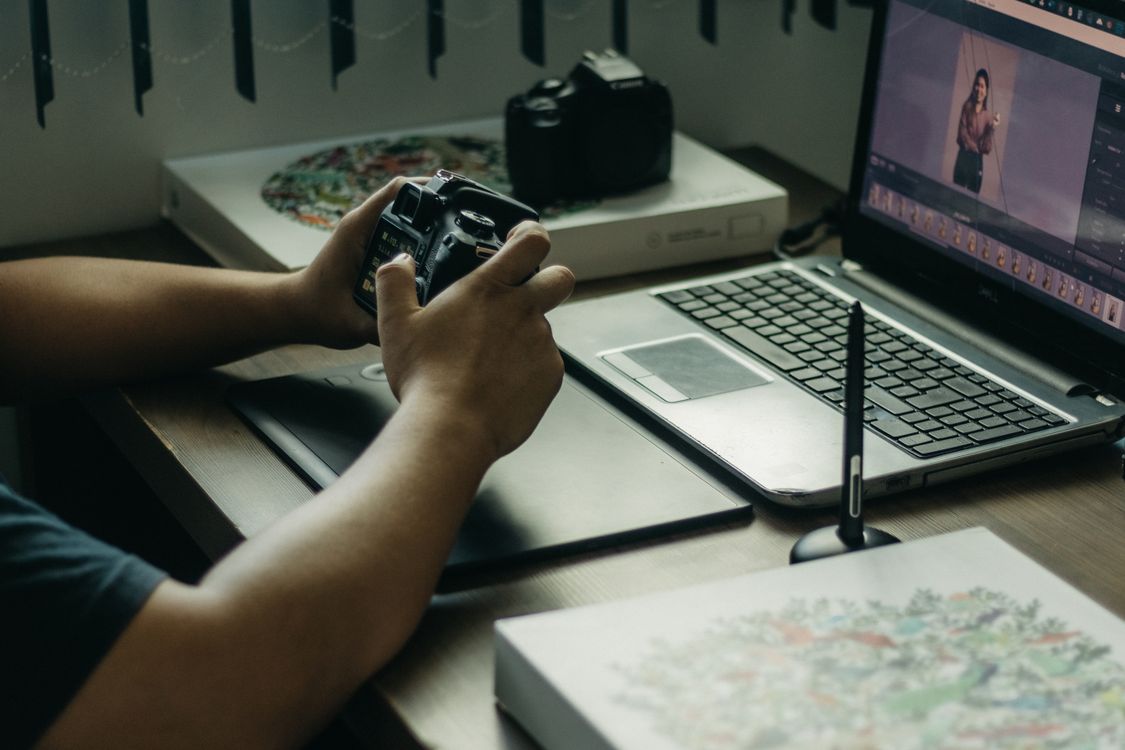
AI batch enhance in Photomator for holiday albums is the fastest way to turn hundreds of travel photos into a set that looks finished, without editing each one by hand. A holiday album usually mixes beaches, restaurants, museums and evening walks, so the photos arrive with very different light and colour. Batch enhance applies a consistent starting point to the whole set, then you only need to fix the exceptions.
Why holiday albums need a batch approach
Editing one photo at a time works for a single favourite, but it breaks down at album scale. After the first fifty photos, small differences in exposure and colour start to creep in, and the album feels uneven. A batch approach keeps brightness, contrast and colour in the same range, so the photos sit well together in a slideshow, a printed book or a shared album.
Start with a representative sample
Before you enhance the whole album, test the settings on a small sample that covers the main situations: bright daylight, shade, indoors and evening. If the sample looks natural across those situations, the batch is likely to work well. If one situation looks wrong, such as evening photos turning too orange, adjust the strength or split that group out for separate handling.
Keep the enhancement natural
Batch enhance should lift shadows, balance exposure and clean up colour, not create a new look for every photo. Avoid maximum strength, because it can flatten skin tones and make skies and water look artificial. A moderate, consistent enhancement is easier to live with across hundreds of photos than a dramatic one that only suits a few.
For the manual side of working at scale, see how to batch edit photos in Photomator and keep quality high. For holiday-specific colour and light, how to edit travel photos in Photomator for a polished, natural look is a useful companion.
Fix the exceptions afterwards
No batch setting will suit every photo. After the batch, scan the album quickly and flag photos that are still too dark, too warm or too flat. Edit only those individually, and keep the changes small so they stay in line with the rest of the set. This two-step method, batch first and exceptions second, gives you most of the quality of individual editing in a fraction of the time.
Common batch enhance mistakes
- Applying maximum enhancement to the whole album without testing a sample.
- Mixing very different scenes, such as night photos and beach photos, in one batch.
- Skipping the review pass, so a few bad photos spoil an otherwise consistent album.
- Over-sharpening the batch, which makes noise more visible in low-light shots.
A practical holiday album workflow
- Group photos by day or by lighting situation.
- Test batch enhance on a sample from each group.
- Apply a moderate, consistent enhancement to each group.
- Review the full album and flag exceptions.
- Fix exceptions individually, then export.
With this workflow, a large holiday album stops being a chore and becomes a set you are happy to share, print or revisit years later.
Frequently Asked Questions
What is batch enhance in Photomator?
Batch enhance applies an AI-assisted improvement, such as exposure and colour balancing, to many photos at once, instead of editing each photo separately.
Will batch enhance make all my photos look identical?
No. It brings exposure and colour into a similar range, but each photo keeps its own subject, composition and light. The result should feel consistent, not identical.
Should I batch night photos with daylight photos?
Usually not. Night and daylight photos need different treatment, so group them separately or test the batch on both before applying it to the whole album.
How strong should batch enhance be?
Moderate, in most cases. Test on a sample first, and choose the lowest strength that makes the album look clean and consistent.
Do I still need to edit photos after a batch?
Yes, for exceptions. A quick review pass lets you fix photos that are still too dark, too warm or too flat, without redoing the whole album.