
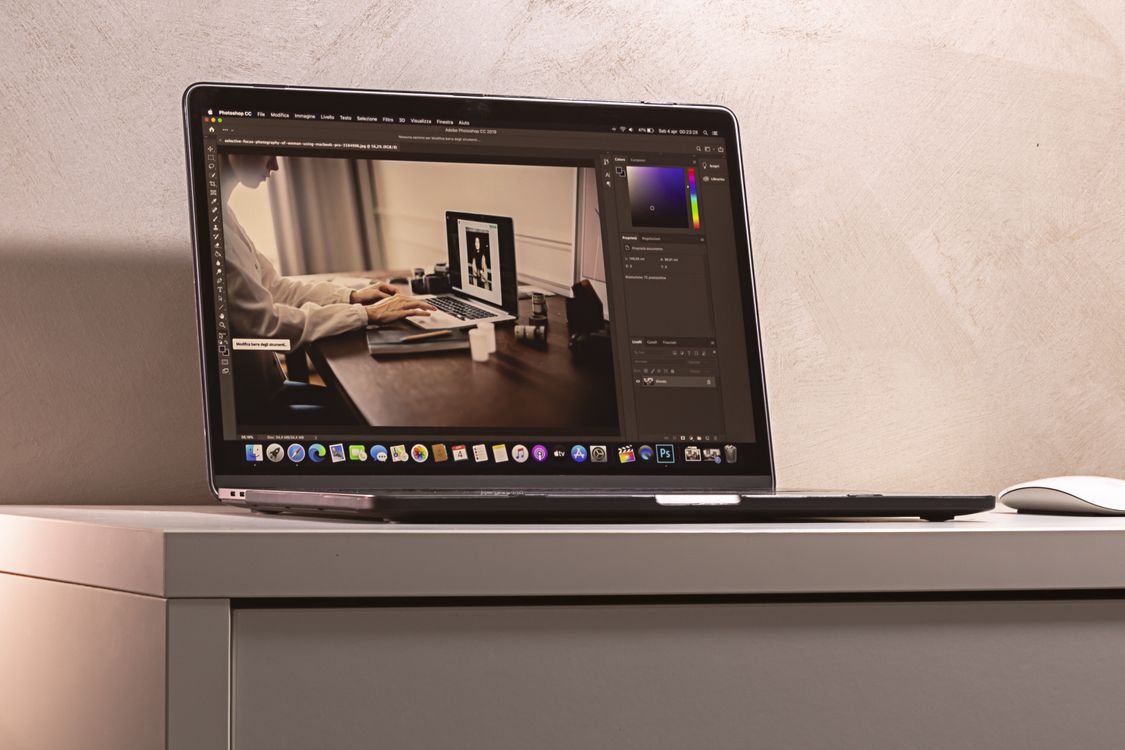
AI colour correction in Photomator for mixed lighting helps when one photo contains two very different kinds of light. A common example is a room lit by warm lamps with cool daylight coming through a window. One side of the photo looks orange, the other looks blue, and skin tones can look wrong in both areas. Colour correction aims to bring those areas closer together, so the photo feels like one scene again.
What mixed lighting does to colour
Every light source has its own colour temperature. Tungsten lamps are warm, daylight is cooler, and fluorescent or LED lighting can sit anywhere in between. A camera can only choose one white balance for the whole photo, so the other light sources keep their cast. That is why a single white balance adjustment is often not enough for mixed lighting: fixing the warm side can make the cool side look even colder.
Start with the main subject
When correcting mixed lighting, decide which part of the photo matters most. In a portrait, skin tone is usually the priority. In an interior photo, the main furniture or view through the window may matter more. Set white balance and tint for that subject first, then check how the rest of the photo responds. A good correction does not remove all colour differences; it reduces them enough that they stop distracting from the subject.
Use local adjustments for different areas
Mixed lighting often needs local work rather than one global fix. A mask or selective adjustment lets you warm up the cool window area, or cool down the warm lamp area, without changing the whole photo. Work in small steps and compare before and after for each area. If you push one area too far, it can start to look grey or flat, which is a sign to pull back.
For warm, low sun specifically, see how to edit golden hour photos in Photomator for warm light. For a broader colour workflow, how to color grade photos in Photomator explains how colour choices shape the final look.
Protect skin tones
Skin is the hardest part of mixed-lighting correction because viewers notice even small errors. Skin should look warm but not orange, and it should keep natural variation between highlights and shadows. Avoid correcting skin by copying a setting that works for a wall or a window, since those surfaces reflect light differently. Zoom in on faces, and check skin in both bright and shadow areas before you finish.
Common mixed-lighting mistakes
- Setting white balance for the background and leaving skin with a strong cast.
- Removing all warmth from a scene, so it looks cold and clinical.
- Pushing one local adjustment too far, creating a grey or muddy patch.
- Judging colour on a phone screen with night mode or a warm display setting switched on.
A practical mixed-lighting workflow
- Identify the two main light sources in the photo.
- Set white balance for the main subject.
- Use a local adjustment on the area with the strongest cast.
- Check skin tones and white or neutral areas.
- Make a final, gentle saturation check.
Done carefully, AI colour correction turns a confusing mix of warm and cool light into a photo that looks natural, even when the original scene was far from simple.
Frequently Asked Questions
What is mixed lighting in photography?
Mixed lighting means a photo contains two or more light sources with different colour temperatures, such as warm lamps and cool daylight in the same room.
Why does one white balance setting not fix mixed lighting?
White balance applies to the whole photo, so a setting that fixes one light source can make another look worse. Local adjustments are often needed for the second light source.
Should skin tones come first in colour correction?
Yes, in most portraits and people photos. Viewers notice skin errors quickly, so get skin looking natural before fine-tuning the background.
Can mixed lighting be fully removed?
Usually not completely, and it does not need to be. The goal is to reduce casts so the photo looks balanced, while keeping some natural variation in the light.
How do I check colour accurately?
Turn off warm display modes, view the photo on a neutral screen, and check white, grey and skin areas. If those look right, the correction is usually close.