
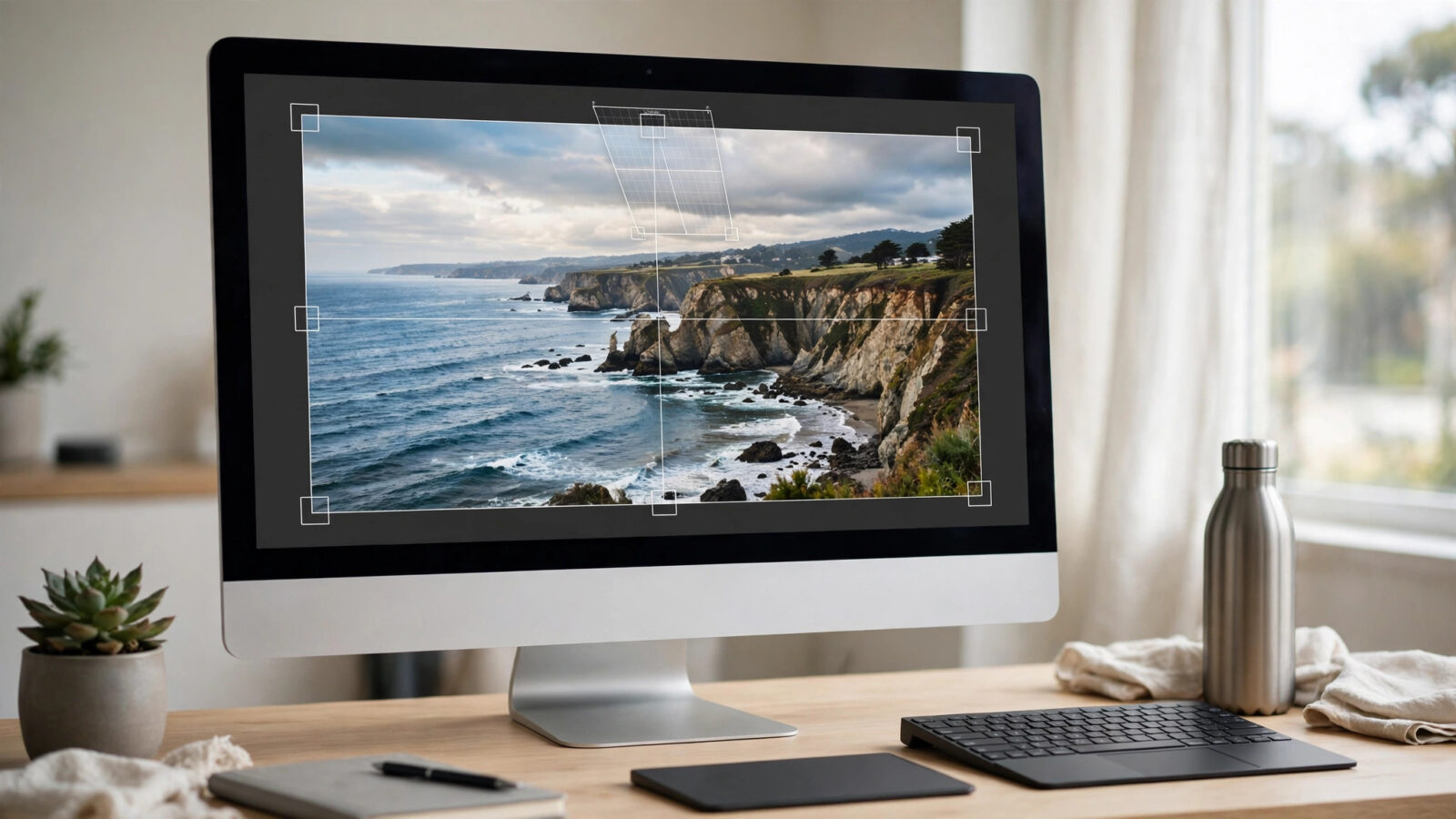
Beach and ocean photo editing is often about managing bright light and strong blue tones. Sand, water and sky can all pull an edit in different directions, so the goal in Photomator is clean colour, balanced exposure and detail that still feels natural by the sea.
Start by protecting the highlights. Bright sand and sparkling water lose detail quickly, and once they are blown out they are hard to recover. A gentle highlight reduction usually helps more than a large exposure change.
Balance sky, sand and water
Check white balance first. Beach photos often look too cool because of reflected blue light, or too warm because of sand. Aim for neutral sand and believable skin tones, then let the water keep its natural blue or green.
Use local adjustments where they help most. Darken a bright sky slightly, lift shadows in people or beach objects, and keep the horizon level. That separation makes the scene feel calm rather than washed out.
Keep water clear, not electric
Ocean colour is easy to overdo. A small increase in vibrance can make water look inviting, but too much saturation turns it electric and unnatural. If the water looks artificial, reduce blue saturation and add a little contrast to restore depth.
Also watch foam and reflections. They should stay bright but not pure white, because they give the water its texture. For related coastal and travel work, see how to edit underwater photos in Photomator and fix blue casts and how to edit travel photos in Photomator for a polished natural look.
Skin tones and people at the beach
People are often the hardest part of a beach edit. Harsh sun can create strong shadows on faces, while reflected light can make skin look cool. Lift shadows gently, keep skin warm but not orange, and avoid smoothing skin so much that it loses texture.
If the background is brighter than the person, use a local adjustment on the subject rather than brightening the whole photo. That keeps the beach bright while making the person easy to see.
A simple beach workflow
Straighten the horizon, recover highlights, set white balance, then adjust vibrance in small steps. Refine sky and water locally, check skin tones, and finally add gentle contrast. Export a test copy and view it on a phone, because beach photos are often shared straight from mobile.
When the photo feels bright, clean and calm, the edit is done. Resist the urge to add more colour just because the scene was beautiful in person.
Frequently asked questions
Why do my beach photos look washed out?
Bright sand and sky often cause overexposure. Reduce highlights, set exposure for the brightest important detail, and add gentle contrast.
How do I keep ocean colour natural?
Use vibrance sparingly, avoid pushing blue saturation too far, and check foam and reflections for detail.
Should I warm up beach photos?
Only slightly if the light was warm. Keep sand neutral and skin believable, rather than adding a strong warm cast to the whole image.
Can Photomator fix a tilted beach horizon?
Yes, straighten the horizon first, before colour edits, so the rest of the workflow is judged on a level image.
What export settings suit beach photos?
Use a high quality JPEG for sharing and keep the original or a full quality copy for printing, especially for large coastal prints.
Beach photos should feel like a day by the sea, bright and open, with colour you can trust. When the edit stays clean, the memory stays clear long after the trip is over.