
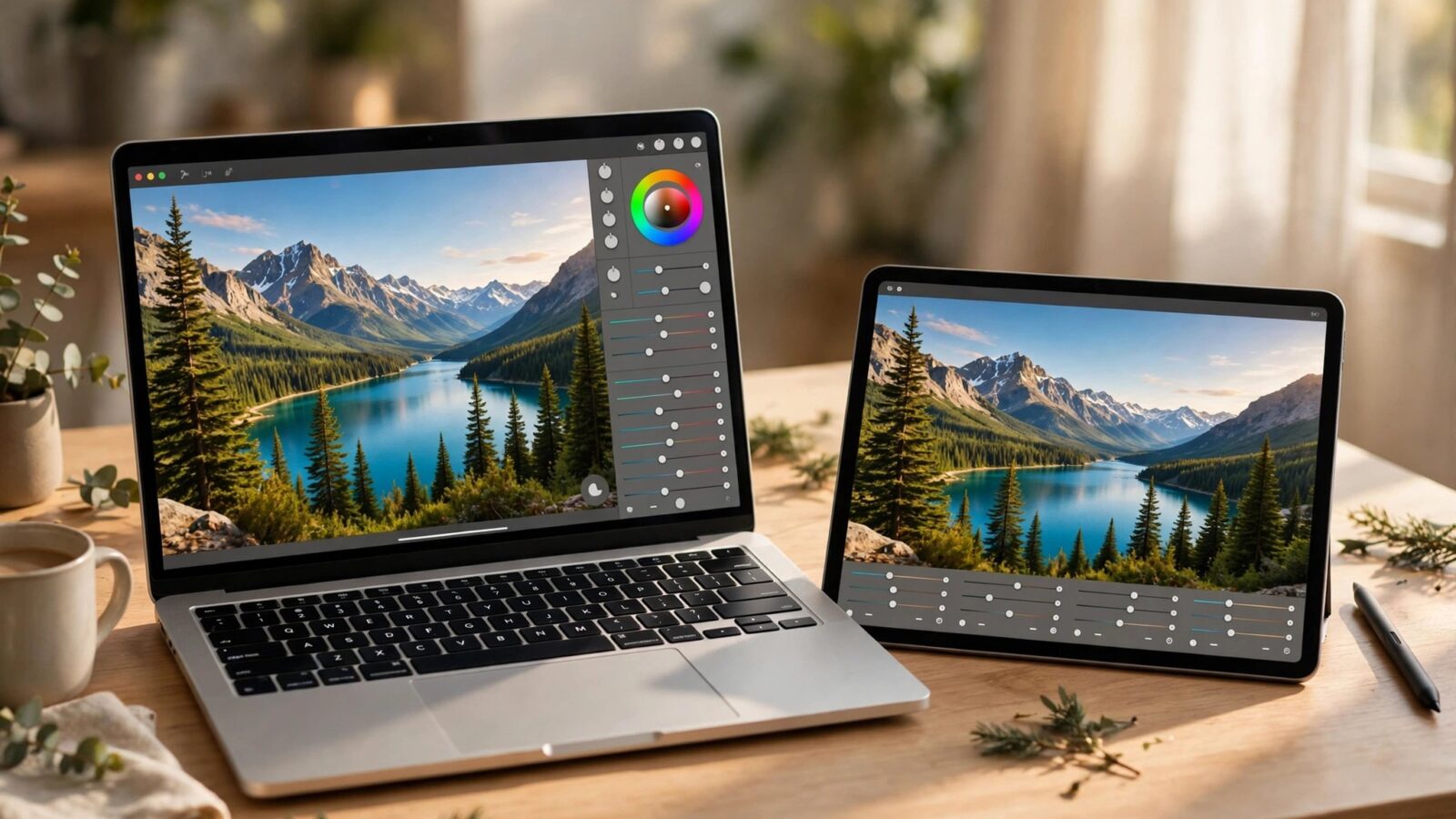
Black and white photo editing in Photomator is a discipline of its own. Without color to carry a photo, everything depends on light, shape, texture and tone. Done well, a black and white edit feels timeless and focused. Done badly, it looks flat, grey and muddy. The difference is rarely the filter you choose; it is the decisions you make about contrast, tonal separation and detail.
This professional guide walks through a reliable black and white workflow, from choosing the right photo to finishing a print-ready edit.
Start With a Photo That Suits Black and White
Not every photo improves in black and white. The strongest candidates have clear shapes, strong light and shadow, interesting texture, or a subject that does not rely on color for its impact. Portraits with expressive light, street scenes with graphic shapes, and landscapes with dramatic skies usually convert well.
Photos that depend on color contrast, such as a red subject against green foliage, often lose their main point of interest in monochrome. If the photo’s story is color, keep it in color. Black and white should be a creative choice, not a rescue attempt for a weak color edit.
Convert Thoughtfully, Not With One Click
A simple desaturation often produces a dull result, because different colors that looked distinct can collapse into the same grey. A better conversion lets you control how each color range maps to grey, so skies, skin and foliage separate cleanly.
After converting, check the histogram. A good black and white photo usually has a full tonal range: deep blacks, clean whites and a spread of midtones in between. If everything bunches in the middle, the image will feel flat, no matter how interesting the subject is.
Shape Contrast With Curves and Local Adjustments
Contrast is the engine of black and white editing. Use curves to deepen shadows and brighten highlights where the photo needs weight, while protecting the midtones where your subject lives. Local adjustments matter just as much: darken a bright background to make a portrait stand out, or lift shadow detail in a landscape without flattening the whole image.
For the techniques behind this kind of tonal control, see how to use curves in Photomator for better contrast and tone. Curves are especially valuable in black and white, because they let you shape the tonal structure precisely, without color getting in the way.
Protect Texture and Skin Tones
Black and white editing can easily harden skin or over-sharpen texture. Keep skin tones smooth but not plastic: retain pores and fine detail, and avoid pushing clarity so far that faces look gritty. For landscapes and architecture, texture can take more emphasis, but still check edges and fine detail at full size.
Noise needs care too. A little grain can suit black and white beautifully, adding a film-like feel, but color noise and harsh digital grain do not. Clean up unwanted noise before converting, or as part of the early edit, rather than trying to hide it later.
Finish With a Clear Black and White Point
Before exporting, decide where your true black and true white sit. A photo with no real black often feels washed out, while a photo with clipped whites loses detail in skies and highlights. Set those points deliberately, then step back and judge the whole image at a distance. If the subject reads clearly in a small thumbnail, the tonal structure is probably working.
For a broader look at shaping tone and color across your work, see how to color grade photos in Photomator, which covers the tonal judgment that underpins strong monochrome edits as well.
Conclusion
Strong black and white editing in Photomator comes down to selection, thoughtful conversion, deliberate contrast and careful finishing. Choose photos with light and shape worth showing, shape their tones with curves and local edits, and protect texture throughout. The result is not just a photo without color, but a photo with a clearer voice.
Frequently Asked Questions
Should I shoot in black and white or convert later?
Convert later from a color or RAW file whenever possible. You keep more tonal information and more control over how each color maps to grey, and you can always return to the color version.
Why does my black and white photo look flat?
It usually lacks tonal range or contrast. Check the histogram, deepen true blacks, protect highlight detail, and use curves to separate shadows, midtones and highlights.
How much contrast is too much in black and white?
When skin hardens, shadows block up or highlights clip, you have gone too far. Step back, reduce the curve’s steepness, and check detail at full size before exporting.
Does black and white suit every genre?
No. It suits portraits, street, documentary and dramatic landscapes best. Photos whose impact depends on color usually work better in color.