
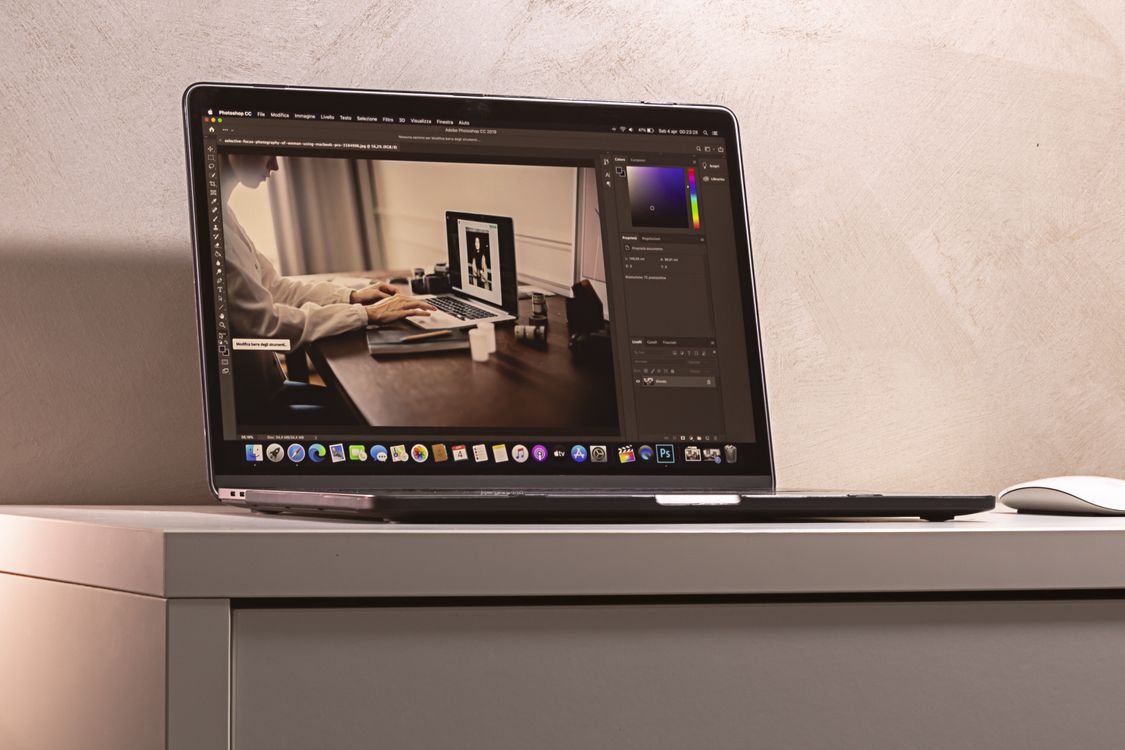
These group photo editing tips in Photomator solve a different problem from single portraits: every face matters, and a fix that helps one person can hurt another. The best group edits are balanced, gentle and checked face by face before export.
Balance light across the group
Start with global exposure, highlights and shadows so no one is lost in darkness or blown out by bright light. Avoid strong local brightening at this stage, because it can make one face look pasted in. How AI masking in Photomator makes selective editing faster is useful later, when only one or two faces still need help.
Keep skin and colour consistent
Use the same colour and white balance treatment for the whole group. If faces have different colour casts, fix them with small selective adjustments rather than changing the whole photo again. How to edit portraits in Photomator on iPhone covers natural skin handling that also applies to group photos.
Check every face at full size
Zoom in and check each face in turn, especially people at the edges, where distortion and softness are more common. Look for closed eyes, harsh shadows and colour shifts. A group photo is only as good as its weakest face, so do not judge it only as a thumbnail.
Finally, crop with care. Keep the group together, avoid cutting hands or feet unnecessarily, and leave a little space around the edges for printing or sharing.
Frequently Asked Questions
How do I edit group photos without making faces look fake?
Keep edits gentle and consistent. Use small selective fixes for individual faces instead of strong global retouching.
Can Photomator fix dark faces in group photos?
Often, yes. Lift shadows globally first, then use selective edits for faces that are still too dark.
What if one person is much brighter than the rest?
Use a selective adjustment to reduce highlights on that person, rather than darkening the whole photo.
Should group photos be edited on iPhone or Mac?
Both work, but Mac makes it easier to check every face at full size before export.
Can I use a preset for group photos?
Yes, as a starting point. Reduce its strength if needed, then check each face before sharing.
It also helps to edit group photos in a calm order. First fix the whole photo, then fix individual faces, then check colour, and only then crop and export. Jumping between steps makes it easy to overcorrect one face while forgetting another.
When you share a group photo, remember that people will zoom in on themselves first. That is why gentle, even editing matters more than a dramatic look. A photo where everyone looks like themselves, in good light, is the one people will keep and print.
Finally, save your best group settings as a starting preset, but always adjust for the light and location of the new photo. No single preset suits every group, indoor and outdoor, in the same way.
A balanced group edit is a quiet success: nobody stands out for the wrong reason, and everyone looks their best.
Before you share, do one last check on a different screen if you can. A phone screen, a tablet and a laptop can all show colour and brightness slightly differently, and a group photo deserves that extra minute.
With that routine, group photos become less stressful to edit and more enjoyable to share, because every person in the frame gets the same careful attention.
That care is what turns a quick group snapshot into a photo worth keeping.
Keep the process gentle, and the group will thank you.
Always.