
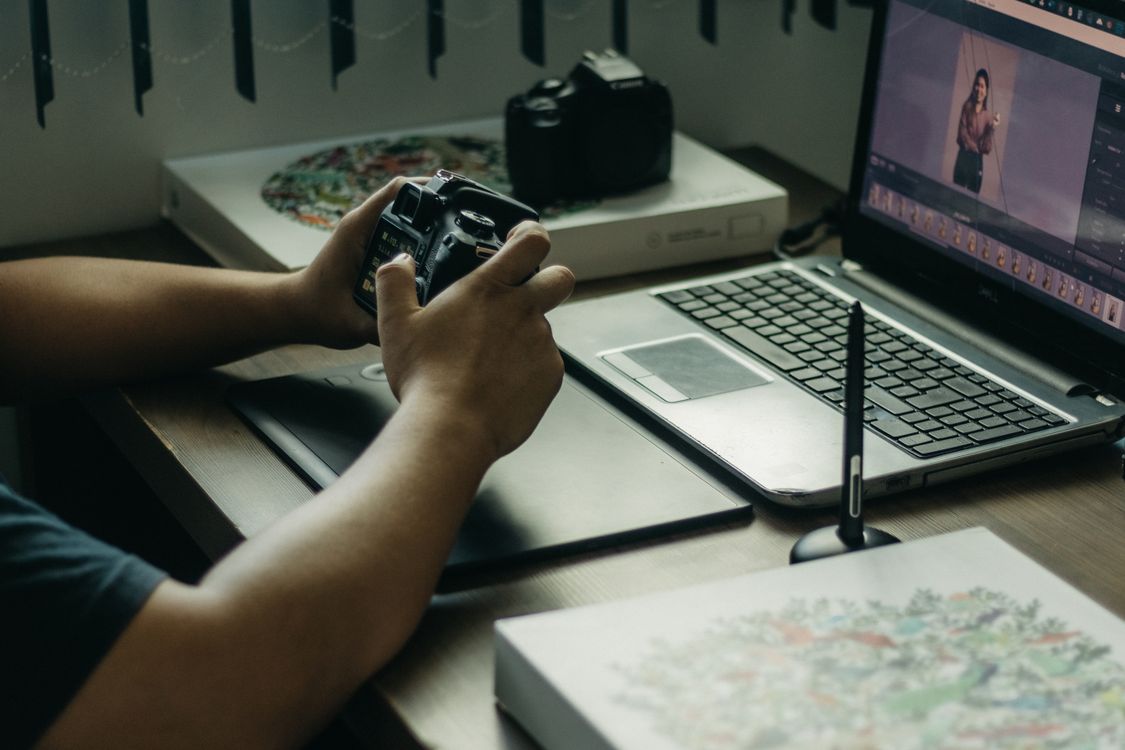
These Photomator tips for editing photos from older iPhones prove that a good photo is not only about the newest sensor. Older phones often produce softer detail, more noise in low light and less dynamic range, but careful editing can close much of that gap.
Start with light and noise
Fix exposure and shadows first, then reduce noise gently. Heavy noise reduction can smooth skin and textures, so use the smallest amount that makes the photo look clean. Photomator denoise and Super Resolution explains how these tools work, and why a light touch usually looks best.
Sharpen for the final size
Older phone photos often look best when sharpened for their final use, not at full zoom. How to use AI Enhance in Photomator for cleaner, more natural photos is a good starting point, but always check faces and text after enhancement, because they reveal over-sharpening first.
Keep colour calm and exports small
Use restrained colour and contrast, and export at a size that suits the photo. A smaller, well-edited export often looks sharper than a large file that shows every weakness of an older sensor.
Finally, keep your best older-phone photos in a separate album. It makes it easier to revisit them, compare edits and build a consistent look over time.
Frequently Asked Questions
Can Photomator improve photos from an older iPhone?
Yes, especially for light, noise, colour and sharpness. It cannot add detail that was never captured, but it can make the existing detail look much better.
Should I use AI Enhance on every older photo?
No. Use it where a photo is soft or noisy, then check the result at full size before keeping it.
How do I reduce noise without losing detail?
Use a small amount of noise reduction, then add gentle sharpening. Strong noise reduction alone can make photos look waxy.
Are older iPhone photos good enough to print?
Many are, at small and medium sizes. Choose a sharp, well-lit original and export at a sensible print size.
What export size works best for older photos?
Use the size you actually need for sharing or printing. Avoid enlarging far beyond the original resolution.
It also helps to compare before and after versions at the size you will share. A photo that looks good on a phone screen may still need small changes before it looks good on a larger display or in print.
Another useful habit is to edit in good light, on a calibrated screen if possible. Older photos already have less margin for error, so a bright, accurate viewing environment helps you avoid overcorrection.
Finally, do not chase a perfect, modern look for every older photo. A natural, clean result that keeps the character of the original is usually more appealing than a heavily processed version that tries to hide its age.
With patience and restraint, older iPhones can still produce photos worth sharing, printing and keeping.
Start with your favourites, not your whole library. A small set of successful edits will teach you what works for your phone, and you can then apply the same gentle approach to the rest.
Keep backups of your originals before editing, so you can always return to the unedited photo if a new approach works better later.
That simple workflow is often enough: fix light, tame noise, keep colour calm, sharpen for the final size, and check the result before sharing.
Older iPhones reward that restraint with photos that still feel honest, clear and worth keeping.
That is the best way to make an older iPhone feel new again.
Your older phone still has plenty of good photos in it.