
Introduction
Removing the background is one of the most useful edits you can learn. It turns an ordinary snapshot into a clean product shot, a polished profile picture or a creative composite. If you have ever wondered how to remove background from photo without spending hours tracing edges by hand, modern selection tools have made the job dramatically easier. In Photomator, on Mac, iPhone and iPad, an AI-powered subject selection does the heavy lifting: it finds the main subject, builds a mask around it, and lets you hide, replace or restyle everything behind it. This guide walks through the full process step by step, including the edge refinements that separate a convincing cutout from a rough one.
What Background Removal Actually Does
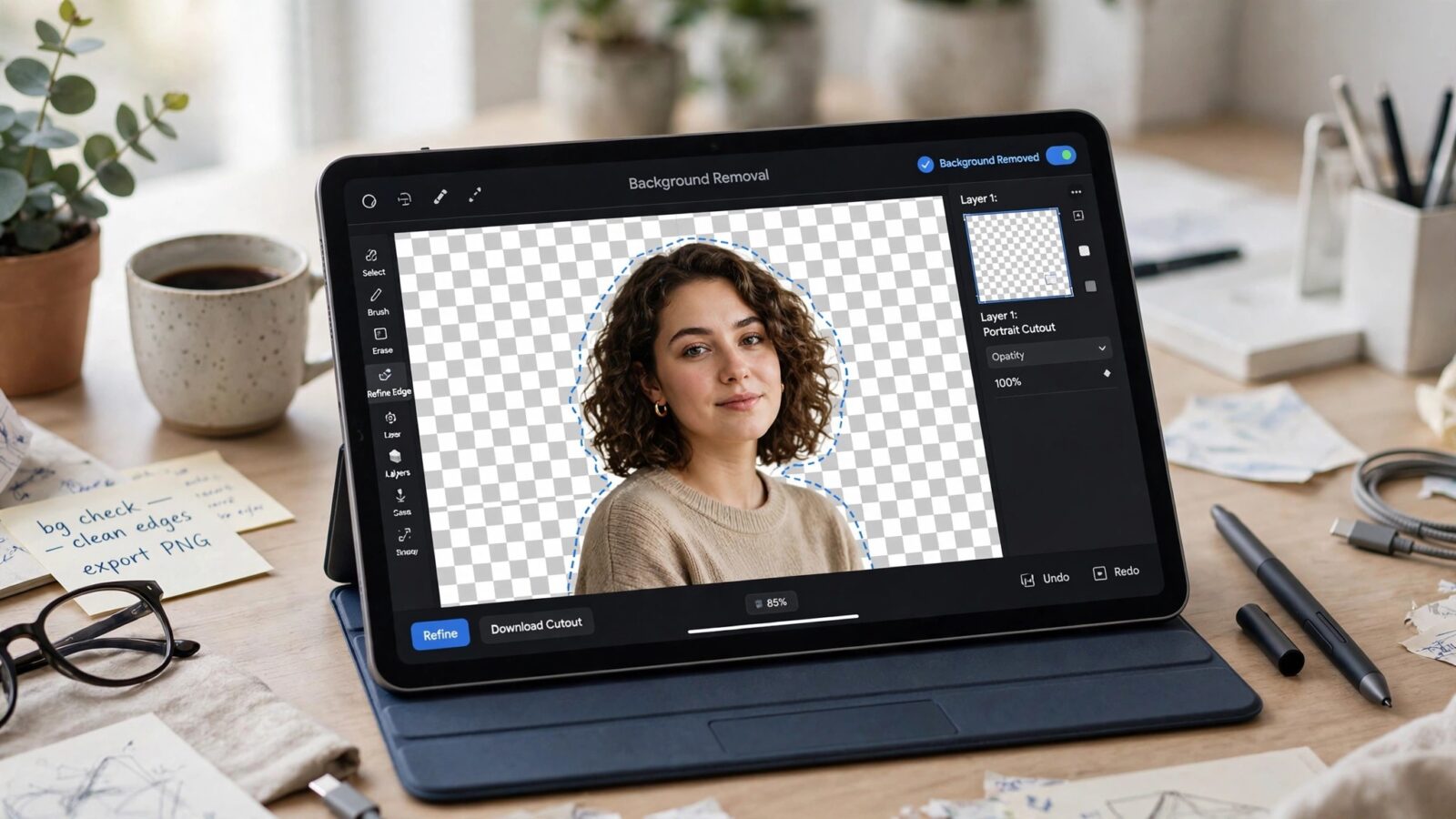
Background removal never deletes pixels directly. Instead, it creates a mask — a map that tells the editor which parts of the image stay visible and which parts are hidden. The subject sits on the visible side of the mask and the background on the hidden side. Because the mask can be edited at any time, the whole process is reversible: reveal a hidden corner, soften an edge, or bring the original background back entirely.
This is why masks are the foundation of selective editing in general. The same skills you use here apply whenever you want to adjust one part of a photo without touching the rest, a workflow explored in depth in our guide to masks and selective editing in Photomator.
How to Remove Background from Photo in Photomator, Step by Step
Step 1: Open the photo and select the subject
Open your image in Photomator and use the Select Subject tool. The app analyses the scene and outlines the main subject — a person, a pet, a product or a vehicle — in a single tap or click. Photos with one clear subject and a reasonably distinct background give the cleanest first result.
Step 2: Check the selection and fix mistakes
Zoom in and inspect the edges. Automatic selections sometimes include a piece of background between an arm and a body, or clip a stray piece of the subject. Use the brush-based selection tools to add any missed areas of the subject or subtract anything that does not belong. Time spent here pays off more than any later fix.
Step 3: Turn the selection into a mask
Convert the selection into a mask so the background is hidden rather than deleted. At this point you will see your subject isolated against transparency. If the result looks inverted — subject hidden, background visible — simply invert the mask.
Step 4: Refine the edges
Hair, fur and other fine details are where cutouts usually fail. Work around the outline with the refine and brush tools, softening the edge slightly so the subject blends naturally with whatever sits behind it. A perfectly hard edge often looks artificial, especially around hair, while a harsh fringe of leftover background colour is equally distracting. Small, careful strokes at high zoom give the most realistic result.
Step 5: Replace, blur or restyle the background
With the subject masked, the background is yours to change. Drop in a solid colour for a clean product or portrait look, place the subject into a completely different photo for a composite, or keep the original background but blur or darken it so the subject stands out. Because the background lives on its own side of the mask, you can also adjust its brightness and colour independently of the subject.
Step 6: Export with the right format
If your cutout needs to stay transparent — for use in designs, documents or other images — export it as PNG, which preserves transparency. JPEG does not support transparency, so a JPEG export will fill the hidden area with a solid colour instead. If the subject already sits on its new background, JPEG is perfectly fine.
Tips for Cleaner, More Realistic Cutouts
Start with the right photo. Strong contrast between subject and background, even lighting and a subject that is fully in focus all make the automatic selection more accurate. Avoid busy backgrounds directly behind fine details like hair where possible.
Match the new background to the subject. When compositing, the direction and softness of light on the subject should agree with the scene behind it, or the result will look pasted on. A slight shadow beneath or behind the subject also helps anchor it in the new scene.
Finally, zoom out before you finish. Edge problems that are invisible at 100 percent often show up at a glance from normal viewing distance, and the opposite is true too — tiny imperfections you worried over at high zoom usually disappear completely.
Frequently Asked Questions
Can I remove a background on iPhone and iPad, or only on Mac?
You can do it on all of them. Photomator’s subject selection and masking tools are available on Mac, iPhone and iPad, and your edits sync through your photo library, so you can start a cutout on one device and finish it on another.
What is the best format for saving a cutout?
Use PNG when you need the background to remain transparent, for example for designs or composites. Use JPEG when the subject is already placed on a final background and you simply want a smaller, widely compatible file.
How do I fix messy edges around hair?
Zoom in and refine the mask edge with small brush strokes, softening the transition slightly. Photomator’s selection refinement handles much of the fine detail automatically, and manual touch-ups around the outline take care of the rest.
Is background removal destructive?
No. Because the background is hidden by a mask rather than erased, the edit is non-destructive. You can adjust the mask, restore parts of the original background or remove the mask entirely at any time.
Conclusion
Learning how to remove background from photo comes down to three skills: a good subject selection, a clean mask and patient edge refinement. Photomator’s Select Subject tool handles the first step in seconds, and from there the mask gives you complete, reversible control over what stays and what goes. Practise on a clear, well-lit photo first, and you will soon be producing cutouts clean enough for products, portraits and creative projects alike.