iPhone Pro models have become serious cameras, with larger sensors, ProRAW capture, and computational features that handle much of the early processing. In 2026, the trend is not to replace that camera processing, but to build on it: shoot with the Pro camera’s strengths, then edit in Photomator for control over colour, detail, and finish, all on the device.
This guide looks at iPhone Pro camera and Photomator editing trends for 2026, from ProRAW workflows to on-device editing and a clean path from shoot to share. The focus is practical: what to shoot, how to edit it in Photomator, and how to keep the result natural.
Shoot ProRAW and keep your options open
The first trend is shooting in a format that keeps options open. Apple ProRAW, supported by Photomator, combines computational processing with RAW flexibility, giving more room to recover highlights and shadows and to adjust white balance than a standard JPEG. For important photos, such as portraits, landscapes, and prints, ProRAW is worth the larger file size.
For everyday photos, a standard format is often enough, and Photomator edits both well. The trend in 2026 is a mixed approach: shoot ProRAW when the photo matters and the light is challenging, and shoot standard formats when speed and storage matter more. Either way, keep the original safe and edit non-destructively in Photomator, so you can return to the original later.
Edit on-device, with AI where it helps
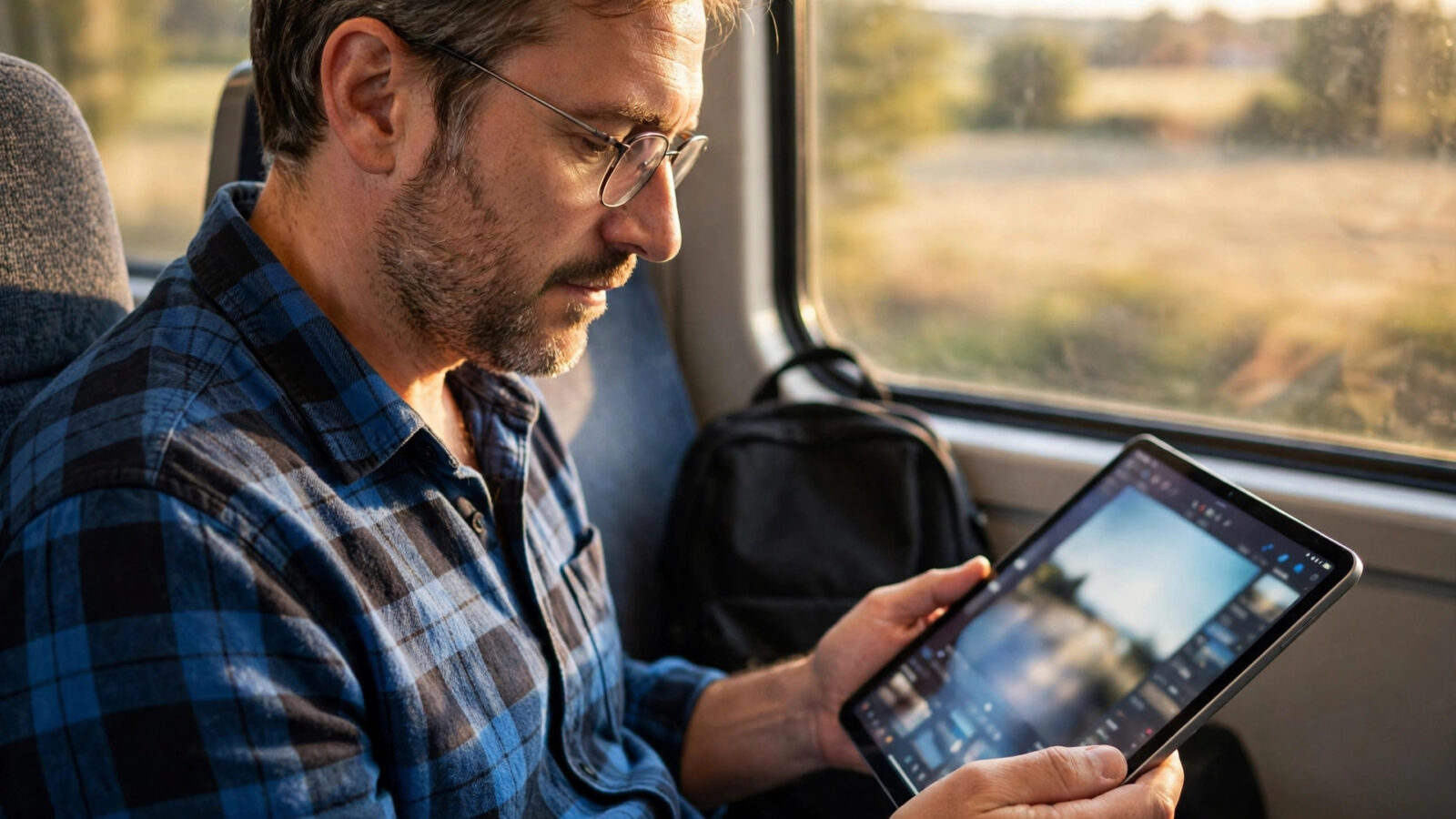
A second trend is on-device editing with AI assistance. Photomator’s AI tools, including enhance, denoise, and masking, run on-device, so Pro camera files can be refined without uploading them. For ProRAW files, that matters: the files are larger, and uploading them for every edit would be slow and raise privacy questions.
Use AI tools selectively. AI enhance and denoise can clean up a low-light ProRAW file, AI masking can separate a subject from a background, and AI super resolution can help a small crop hold up larger. In each case, check the result at full size and keep the adjustment restrained, so the photo looks like a photograph, not a processed image.
Colour, detail and a natural finish
Pro camera files reward careful colour and detail work. In Photomator, set white balance first, balance highlights and shadows to recover detail in bright and dark areas, and refine colour with selective adjustments where one range is out of balance. Sharpen selectively, keeping detail in the subject and avoiding noise in smooth areas such as sky.
The trend in 2026 is toward a natural finish: clean colour, honest detail, and restrained saturation, rather than heavy filters. A Pro camera photo edited in Photomator should look like the scene you saw, only better. That finish also ages well, as it does not depend on a filter that will date quickly.
A clean workflow from shoot to share
Put it together, and a 2026 Pro camera workflow in Photomator looks like this: shoot ProRAW for important photos, import into Apple Photos, edit on-device in Photomator, and export at full quality for sharing or printing, keeping a high-quality master. Use presets for consistency across a set, and check the result on more than one device before sharing.
When you are reading other Photomator trends, you will see the same principle. The Pro camera gives you more to work with, and Photomator gives you the control to use it well, without leaving the device.
Frequently asked questions
Should I shoot ProRAW on iPhone Pro?
For important photos and challenging light, yes. ProRAW, supported by Photomator, gives more room to recover highlights and shadows and to adjust white balance than a standard JPEG, at the cost of larger files.
Does Photomator support Apple ProRAW?
Yes. Photomator supports RAW and Apple ProRAW, along with JPEG, PNG, TIFF, and HEIF, as listed on photomator.org. Edit ProRAW files non-destructively, keeping the original safe.
Do Photomator AI tools upload my photos?
Photomator’s AI tools are described as running on-device, so the AI work happens locally on the device, rather than requiring an upload to a server. That is especially useful for larger ProRAW files.
How do I keep Pro camera edits natural?
Set white balance first, balance highlights and shadows, refine colour selectively, and sharpen only where it helps. Keep saturation restrained and check the result at full size, so the photo looks like the scene you saw.
What is the best export for a ProRAW edit?
Export at full quality and keep a high-quality master. Export sharing versions from the master, and check the result on more than one device before sharing or printing.