Teachers photograph for a different reason from most other users. The photos are for parents, for displays, for school newsletters and for records of learning, and they are usually taken quickly, in a busy classroom, with mixed light and a phone in one hand. This review looks at Photomator for teachers from the point of view of its workflow and features for classroom photo editing, and asks whether it fits a school day, with its privacy, time and consistency demands.
The review is framed as an assessment of the workflow and features for that classroom use case, rather than a claim of hands-on testing in a particular school. It focuses on what a teacher is likely to need: quick, repeatable edits, clear photos for displays, and a workflow that does not add a long editing burden to an already full day.
What Classroom Photos Need
Classroom photos need clarity, honest colour and a respectful presentation. A display photo should show the work or the activity clearly, without a distracting background or a strong colour cast from classroom lighting. A newsletter photo should be bright enough to read at a small size, and a record photo should be accurate enough to show what children actually did.
Those needs are practical, not artistic in the professional sense. A teacher does not need dramatic grading or complex retouching for a classroom display. They need a photo that is straight, bright, true to colour and consistent across a set, so a display board or a newsletter does not look like a collection of unrelated snapshots. Privacy is also central: a teacher should only edit and share photos in line with school policy and parental consent, and should avoid sharing photos of children beyond approved channels.
Speed, Batches and a School Day
In reviewing the workflow, Photomator fits a school day best when a teacher edits in batches. Photos from one activity, taken in the same classroom light, can share a base edit, with individual adjustments only where a photo is much darker or warmer than the rest. That batch approach means a teacher can prepare a set for a display in a short break, rather than editing each photo separately after school.
Presets help here, provided they are gentle. A light, natural preset can bring a set of classroom photos into line without making skin tones orange or making displays look artificial. The review notes that a teacher should check faces and classroom displays after a batch edit, and pull back a preset if a whiteboard, a wall display or a child’s face looks too saturated. A quick set check at thumbnail size is often enough to spot an outlier.
Classroom Light and Colour
Classroom light is mixed: fluorescent or LED overhead light, daylight from windows, and sometimes a projector or a screen. That mix can create colour casts and uneven brightness, with one side of a room warmer than the other. Photomator’s white balance, exposure and selective colour controls can help correct those casts, provided the teacher works in groups by light and checks the result against the real classroom.
For a display, the key check is whether colours in children’s work look true. Artwork, books and displays should not shift colour in editing, because parents and children will compare the photo with the real work. A small white balance correction, followed by a check of a known colour in the photo, such as a red book or a blue display, is a practical way to keep colour honest. A related guide to batch editing photos in Photomator and keeping quality high sets out the batch approach that suits a set of classroom photos.
Displays, Newsletters and Sharing
Photos for displays and newsletters are usually seen at a small size, on a board or in a PDF, and they need to be clear at that size. A teacher should crop to the activity or the work, keep the main subject large in the frame, and check brightness at the size the photo will be shown. A photo that looks good at full size on a phone can look dark or busy in a small newsletter thumbnail.
For sharing, a teacher should export at a consistent size and quality, and should follow school policy on where photos can be shared. Photomator’s export workflow supports a consistent output, but the decision about sharing rests with the school, not with the app. The review stresses that a good edit does not make a photo safe to share: consent and policy come first, and editing comes second.
Working on a Phone in the Classroom
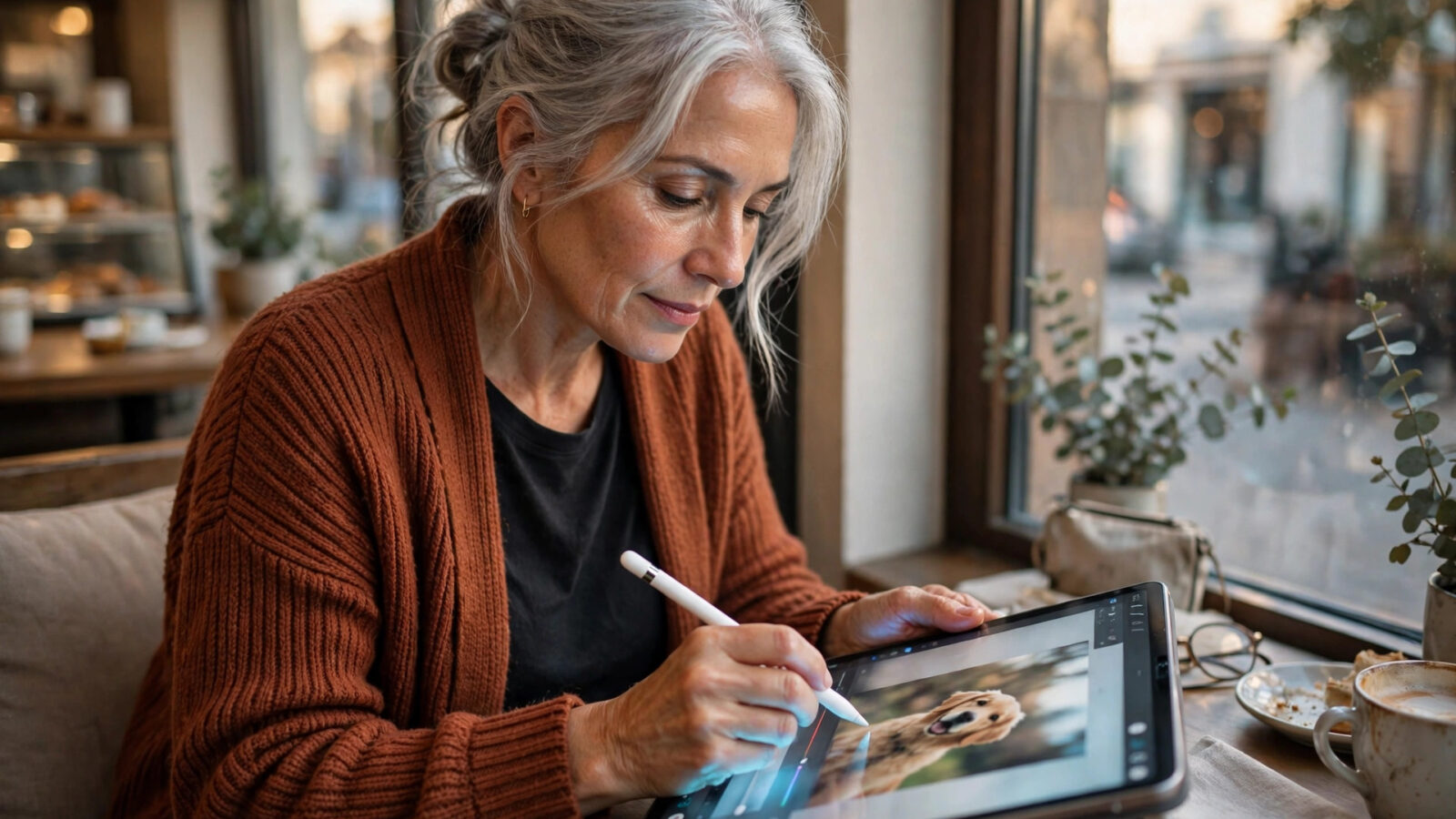
A teacher is more likely to photograph and edit on a phone or iPad than on a Mac in the classroom. Photomator’s availability on iPhone and iPad, with a workflow similar to the Mac version, fits that pattern, because a teacher can photograph an activity, make a quick batch edit, and prepare a display set without moving to a desktop. The review does not claim that phone and Mac editing are identical in every detail, but the shared approach to presets and basic controls makes the workflow recognisable across devices.
On a phone, the most useful habit is to keep edits simple: straighten, brighten if needed, correct a colour cast, and apply a gentle preset. Complex local edits are harder on a small screen and are rarely needed for a classroom display. A teacher who keeps the workflow simple will finish a set faster and with fewer mistakes.
Strengths and Limitations for Teachers
The strengths for teachers are a clear, repeatable workflow, useful presets, batch consistency, and availability on phone, iPad and Mac. The limitations are in specialist areas a teacher may occasionally need, such as removing a large object from a photo, designing a full newsletter layout, or managing a large school photo archive with tagging and permissions. Those tasks are outside the scope of a photo editor, and a teacher may need a separate school system or design tool for that stage.
That boundary is important for a fair review. Photomator is reviewed here as a photo editor for classroom photos, not as a school management system or a newsletter designer. Within that boundary, its workflow fits the classroom well. Outside that boundary, a teacher should plan for a second tool, and should not expect a photo editor to handle consent, archiving or layout on its own.
Verdict
For teachers, Photomator is a practical, honest choice for classroom photo editing. Its batch and preset workflow fits a busy school day, its colour controls can handle mixed classroom light, and its phone and Mac workflow fits how teachers actually photograph. The verdict is positive with a clear boundary: excellent for editing classroom photos for displays and newsletters, with school policy and separate tools needed for consent, archiving and layout. A teacher who values a quick, consistent edit over a complex studio workflow will find that boundary easy to work within.
Frequently Asked Questions
Is Photomator suitable for classroom photos?
Yes, for the editing stage. Its batch and preset workflow suits a set of photos taken in the same classroom light, and its colour controls can correct the casts common in mixed classroom lighting.
How should a teacher handle privacy when editing photos?
Follow school policy and parental consent first. Only edit and share photos through approved channels, and do not share photos of children beyond those channels, however good the edit is.
Can a teacher edit photos quickly between lessons?
Yes, by editing in batches, using a gentle preset, and checking the set at thumbnail size. Keeping edits simple and consistent is faster and more reliable than editing each photo separately.
Will Photomator design a school newsletter?
No. It prepares and edits the photos for a newsletter or display, but layout and text are handled in a separate design or newsletter tool.
Should classroom photos be edited on a phone or a Mac?
Either can work. A phone or iPad fits quick classroom editing, while a Mac gives a larger view for final checks. Keep edits simple on a small screen, and check brightness at the size the photo will be shown.