Modern photo editing software has evolved rapidly, and AI-powered tools now help photographers achieve professional-quality results faster than ever before. Among these advanced editing applications, Photomator has gained significant popularity for its clean interface, intelligent editing features, and seamless integration with Apple devices. As more creators hear about its powerful capabilities, many Windows users naturally ask an important question: can you use Photomator on Windows?
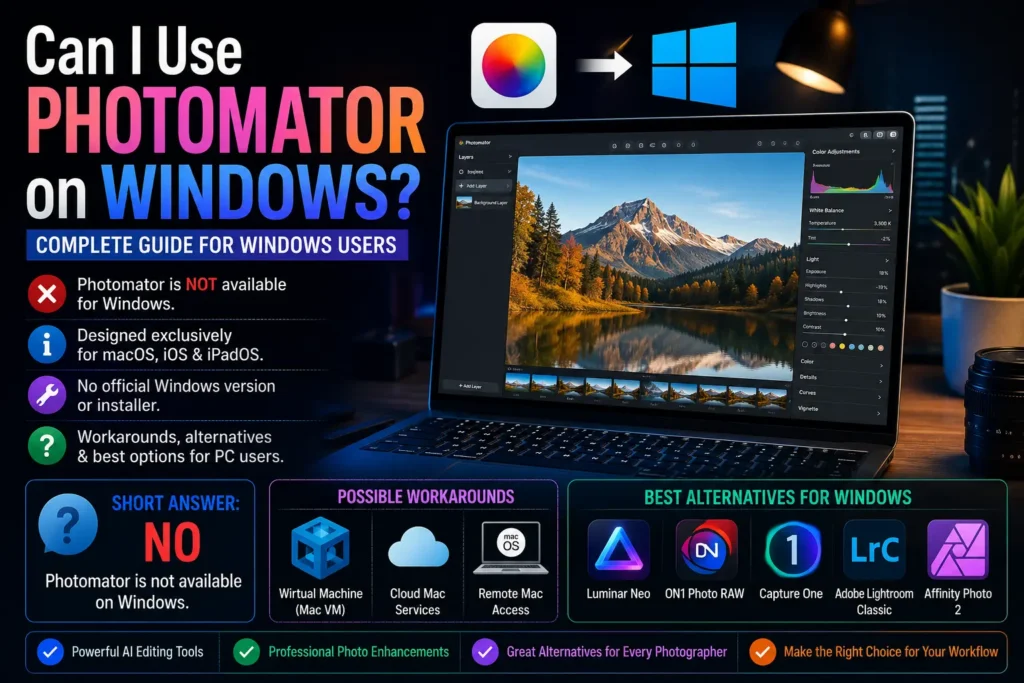
The short answer is no. Photomator is currently designed exclusively for Apple devices and does not officially support Windows PCs. However, the topic is more complex than a simple yes-or-no answer. Many users want to understand why the software remains Apple-only, whether workarounds exist, and which Windows alternatives provide similar AI editing experiences.
This complete guide explains everything you need to know about Photomator on Windows, including compatibility limitations, potential workarounds, the best alternatives for PC users, and whether switching to Apple hardware makes sense for serious photographers.
What Is Photomator?
Overview of Photomator
Photomator is an AI-powered photo editing application developed specifically for Apple’s ecosystem. Originally launched under the name Pixelmator Photo, the software later evolved into Photomator to better reflect its professional editing capabilities and modern AI-driven workflow.
The application targets photographers, content creators, social media professionals, and hobbyists who want advanced editing tools without the complexity of traditional professional software suites. Unlike many desktop editing platforms that overwhelm users with complicated interfaces, Photomator focuses on speed, simplicity, and intelligent automation.
One of the biggest reasons for its popularity is its deep optimization for Apple hardware. The software is designed to work seamlessly across macOS, iPadOS, iOS, and Apple Vision Pro devices. This tight ecosystem integration allows users to edit photos on multiple Apple devices while maintaining a consistent workflow.
Because of its Apple-first approach, many Windows users searching for “Photomator for PC” often discover that the app is unavailable outside Apple platforms.
Main Features of Photomator
Photomator includes several advanced tools that make it attractive for both casual and professional editing tasks.
AI Enhance is one of the application’s standout features. Using machine learning, the software automatically adjusts exposure, contrast, white balance, color tone, and detail levels to improve image quality in seconds. This feature appeals strongly to beginners who want professional-looking results without extensive manual editing.
RAW photo editing support allows photographers to work with uncompressed image files directly from professional cameras. The software preserves image detail while offering non-destructive editing workflows for better quality control.
Color correction tools provide precise adjustments for highlights, shadows, saturation, vibrance, temperature, and selective color grading. Photographers can create cinematic looks or natural enhancements depending on their creative goals.
Batch editing capabilities save time when editing multiple images at once. Users can apply the same preset or correction settings across large photo collections quickly and efficiently.
Photomator also includes customizable presets and filters for portraits, landscapes, social media content, and lifestyle photography. These presets simplify editing for creators who want consistent visual branding.
Another major advantage is iCloud syncing. Users can begin editing on an iPhone, continue on an iPad, and finish on a Mac without manually transferring files.
Is Photomator Available for Windows?
Official Answer
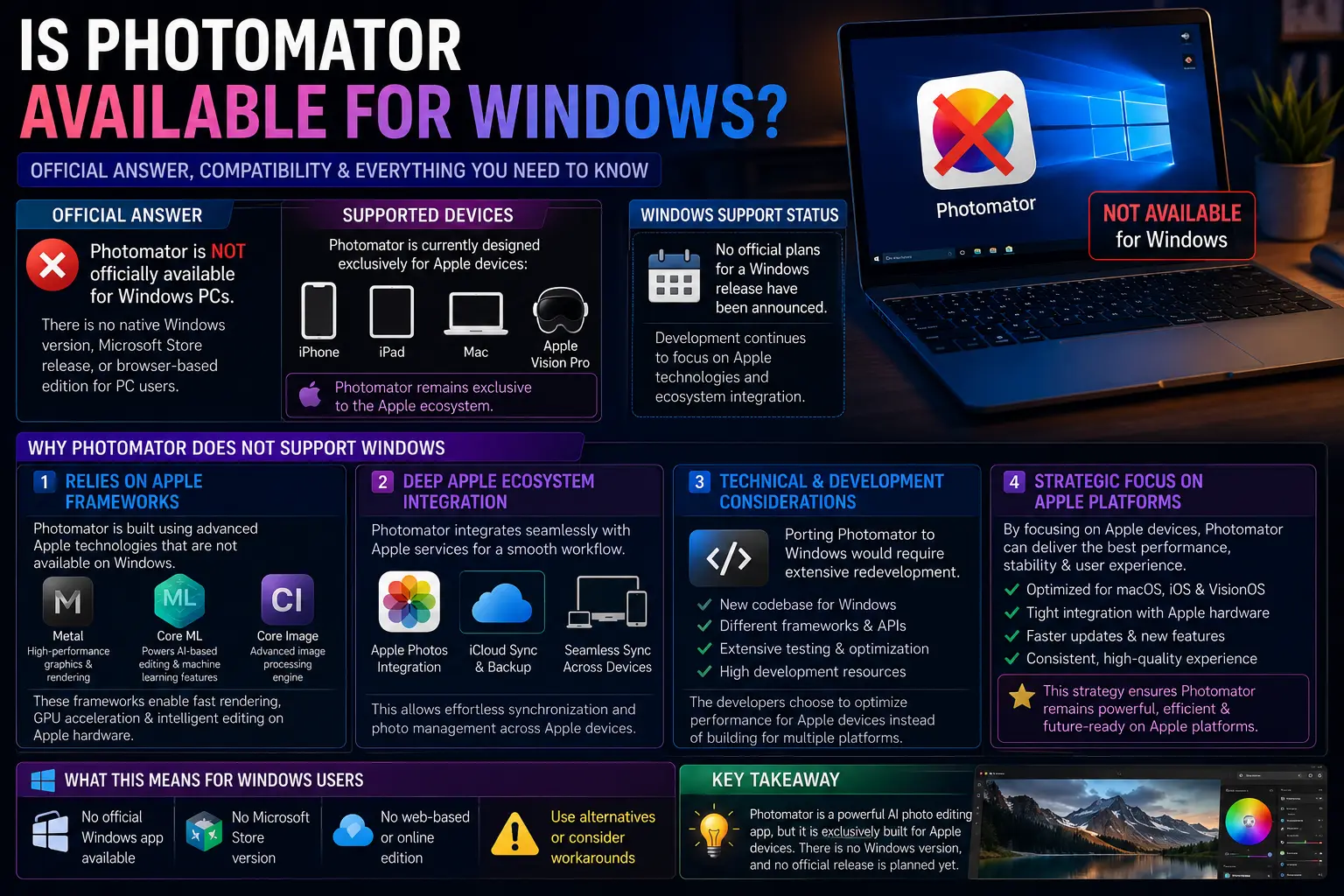
At the moment, Photomator is not officially available for Windows PCs. The application supports only Apple devices, including:
- iPhone
- iPad
- Mac
- Apple Vision Pro
There is currently no native Windows version, Microsoft Store release, or browser-based edition available for PC users. Anyone searching for “Photomator Windows support” or “Photomator on Windows 11” will find that the software remains exclusive to Apple platforms.
The developers behind Photomator have not announced official plans for a Windows release. Their development strategy continues to focus heavily on Apple technologies and ecosystem integration.
Why Photomator Does Not Support Windows
Several technical and strategic reasons explain why Photomator remains Apple-only.
The software relies heavily on Apple frameworks such as Metal, Core ML, and Core Image. These technologies allow Photomator to deliver fast rendering speeds, advanced GPU acceleration, and efficient machine learning processing on Apple hardware.
Metal, for example, is Apple’s graphics API designed for high-performance image rendering. Core ML powers the application’s AI editing features, while Core Image handles advanced photo processing tasks efficiently within macOS and iOS environments.
Photomator also integrates deeply with Apple Photos and iCloud. This integration allows seamless synchronization between devices and simplifies photo management for users already invested in Apple’s ecosystem.
Porting these technologies to Windows would require extensive redevelopment. Instead of rebuilding the software for multiple operating systems, the developers have chosen to optimize performance specifically for Apple devices.
Can You Run Photomator on Windows Anyway?
Using Virtual Machines
Some advanced users attempt to run macOS on Windows using virtual machines such as VMware or VirtualBox. In theory, this method allows users to install macOS inside Windows and then install Photomator within that environment.
Although technically possible, the process is complicated and rarely practical for everyday users. Installing macOS on non-Apple hardware often requires advanced configuration, custom drivers, and significant troubleshooting.
Performance is another major issue. Photo editing applications depend heavily on GPU acceleration and hardware optimization. Virtual machines usually reduce rendering speed, AI performance, and overall responsiveness.
For professional photo editing workflows, virtual machine solutions generally fail to provide the smooth experience that Photomator delivers on native Apple hardware.
Hackintosh Option
A Hackintosh refers to non-Apple hardware configured to run macOS unofficially. Some enthusiasts build custom PCs capable of booting macOS and running Apple-exclusive applications like Photomator.
While this may sound appealing to Windows users, Hackintosh systems involve serious complications. Compatibility problems, software instability, driver conflicts, and operating system updates can create ongoing maintenance headaches.
There are also legal concerns because Apple’s licensing agreements restrict macOS installation to Apple hardware.
For beginners or professional photographers who rely on stable editing workflows, Hackintosh systems are generally not recommended.
Cloud Mac Services
Another workaround involves renting a Mac in the cloud through remote-access services. These platforms provide virtual macOS environments accessible from Windows computers.
Cloud Mac services can technically run Photomator, but they introduce additional costs, internet dependency, and latency issues. High-resolution photo editing may feel sluggish, especially when working with large RAW files.
For occasional access, cloud Mac services may work adequately. However, long-term use becomes expensive compared to investing directly in compatible hardware or alternative Windows software.
Why Photomator Works Best on Apple Devices
Apple Ecosystem Optimization
One reason Photomator receives such positive reviews is its deep optimization for Apple devices. The software feels exceptionally smooth because it was designed specifically for macOS and iPadOS environments rather than adapted from a cross-platform framework.
Apple Silicon processors such as the M1, M2, and newer M-series chips significantly improve editing performance. These processors combine CPU, GPU, and AI acceleration capabilities efficiently, allowing Photomator to process RAW images rapidly with minimal lag.
This optimization gives Apple users faster exports, smoother previews, and responsive editing even when working with large photo libraries.
Seamless iCloud Integration
Photomator’s iCloud integration is another major advantage unavailable on Windows systems.
Users can capture photos on an iPhone, edit them on an iPad during travel, and complete detailed adjustments later on a MacBook. Edits synchronize automatically without requiring manual file transfers.
This workflow appeals strongly to creators who value convenience and mobility. The editing experience feels unified across all Apple devices, making the software especially attractive for photographers already invested in the Apple ecosystem.
AI Performance Benefits
Photomator’s machine learning tools also perform exceptionally well on Apple hardware. Features like AI Enhance rely on neural processing capabilities built directly into Apple Silicon chips.
As a result, tasks such as automatic color correction, detail enhancement, noise reduction, and object selection operate quickly and efficiently.
Smooth RAW editing and faster rendering times make the software particularly effective for photographers working with large image files.
Read More : What Devices Are Compatible with Photomator
Best Photomator Alternatives for Windows
Adobe Lightroom
Adobe Lightroom remains one of the best alternatives to Photomator for Windows users. It offers professional-grade RAW editing, cloud synchronization, AI masking tools, and extensive preset support.
Lightroom works across Windows, macOS, mobile devices, and web browsers, making it ideal for creators who need cross-platform flexibility.
Its AI-powered editing features continue to improve, narrowing the gap between traditional editing workflows and modern intelligent automation.
Luminar Neo
Luminar Neo is another excellent AI photo editor for Windows. The software emphasizes intelligent editing tools similar to Photomator’s automated enhancements.
Features such as sky replacement, portrait enhancement, relighting, and background removal make Luminar Neo attractive for beginners and content creators.
The interface feels modern and user-friendly, making it easier for casual users to learn compared to some professional editing suites.
Capture One
Capture One targets professional photographers who require advanced color grading and tethered shooting capabilities.
The software provides exceptional RAW processing quality and detailed color control, making it popular among studio photographers and commercial creatives.
Although the learning curve is steeper than Photomator, Capture One offers some of the best image quality available on Windows platforms.
Affinity Photo
Affinity Photo is widely considered one of the strongest alternatives to Adobe Photoshop.
Unlike subscription-based editors, Affinity Photo offers a one-time purchase model. Users gain access to professional editing tools, layer-based workflows, advanced retouching, and RAW development features without monthly fees.
This makes it particularly attractive for budget-conscious creators seeking powerful editing capabilities.
Canva Photo Editor
Canva provides simple photo editing tools for social media creators and beginners.
Although it lacks the advanced RAW editing capabilities of Photomator or Lightroom, Canva excels in fast content creation, templates, and easy-to-use design tools.
For influencers and marketers focused primarily on online content, Canva offers convenience and accessibility.
Photomator vs Windows Photo Editors
| Feature | Photomator | Lightroom | Luminar Neo | Affinity Photo |
|---|---|---|---|---|
| Windows Support | No | Yes | Yes | Yes |
| AI Editing | Yes | Yes | Yes | Limited |
| RAW Support | Yes | Yes | Yes | Yes |
| iCloud Integration | Yes | No | No | No |
| Apple Optimization | Excellent | Moderate | Moderate | Moderate |
This comparison highlights how strongly Photomator prioritizes Apple integration while Windows alternatives focus more on cross-platform compatibility.
Should Windows Users Switch to Mac for Photomator?
When Switching Makes Sense
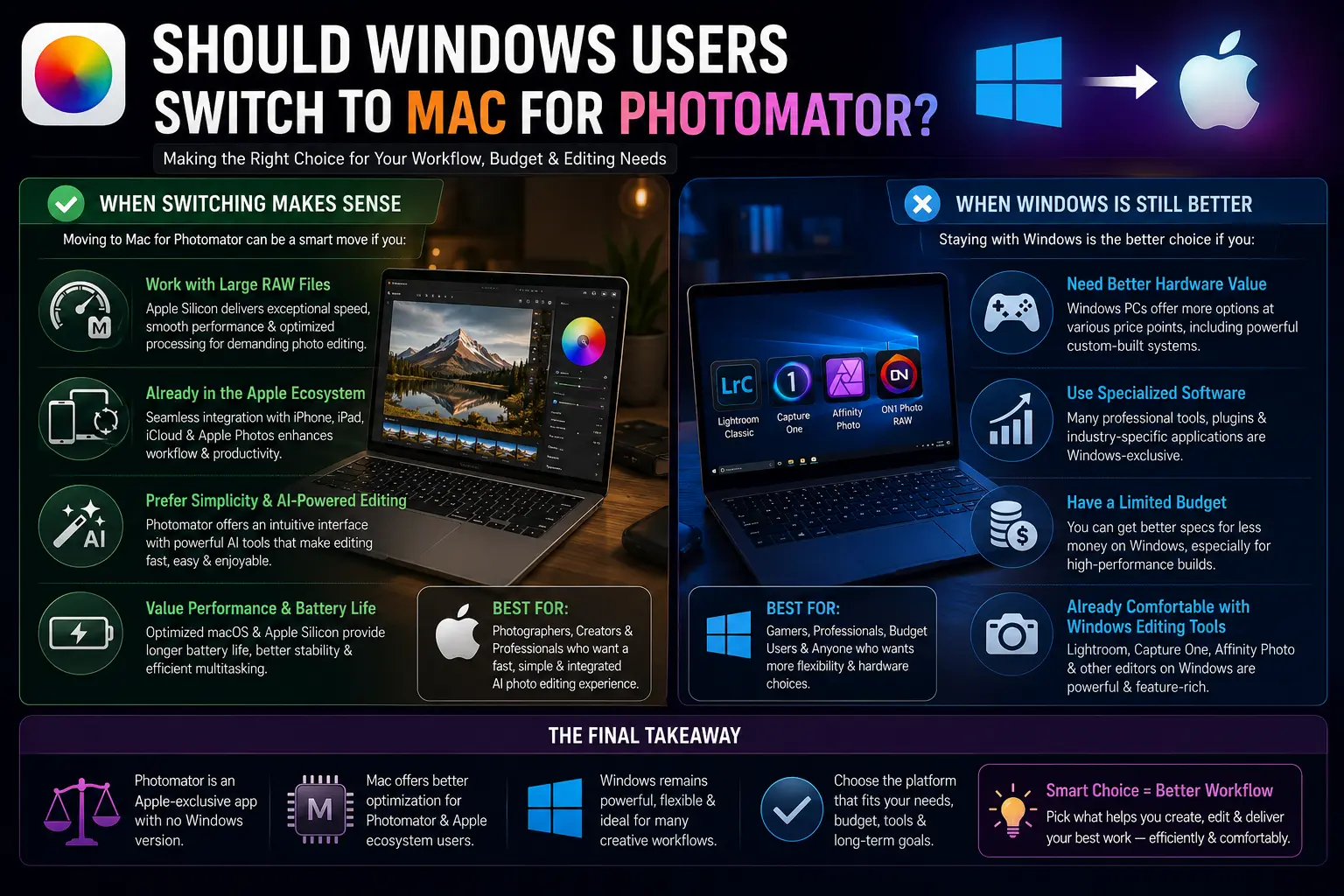
For some users, moving to Apple hardware specifically for Photomator may actually make sense.
Professional photographers working extensively with RAW files often benefit from Apple Silicon performance optimization. Fast exports, efficient battery life, and smooth editing workflows improve productivity significantly.
Creators already using iPhones, iPads, or other Apple products may also appreciate the seamless synchronization and continuity features offered by the Apple ecosystem.
Photographers who prioritize simplicity, AI-assisted editing, and mobile-friendly workflows may find the transition worthwhile.
When Windows Is Still Better
Despite Photomator’s strengths, Windows remains the better option for many users.
Gaming enthusiasts, productivity-focused professionals, and budget-conscious creators often receive better hardware value from Windows PCs. Custom-built systems also provide more flexibility for upgrades and hardware selection.
Additionally, Windows users already comfortable with Lightroom, Capture One, or Affinity Photo may gain little practical benefit from switching platforms solely for Photomator.
The availability of strong AI photo editors for Windows means most users can achieve professional results without leaving the PC ecosystem.
Best Apple Devices for Using Photomator
Best MacBook for Photomator
The MacBook Air with Apple’s M-series processors delivers impressive performance for casual and intermediate photographers. Its lightweight design, long battery life, and efficient processing make it ideal for mobile editing workflows.
Professional photographers handling large RAW libraries or high-resolution projects may prefer the MacBook Pro lineup. Additional GPU power, better thermal management, and improved display technology support demanding editing workloads more effectively.
Best iPad for Photo Editing
The iPad Pro paired with Apple Pencil creates an outstanding mobile editing experience for Photomator users.
Its touch-based interface feels intuitive for retouching, masking, and detailed adjustments. Many creators appreciate the flexibility of editing professionally while traveling or working remotely.
Best iPhone for Quick Editing
Recent iPhone models with advanced camera systems pair exceptionally well with Photomator.
Users can capture images, apply AI enhancements instantly, and share edited photos directly to social platforms without transferring files between devices.
Common Questions About Photomator on Windows
Will Photomator Ever Come to Windows?
Currently, there is no official announcement regarding a Windows version of Photomator. The developers continue focusing primarily on Apple ecosystem optimization.
Although demand from PC users exists, cross-platform development would require major architectural changes.
Can You Install Photomator Through Microsoft Store?
No official Windows app exists on the Microsoft Store. Any unofficial downloads claiming to provide “Photomator for PC” should be treated cautiously because they may involve security risks or fake software.
Is There a Web Version of Photomator?
Photomator does not currently offer a browser-based version. Users must install the application directly on supported Apple devices.
Can I Transfer Photomator Edits to Windows?
Edited images can be exported manually and transferred to Windows systems. However, project files, editing layers, and workflow synchronization remain limited outside Apple environments.
Pros and Cons of Photomator for Windows Users
Pros
Photomator offers excellent AI editing capabilities that simplify complex adjustments for photographers of all skill levels. Its RAW processing performance is highly optimized, and the seamless Apple ecosystem integration creates an efficient editing experience.
The clean interface also makes professional editing feel approachable for beginners.
Cons
The biggest limitation is the lack of Windows support. Users must own Apple hardware to access the software officially.
Cross-platform compatibility is limited, making it less practical for creators working across mixed operating systems. Users heavily invested in Windows workflows may also face unnecessary transition costs.
Tips for Windows Users Looking for Similar Editing Apps
Choose AI-Based Editors
Modern AI editing software dramatically speeds up photo enhancement workflows. Applications with intelligent masking, auto-enhancement, and object removal features provide experiences closer to Photomator’s editing style.
Prioritize RAW Compatibility
Photographers shooting in RAW format should prioritize editors with strong RAW development engines. Good RAW support preserves image quality and allows greater editing flexibility.
Look for Cloud Sync Features
Cloud synchronization simplifies multi-device workflows. Editors with integrated cloud storage improve accessibility and backup management for photographers working across laptops, desktops, and mobile devices.
Compare Subscription vs One-Time Purchase Apps
Some photo editors rely on monthly subscriptions, while others offer permanent licenses. Understanding long-term costs helps users choose software that fits both workflow needs and budget expectations.
Conclusion
Photomator is currently unavailable on Windows, and the software remains deeply tied to Apple’s ecosystem and technologies. While technical workarounds such as virtual machines or cloud Macs exist, they rarely provide the smooth experience users expect from professional editing software. Fortunately, Windows users still have access to outstanding alternatives like Adobe Lightroom, Luminar Neo, and Affinity Photo that deliver powerful AI tools and professional RAW editing capabilities. For creators already invested in Apple hardware, Photomator offers an exceptionally polished editing experience. However, most Windows users can achieve excellent results without switching platforms by choosing the right PC-compatible photo editor for their workflow and creative needs.