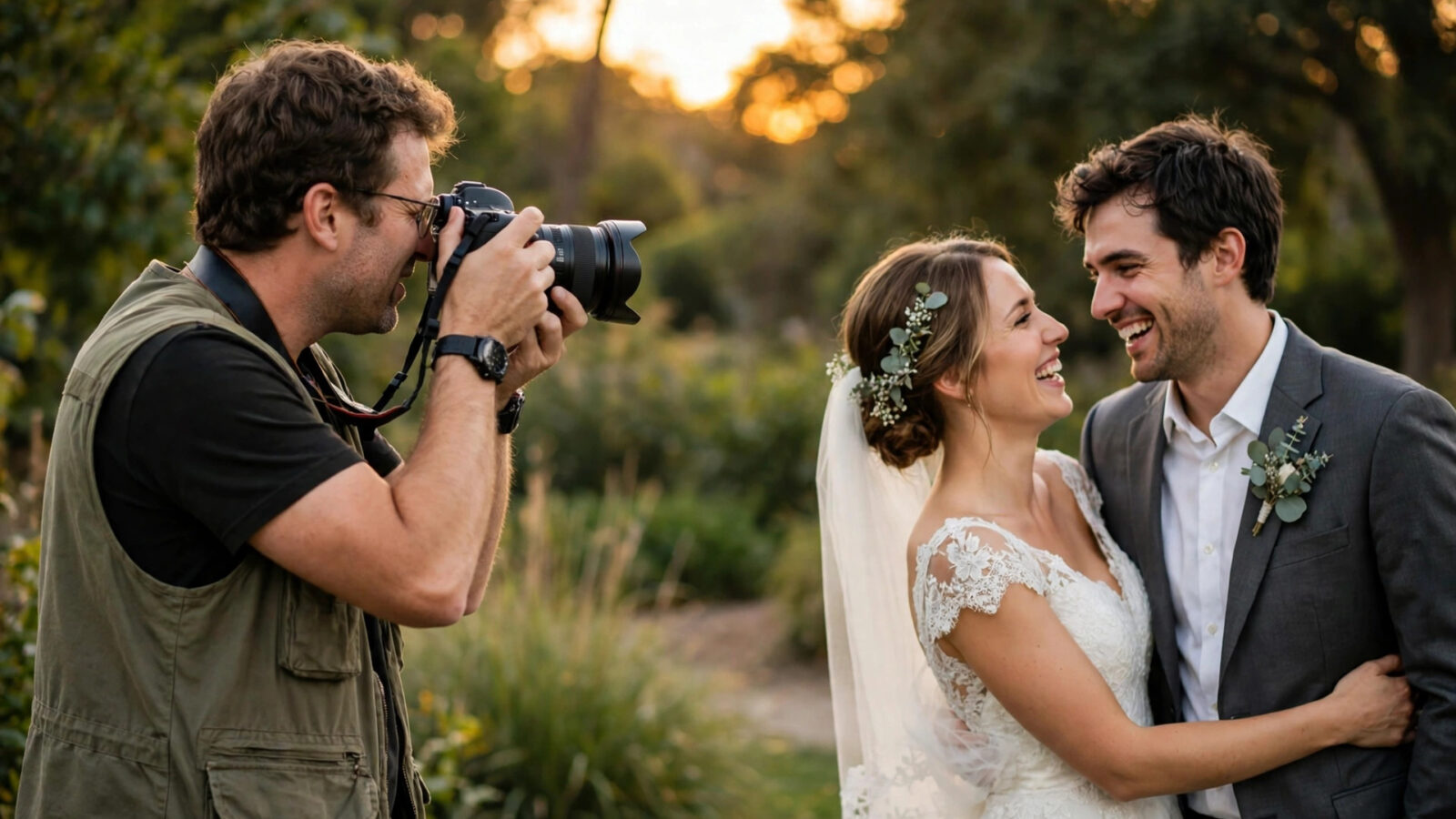
A wedding day does not wait for an editor. A wedding photographer returns from a long day with hundreds or thousands of frames, mixed light, changing venues, and a couple who expect their photographs to look natural, consistent, and finished. This review looks at Photomator for wedding photographers from that practical point of view: what it does well, where it helps a busy wedding workflow, and where its limits matter. It is not a promise that one app suits every wedding business, and it does not invent pricing or features. The aim is to help a wedding photographer judge whether Photomator fits the way they already work.
Photomator is a photo editor for Mac, iPhone, and iPad, with Apple Vision also presented as a supported platform on this site. Its core strengths are nondestructive editing, RAW and Apple ProRAW support, colour and tone controls, curves and levels, selective adjustments, presets, and batch editing. For wedding work, those strengths matter more than any single headline feature, because a wedding set is judged as a whole. One beautiful frame does not rescue a gallery in which skin tones drift from warm to cool, or in which the ceremony and the reception look as if they were shot on different days.
What Wedding Photographers Actually Need From an Editor
A wedding editor must handle volume first. The work is rarely one image at a time. A photographer needs to move through a large set quickly, apply a consistent starting point, correct the frames that need individual attention, and export a finished gallery without losing track of which version is final. Speed matters, but not at the cost of control. A fast app that forces heavy-handed corrections is no help when a bride’s dress, a groom’s suit, and a flower arrangement all sit in the same frame.
Consistency is the second requirement. Wedding photographs are viewed side by side, in albums, on screens, and in print. The eye notices small changes in skin tone and white balance quickly. An editor earns its place in a wedding workflow when it makes it easy to keep a consistent look across a ceremony in shade, portraits in open sun, and a reception under warm artificial light, while still allowing each scene to keep its own character.
The third requirement is restraint. Wedding photographs are personal records. Skin should look like skin, with texture and natural colour, not like a smoothed surface. White dresses should keep detail rather than blowing out into a flat shape. An editor that encourages subtle, selective work will serve a wedding photographer better than one that rewards dramatic global changes.
Skin Tones and Colour Consistency
Skin tone handling is where this review starts, because it is where wedding clients notice problems first. Photomator’s colour tools, white balance controls, curves, and selective adjustments give a photographer the means to correct colour carefully rather than applying one strong filter to every frame. A gentle white balance correction, followed by small curve and saturation adjustments, will usually keep skin believable across a set. Strong global saturation or contrast, by contrast, can quickly make skin look orange, blotchy, or washed out.
Selective editing helps most with the mixed-light situations weddings create. A ceremony under trees, a portrait beside a window, and a first dance under coloured lights do not share one colour problem. Subject, sky, and background selection, where available in the version in use, can help a photographer adjust one area without disturbing another. The practical advice is to use selection for the specific problem in front of you, such as a sky that is too bright or a background that draws attention away from the couple, and to check the result at full size before moving on.
Presets and LUTs can support consistency across a wedding set, provided they are used as a starting point rather than a finished look. A preset that suits an outdoor ceremony in daylight may be too warm for a reception or too cool for a shaded portrait. The useful approach is to build or choose a restrained preset, apply it to a representative set of frames, adjust it for each lighting situation, and then copy the settled adjustments to similar frames. That way the gallery keeps a family resemblance without forcing every scene into the same colour.
For detailed skin work, the guide to editing wedding photos in Photomator for natural skin tones covers the careful, light-touch approach this review recommends. The same restraint applies to portraits generally, as discussed in the Photomator review for portrait photographers.
Batch Editing and Large Wedding Sets
Batch editing is one of the strongest reasons a wedding photographer might consider Photomator. Copying and pasting adjustments, or applying a preset across a group of frames, can turn hours of repetitive work into a manageable first pass. The key is to batch only what is genuinely shared: exposure correction for a burst taken in the same light, a white balance starting point for one venue, or a consistent crop ratio for a series of portraits.
Batch work should never be the last step. Every wedding set contains frames that break the pattern: a sudden change in light, a guest stepping into shade, a flash frame beside a natural-light frame. After a batch pass, a photographer should review the set frame by frame, at least briefly, and correct the exceptions individually. That review is also where focus, expression, and storytelling are judged, and no batch setting can do that work.
Organisation matters as much as editing speed. Photomator works with the Photos library and iCloud, as presented on this site, which suits photographers who already keep their library in Photos. A photographer who relies on a folder-based catalogue or a different asset manager should test the import and export flow with a real wedding set before committing to it for a paid job. The editor should fit the library, not force the library to fit the editor.
Detail, Repair, and Difficult Light
Wedding photographs often need small repairs rather than large corrections. A distracting exit sign, a stray hair, a mark on a dress, or a guest’s phone in the background can pull attention away from the couple. Repair and Clone tools, used sparingly, can remove small distractions without leaving an obvious patch. The test is simple: if a viewer notices the repair, it has gone too far or been applied to the wrong area.
Detail tools need the same restraint. Denoise can help with high-ISO reception frames, and Super Resolution can help when a small crop must be printed larger, but both should be used only when the specific file needs them. A wedding gallery viewed at normal sizes will forgive a little grain far more readily than it will forgive waxy skin or sharpening halos around hair and lace. Check detail work at full size, and compare with the original before deciding it is an improvement.
Difficult light is the normal condition of wedding photography, not the exception. Ceremonies move from shade to sun, receptions mix candlelight, string lights, and flash, and getting-ready rooms often combine window light with overhead bulbs. Curves and levels, exposure recovery, and selective adjustments give a photographer room to recover highlights in a dress and open shadows in a dark suit without flattening the whole frame. The goal is a believable range of tones, not a perfectly even exposure in every corner.
Working on Mac, iPhone, and iPad
Most wedding photographers will do the bulk of their editing on a Mac, where a large screen, a precise pointer, and keyboard shortcuts make long sessions easier. Photomator on Mac supports that kind of focused work, with a histogram, curves, and batch tools close at hand. A photographer who edits hundreds of frames in one sitting should set up a comfortable, repeatable order of operations and stick to it, so that fatigue does not lead to inconsistent decisions late in the set.
The iPhone and iPad versions are most useful as companions rather than replacements for the Mac in a wedding workflow. A photographer might review a set on an iPad, make a first pass on a train or at home, or show a couple a few finished frames on a tablet. Touch editing can be quick for global adjustments and cropping, but fine selective work and long batch sessions are usually easier with a mouse or trackpad and a larger display. The practical test is to edit the same twenty frames on each device and compare both the results and the time taken.
Sync through iCloud and Photos, where it is used, can help a photographer move between devices without exporting intermediate files. That convenience depends on the photographer’s library setup, storage, and internet connection, so it should be tested with a full wedding set, including RAW files, before it is relied on for a deadline. A photographer should always know where the original files live and how to reach them if sync is slow or unavailable.
Export, Delivery, and Client Expectations
Export is part of the review, because a wedding edit is not finished until the client can view, share, and print it. Photomator’s export settings should be chosen for the delivery purpose: full-resolution files for an album or print order, sensibly sized JPEGs for an online gallery, and smaller files for social sharing where the platform will compress them further. Exporting one master set and deriving smaller versions from it keeps the workflow simple and reduces the chance of delivering the wrong size.
Colour expectations need managing. A gallery that looks right on a calibrated Mac display may look warmer or cooler on a client’s phone. That is a property of screens, not of one editor, but it is a reason to keep edits natural and to avoid extreme colour choices that will look worse on an uncalibrated display. If a couple will print an album, a test print of a few key frames is worth more than any amount of on-screen checking.
Delivery also means honesty about turnaround. An editor that helps a photographer finish a wedding set in days rather than weeks is valuable, but only if the finished set is consistent and complete. A photographer should build a realistic schedule that includes culling, editing, review, export, and a final check, and should not promise a delivery date that depends on an untested workflow.
Limits and Honest Drawbacks
No editor is right for every wedding photographer, and Photomator has limits that should be weighed honestly. It is a photo editor, not a full wedding business system. It does not replace a client gallery service, a booking system, or a backup strategy. A photographer who needs tethered shooting, advanced catalogue management, or deep integration with a particular studio system should check those requirements directly against the current version before buying.
Photographers who rely heavily on Photoshop-style compositing, complex layer work, or third-party plug-ins may find Photomator’s focused toolset too narrow for those specific jobs. That is not a flaw in itself; it is a statement about scope. For straightforward, high-quality wedding editing, a focused toolset can be an advantage, because it keeps the photographer on the image rather than on the software. For composite-heavy work, a second tool may still be needed.
Pricing and trial terms change, and this review deliberately does not state them. A wedding photographer should check the current App Store listing for the latest pricing, trial availability, subscription or purchase options, and supported devices and operating system versions. A trial, where available, should be used on a real wedding set, not on a handful of test images, because only a real set reveals whether the workflow holds up under volume.
A Practical Wedding Workflow in Photomator
The following workflow brings the points above together in a repeatable order. It assumes the photographer has already culled the set and backed up the originals, which should happen before any editing begins.
- Import the culled set and review it at full size, noting the lighting situations that need different starting points.
- Correct white balance and exposure for one representative frame from each lighting situation, using curves for a natural result.
- Settle a restrained preset or copied adjustments for each situation, and apply it as a batch starting point to similar frames.
- Review every frame individually, correcting skin tones, selective details, and distractions where needed.
- Crop and straighten in small steps, keeping a consistent feel while respecting each composition.
- Compare the finished set with the originals, check exports at the sizes the client will receive, and deliver with a clear file structure.
This order keeps the big decisions early, when energy is high, and leaves the fine corrections for the individual review, where they belong. It also makes it easy to stop and resume work without losing track of what has been finished.
Who Should Choose Photomator for Weddings
Photomator is a strong choice for a wedding photographer who values natural colour, nondestructive editing, batch efficiency, and a clean, focused interface, and who works mainly within the Apple Photos and iCloud way of organising a library. It suits photographers who want to spend their time on the image rather than on managing a complex catalogue, and who are happy to keep specialised compositing or studio tools separate where they are needed.
It is a weaker fit for a photographer who needs a single system to handle booking, delivery, cataloguing, and heavy compositing, or who depends on plug-ins and workflows that Photomator does not support. In that case, Photomator may still be useful as an editor within a wider toolkit, but it should not be bought on the assumption that it will replace everything else.
The fairest way to decide is to test it on a complete wedding set under deadline conditions. Edit the ceremony, the portraits, and the reception, export the delivery sizes, and show the results to someone who was not at the wedding. If the gallery looks consistent, natural, and finished, and the workflow felt sustainable, Photomator has earned its place. If the workflow fought you at any stage, that friction will only grow with a busier season.
Frequently Asked Questions
Is Photomator good for wedding photographers?
Photomator can be a good choice for wedding photographers who value natural colour, nondestructive RAW editing, batch work, and a focused interface. Its fit depends on the photographer’s library setup, volume, and whether they need tools beyond straightforward editing, so it should be tested on a real wedding set before it is relied on for paid work.
Can Photomator handle a full wedding set with hundreds of photos?
Yes, batch editing and copied adjustments can handle a large wedding set as a first pass, provided the photographer reviews frames individually afterwards. Batch only what is genuinely shared, such as exposure or white balance for one lighting situation, and correct exceptions one by one.
How do I keep skin tones consistent across a wedding gallery in Photomator?
Correct white balance first, use gentle curves and selective colour adjustments, and apply a restrained preset as a starting point for each lighting situation rather than one preset for the whole day. Check skin at full size, compare frames from different venues side by side, and avoid strong global saturation.
Is Photomator better on Mac or iPad for wedding editing?
For most wedding photographers, the Mac is the better main editing device because of its larger screen, precise control, and suitability for long batch sessions. The iPad is useful for review, first passes, and showing work to clients, while the iPhone suits quick checks and small adjustments.
What should I check before buying Photomator for wedding work?
Check the current App Store listing for pricing, trial terms, supported devices, and operating system requirements. Then test the full workflow on a real wedding set: import, batch editing, selective work, export sizes, and backup. Confirm that it fits the photographer’s library, delivery, and turnaround needs before committing.