
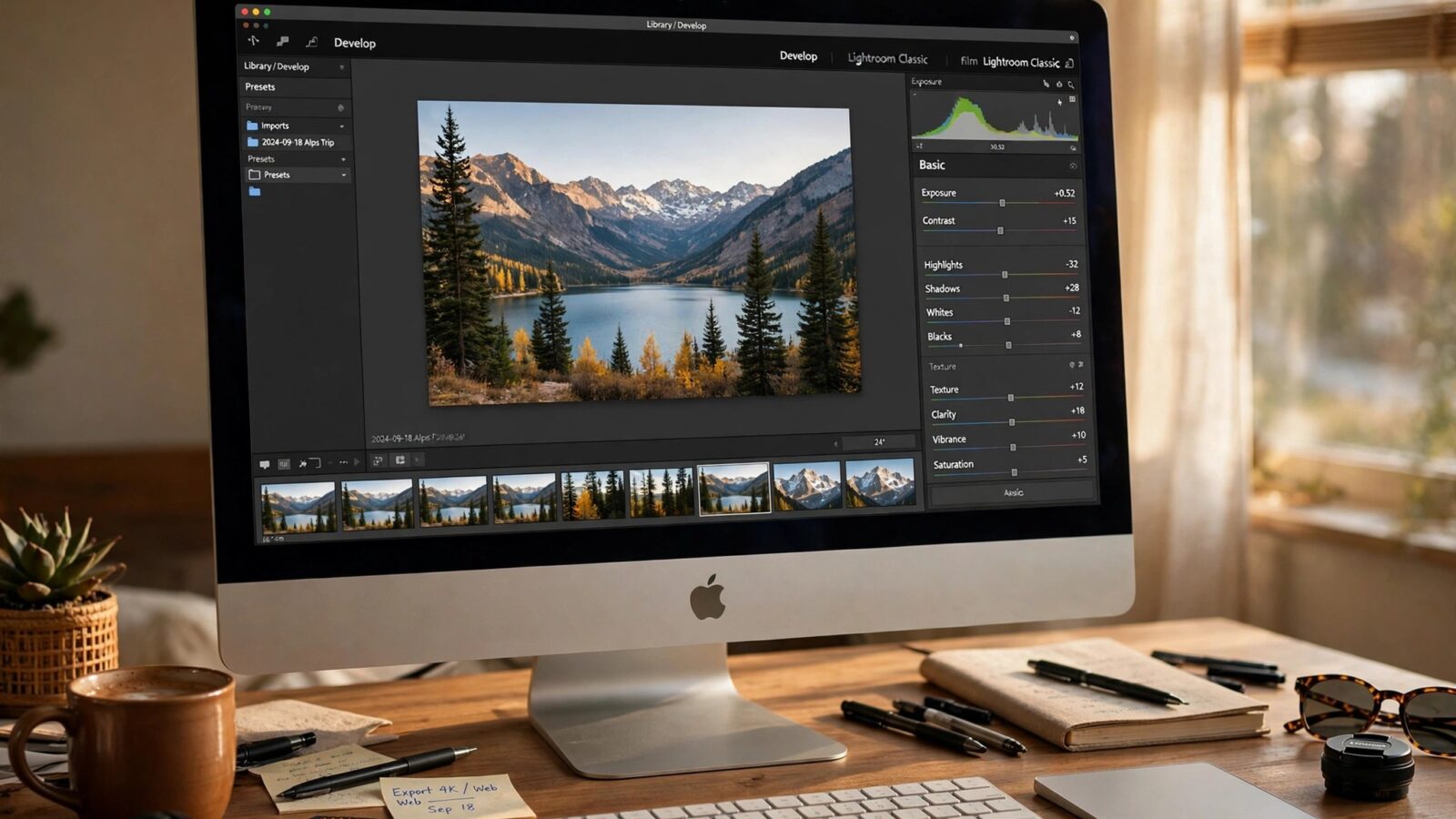
Photomator keyboard shortcuts for faster editing on Mac are less about memorizing a long list and more about removing the small pauses that add up across a full shoot. Every trip to a menu, every drag to a slider and every repeated click costs a few seconds, and over hundreds of photos those seconds become hours.
This guide shows you how to build a faster keyboard habit in Photomator on Mac, without forcing yourself to learn everything at once.
Start With the Shortcuts You Already Know
Photomator follows familiar Mac conventions, so the universal shortcuts you use in other apps already help here. Undo, redo, copy, paste and saving your work behave the way Mac users expect, which means you can focus on learning the editing-specific habits rather than a new system from scratch.
The fastest way to learn more is to watch the menus. When a menu item shows a shortcut beside it, that is the shortcut for that action in Photomator. Trying it once, in a real edit, teaches it far better than reading a list ever will.
Learn Five Shortcuts, Then Add More
Do not try to learn twenty shortcuts in one sitting. Pick five that match the actions you repeat most: moving between photos, undoing a change, toggling a before and after view, switching tools and exporting. Use only those five for a week, until they feel automatic.
Then add the next group, the ones that support your most common adjustments. This staged approach is how professional editors actually build speed. A small set used without thinking beats a large set you have to stop and remember.
Build Shortcuts Into Your Editing Order
Shortcuts pay off most when they support a consistent order. Move through a set in the same sequence each time: select, correct exposure and color, shape the look, check the set, then export. When the order never changes, your hands learn where to go next, and the keyboard becomes part of the rhythm instead of an interruption.
For a repeatable order that works well with batch work, see how to batch edit photos in Photomator and keep quality high. Speed comes from the combination of a clear workflow and a few well chosen shortcuts, not from either one alone.
Use Before and After Checks Often
One of the most valuable habits is checking your edit against the original frequently. It keeps you from drifting too far, and it is much faster from the keyboard than from a menu. Make it part of every photo, not something you remember at the end of a set.
Customize Where the Mac Lets You
If an action you use constantly has no shortcut you like, macOS itself can help. In System Settings, under Keyboard shortcuts, you can assign a shortcut to a menu command for a specific app. Use this sparingly, for one or two high value actions, and choose combinations that do not clash with shortcuts you already use.
Keep a short personal list of your custom shortcuts somewhere visible while you learn them. After a week, you will not need the list, and you can add the next habit.
Common Mistakes That Slow You Down
The biggest mistake is learning shortcuts but keeping a mouse-first workflow. If you reach for the menu out of habit, the shortcut never becomes automatic. Commit to using the keyboard version for your chosen five, even when it feels slower for the first few days.
The second mistake is over-customizing. Changing everything at once makes the app feel unfamiliar and slows you down more than it helps. Change little, practice a lot, and let speed build naturally.
For the color and tone side of faster editing, it also helps to know how to use curves in Photomator for better contrast and tone, since a confident curves habit reduces the number of small corrections you need later.
Conclusion
Faster editing on Mac is a habit, not a trick. Learn the shortcuts shown in the menus, start with five you use constantly, build them into a consistent editing order and customize only where it clearly helps. Within a few weeks, Photomator keyboard shortcuts will feel like a natural part of editing, and your shoots will move noticeably faster.
Frequently Asked Questions
How many keyboard shortcuts should I learn first?
Start with five that cover your most repeated actions, such as moving between photos, undoing changes and checking before and after views. Add more only once those feel automatic.
Where do I find Photomator keyboard shortcuts on Mac?
Look beside menu items in Photomator, where the app shows the shortcut for each command. That is the most reliable place to learn them, since it reflects the version you are actually using.
Can I create my own shortcuts for Photomator on Mac?
Yes, macOS lets you assign shortcuts to menu commands for a specific app through System Settings, under Keyboard shortcuts. Use this for one or two high value actions, and avoid combinations that clash with existing shortcuts.
Do keyboard shortcuts really save much time?
Yes, because editing involves hundreds of repeated actions. Saving even a second or two on each one adds up to a meaningful amount across a full shoot, and the benefit grows as the habits become automatic.